We will be covering the Encrypt and Decrypt functions featured in the week 7 Ampscript Bootcamp that is hosted and created by Jyothsna Bitra as part of the Phoenix Salesforce Marketer Group.
For more information on the Phoenix Salesforce Marketer Group please follow this link to sign up: https://trailblazercommunitygroups.com/salesforce-marketer-group-marketing-cloud-phoenix-united-states/
The video below covers these functions as well as String functions.
Encrypt/Decrypt Function Setup – Installed Package Data Points
As outlined in the video above we want to encrypt and decrypt sensitive data in our marketing assets in this example a Marketing Cloud page. In that Cloud Page we are sending data back into our Marketing Cloud instance via an API call or Installed Package where the sensitive information is the Client ID and Client Secret.
Here is a screen capture of the Installed Package in the instance that contains the data to be used in this demo:

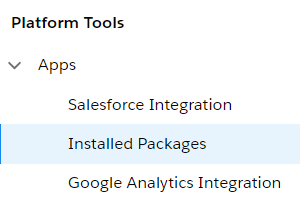
(1) Installed Packages are located in Setup, under Platform Tools > Apps. For more information on this topic read: https://handsonsfmc.com/2023/04/01/journey-builder-custom-activity-wait-until-event-installed-package/
(2) The Client ID and Client Secret are needed to connect via an API call from a 3rd party source, in our case a cloud page. It’s best practice to avoid displaying these keys in your Cloud Page code. For more information on how to use these data points to connect via API read: https://handsonsfmc.com/2023/04/21/journey-builder-custom-activity-wait-until-event-ssjs-api-call-coding-part-i/
(3)(4) The Auth and Rest URLs are used in the syntax for the API call but don’t need to be encrpyted.
Encrypt/Decrypt Function Setup – Validation in Content Builder
Ideally the home for this code will be on the Marketing Cloud Cloud Page, but we like to visualize this in Content Builder first for two reasons (1) Content builder can validate quicker than Cloud Pages as you don’t need to save and publish changes and (2) The errors in Content Builder are more detailed to help you work through the code.
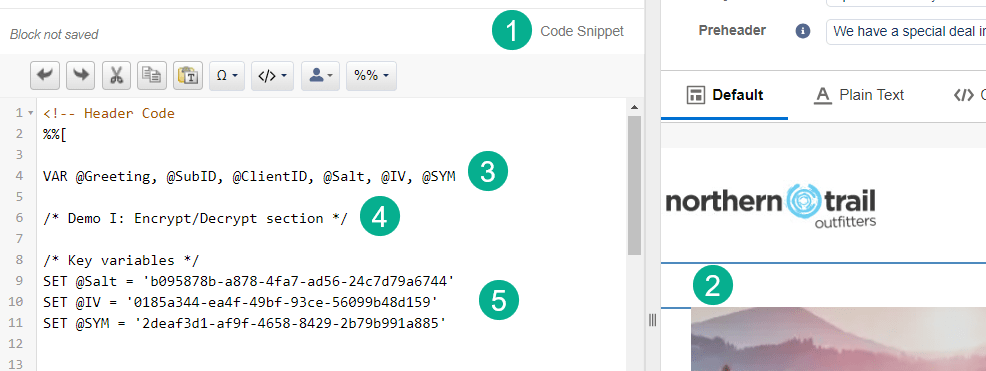
Here’s our basic setup in content builder to allow us to validate the encryption/decryption of the Client ID/Secret:
(1) In an email (preferably an email built in an Email Design System), add a “Code Snippet” content block as this type of block is recommended for utilizing ampscript.
(2) Drop that code snippet block near the top of the email.
(3) Declare all of your variables in the VAR statement to follow coding best practices.
(4) Comment out your code to help future coders (including yourself) break down what the code is doing.
(5) Key variables! For our demo we have the three keys used in encryption/decryption pre populated. For an overview of how to create keys please read: https://handsonsfmc.com/how-to-create-keys-in-marketing-cloud/
Encryption Function
Here’s how Salesforce breaks down this function: https://developer.salesforce.com/docs/marketing/marketing-cloud/guide/EncryptSymmetric.html
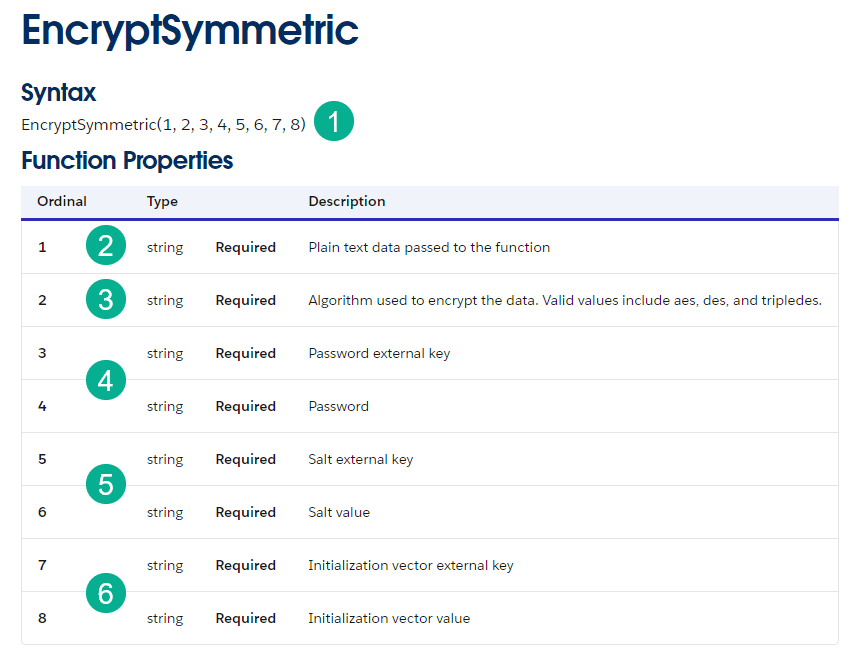
(1) Syntax which includes eight variables, but don’t worry it’s not as as bad as it looks.
(2) The variable that you are looking to encrypt, which in our case is the Client ID.
(3) An encrypting algorithm, we typically use AES. What does AES mean, it’s a type of encryption designation, for more on the details of AES read: https://en.wikipedia.org/wiki/Advanced_Encryption_Standard
(4)(5)(6) These are all the same pairings of (a) the external key of each key type and (b) the password.
Salesforce provides an actual example which is really helpful and in our case we will simply copy and drop into our code snippet block:

(1) Set your encryption function to a variable which will be used to Decrypt later.
(2) Here’s that data point that will be encrypted. It can also be a variable which won’t need quotes.
(3) Examples of the key pairing. What does @null as a password represent? We did a Google search on this and didn’t find an answer. Maybe this value is set by the Encryption function? If you know please add a comment to this post. We just follow the example and use @null.
Dropping this syntax into our code snippet it’s pretty straightforward to modify to to fit our use case.
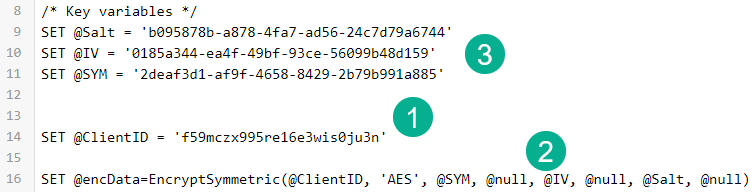
(1) Setting the Client ID to a variable.
(2) Swapping out the three different key code variables (3) in the syntax.
Decrypt function
With this encrypted let’s take a look at the decrypted function details which are very similar.
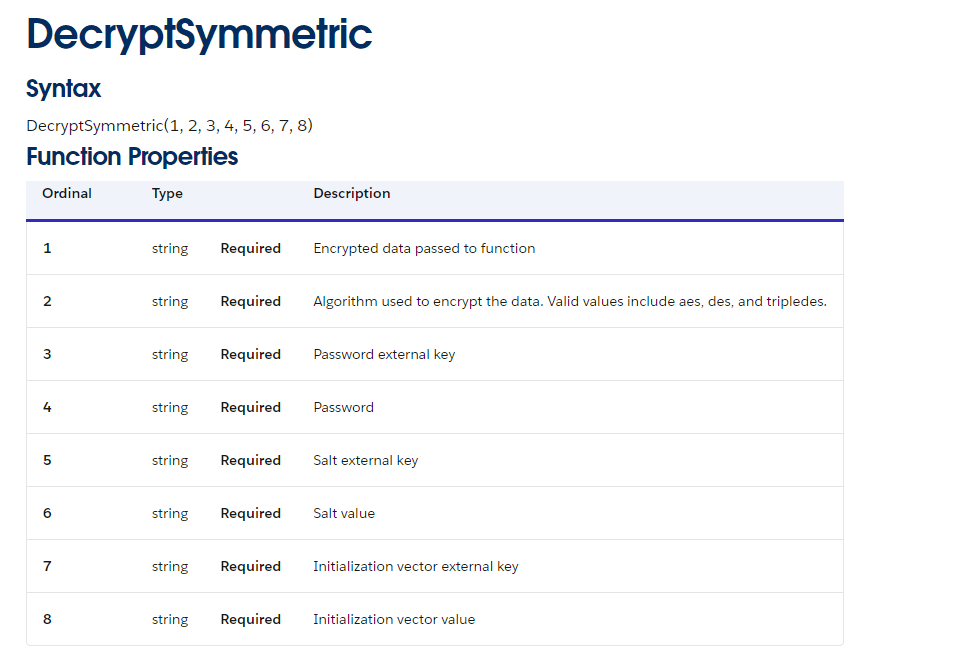
Salesforce provides an excellent example which we’ll copy and drop into our code snippet.

And after folding this syntax:

(1) The @decData variable is set to return the decrypted value.
(2) It’s decrypting the @encData variable set on line 16.
(3) The syntax is exactly the same as Encrypt.
Validation
In a content block in our email we can output the three values to verify the encryption works as expected:
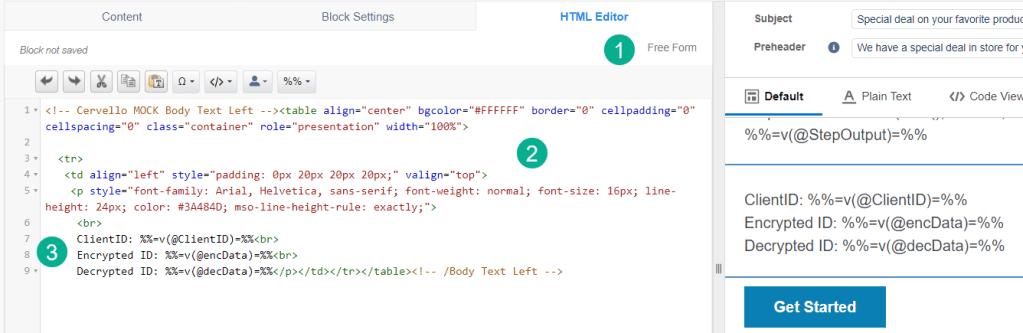
(1) A standard text block in an email design system can be a “Free Form” content block.
(2) Sample HTML code to set up styling for the block.
(3) Using the “v” function outputting each variable to validate.
And after a simple preview and test here’s the output:

(4) The Client ID variable before encrypting
(5) The syntax for the encrypted variable. Save this value as it can be decrypted in any asset.
(6) After decrypting we return back to the original Client ID value.
Cloud Pages Use Case
Let’s take a look how these functions can be used in a Cloud Pages use case:
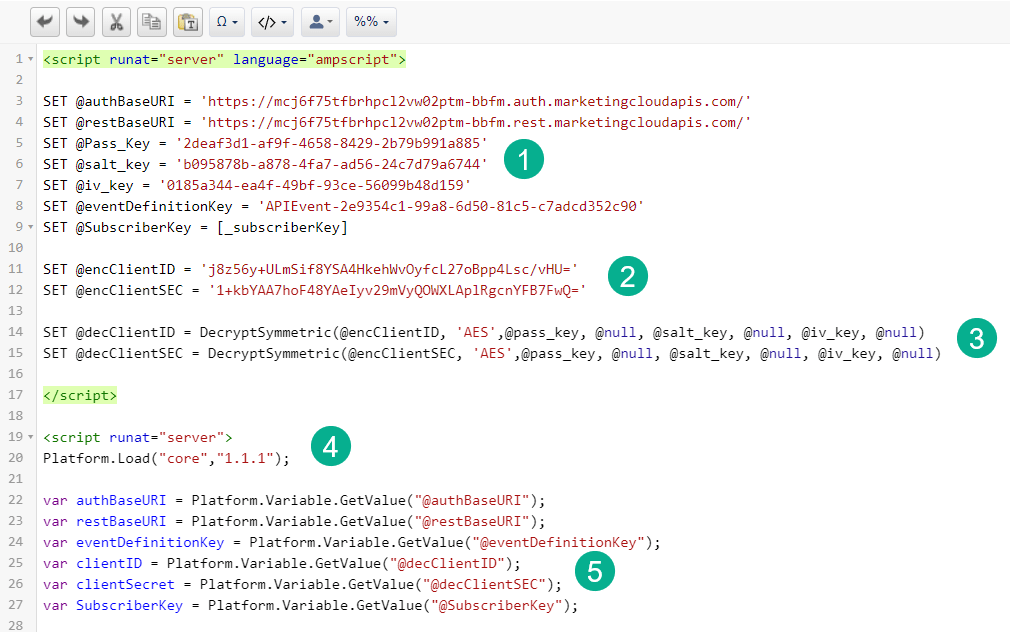
(1) In a Cloud Pages block setting the script to the ampscript language we declare the three different keys.
(2) Now that we’ve generated the encrypted keys in our email content we can declare these as variables.
(3) And decrypt them setting each to a varable.
(4) Switch to SSJS.
(5) Convert the two variables to SSJS to be used later in the code to make the Auth and Rest calls.
Have fun using the Encryption and Decryption functions. Later on in this video the team dives into String functions which will be covered in a future post.
 handsonsfmc.com