In this session the team continues highlighting essential areas of the Ampscript Bootcamp series hosted with the Phoenix Salesforce Marketing Group. In this session Sandesh utilizes the UpsertData and UpdateData functions that updates an existing record added to a data extension via a cloud pages form. This is part of his Data Extension Ampscript Bootcamp featured below.
For more information on the Phoenix Salesforce Marketer Group please follow this link to sign up: https://trailblazercommunitygroups.com/salesforce-marketer-group-marketing-cloud-phoenix-united-states/
PART I: Overview of UpsertData code
The UpsertData function gives the user the ability to update a row of data in a data extension. The data extension that it will be updating has to have a field that is designated as the Primary key. And remember if no match is found it will insert a new record so it’s like InsertData with a cool upsert data field function as well.
Definition: Primary Key
A primary key designates a field or fields as significant for evaluating data in a Data Extension. Adding this property to a Data Extension will result in those fields being indexed. https://help.salesforce.com/s/articleView?id=000388307&type=1
Whenever building a data extension in Marketing Cloud always consider if there’s a field, typically the subscriber key that should be designated as the primary key. This is the key that will designate the unique value of a record in the data set.
Here’s the code for UpsertData outlined in Sandesh’s video and a breakdown of the key parts of the code.

(1) The name of the data extension you want to update
(2) The number of columns or value pairs used to make the match to the record (in Sandesh’s example he has only 1 matching the record on the email address)
(3) The column in the data extension to do the match
(4) The value that will be doing the match, in the case above the actual email address
(5) Additional values to be updated and their variable values
Let’s take a closer look at how Sandesh codes to handle these three data points.
For reference check out Sandesh’s blog post on the InsertData function: https://handsonsfmc.com/part-four-insertdata/
PART II: Set Data Extension as a variable
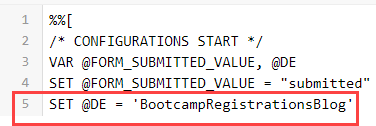
Instead of entering in the name of the data extension in the function, set a variable in the Configurations section. This has two main benefits:
(1) If you set all of your configurations in one place, most likely the top, if you need to validate the source data points they will all be in the same place. No need to scan through the code to find each data points
(2) Set the data extension once as a variable and then you can use the variable multiple times throughout the code.
PART III: The RequestParameter Function
Requestparameter can be used to convert a form field value to a variable. Taking a closer look at the details for the function in the Ampscript Guide: https://ampscript.guide/requestparameter/
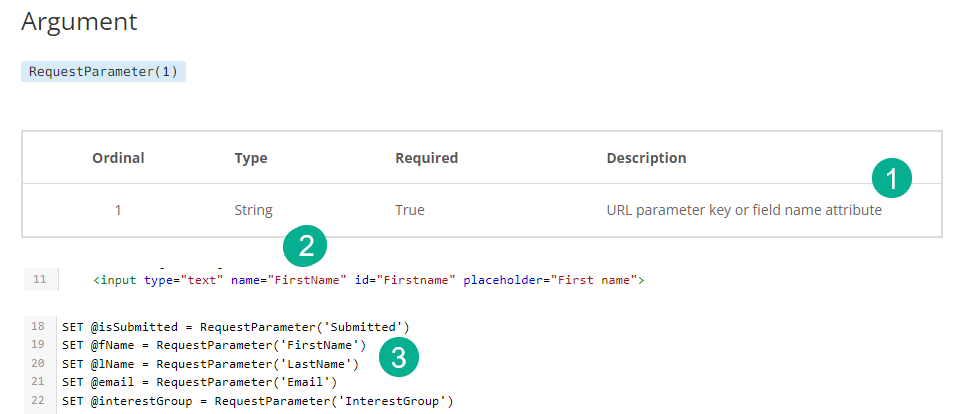
(1) The description on Ampscript Guide, look for field name
(2) The HTML code on the cloud page “name=’firstName’ in an input tag, for more information on input tags: https://www.w3schools.com/tags/tag_input.asp
(3) In your ampscript block how to set a variable using the Requestparameter function.
PART IV: UpsertData setup
Following the documentation let’s fill in the UpsertData function

1.) Fill in the required fields looking to populate five different variables that are present in our data extension
2.) To populate the current date we’re leveraging the Now function where an empty value “Now()” returns the time that the data was processed: https://ampscript.guide/now/
PART V: Testing
Save and publish the changes/additions made above and let’s test by selecting an existing record to update:
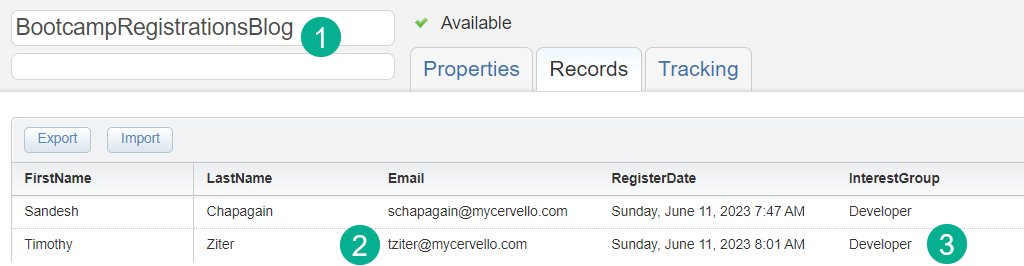
(1) Our data extension
(2) The record and primary key (email address) that we want to update
(3) The Interest Group field that we want to change from Developer to Admin
Now let’s enter in the data to update in the form.
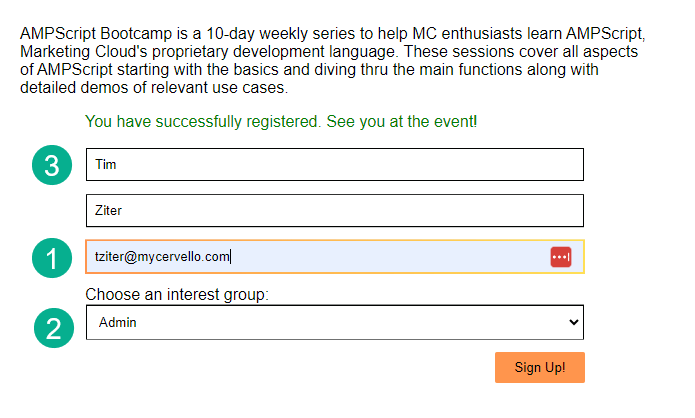
(1) The email address
(2) Changing to “Admin”
(3) Let’s change one more field from Timothy to Tim
And the end result, both fields changed and the date updated as well.
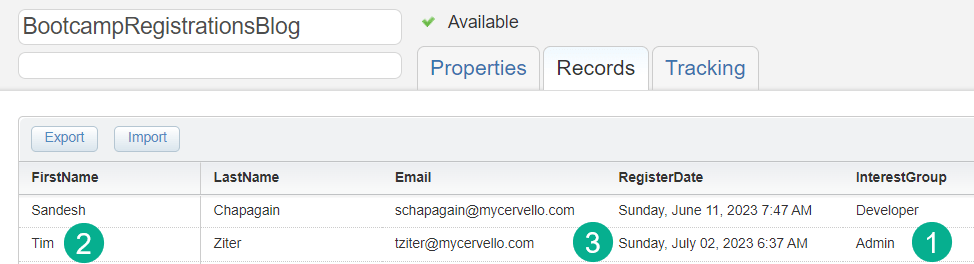
(1) InterestGroup updated from “Developer” to “Admin”
(2) FirstName updated from “Timothy” to “Tim”
(3) The RegisterDate was updated
PART VI: Enhancements
To enhance the end user experience Sandesh adds some cool coding to enable a different message if their information is being updated and not entered for the first time.
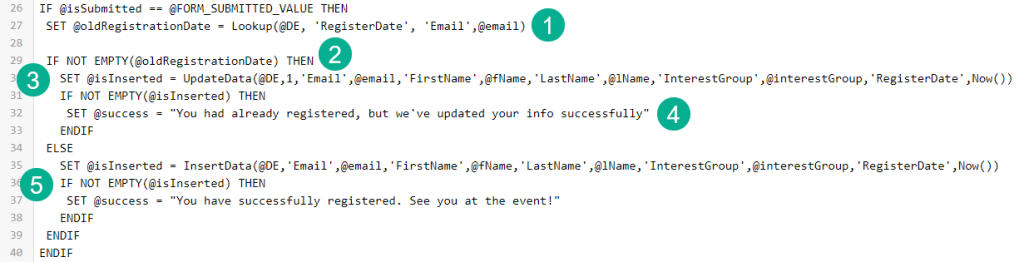
(1) First he’s looking up to check to see if they’ve already registered by checking the primary key value (email address) and returning the RegisterDate. Check out our Lookup Ampscript bootcamp content: https://handsonsfmc.com/part-3-lookup-function/)
(2) He creates an IF statement to check to see if a value is returned.
(3) He slightly modifies the function to use “UpdateData” instead of UpsertData because this won’t be a net-new record.
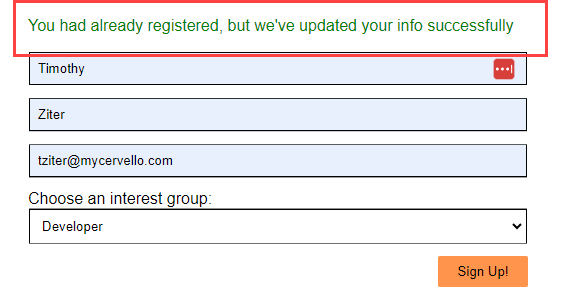
(4) He set’s the success message to new text “You had already registered, but we’ve updated your info successfully”.
(5) The ELSE statement is used to default to the original code of InsertData and the current success message.
And the end result:
For more information and a visual walkthrough please reference the YouTube video of Sandesh’s section above.
 handsonsfmc.com