What: The FROM determines where the data is coming “from” in your query. The data could be from a single source, but most likely it will be coming from multiple data sources connected by the JOIN function
Why: The FROM identifies the data sources so that you can pull in records and the associated fields on each record.
Example:
Use Case: Cervello needs to feed newly created leads into a Lead Nurture Journey. The Journey sends emails so the entry data extension will need a subscriber key and email address. The emails would also like to be personalized displaying the first name and company of the lead.
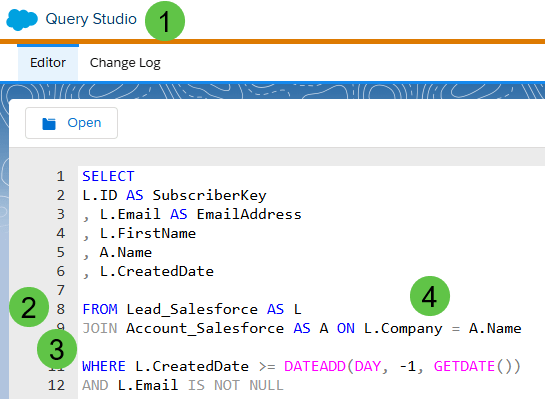
(1) A must for any SQL query work in Marketing Cloud is Query Studio. Bonus: it is free: https://appexchange.salesforce.com/appxListingDetail?listingId=a0N3A00000FP3yFUAT
(2) Here’s where the FROM starts listing each data source.
SQL Query: FROM Tip #1 – Cap all Statements and Functions
When coding in SQL it’s best practice to be consistent. It can also be helpful to separate statements and functions from other code. So whenever possible use all caps.
SQL Query: FROM Tip #2 – Don’t use blank spaces when naming your data extensions
Whenever possible avoid using spaces when creating data extensions, use underlines instead. This will prevent you from adding square brackets to each data extension in your queries. For example if the data extension above was named “Lead Salesforce” you would have to use the following syntax.

In this example we are using the AS function to label data set as “L” for lead. You can see in the SELECT and FROM statement we are using the letter L to designate which fields in our dataset we are indicating as it can be either L or A. If you are only using one data set you don’t need to us the AS function.
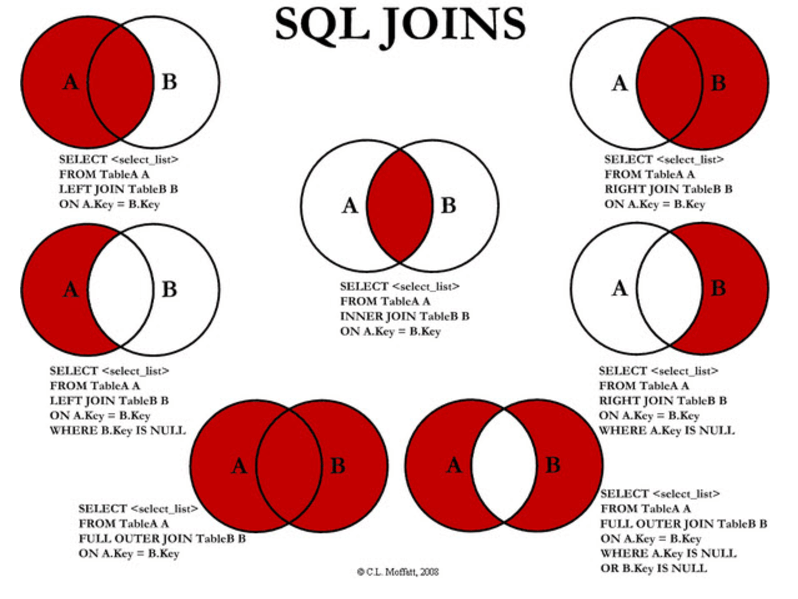
(3) In this use case we want to join the Account_Salesforce data extension to pull in all the details related to the company this lead is associated. In this case we are using the Inner JOIN or just JOIN as we only want records that exist in both databases. To find out more about the different joins check out our SQL Cheat Sheet: https://handsonsfmc.com/query-cheat-sheet/ where you can see an excellent visual breakdown of the different JOINs.
(4) To link the two data extension we’ll want to use the ON function and list the values on both data extensions that are the same. For example on the Lead data extension “Company Name” should match “Name” on the Account data extension. Typically you’ll want to make a match on a more specific value like an ID.
The Output:

(1) The values from the Lead Synchronized data extension are coming through as SubscriberKey and Email address not ID or Email.
(2) The name of the company or account that is coming from the Account database.
(3) At time of running the CreatedDate field validates that we are only pulling in those records that have been created in the last 24 hours.
Code to copy:
SELECT
L.ID AS SubscriberKey
, L.Email AS EmailAddress
, L.FirstName
, A.Name
FROM Lead_Salesforce AS L
JOIN Account_Salesforce AS A ON L.Company = A.Name
WHERE L.CreatedDate >= DATEADD(DAY, -1, GETDATE())
Advanced functions in the FROM statement: to be filled in later WIP
Links to Functions mentioned in this page:
| Function | Link |
| SELECT | https://handsonsfmc.com/how-to-sql-marketing-cloud-select/ |
| WHERE | https://handsonsfmc.com/how-to-sql-marketing-cloud-where/ |
| JOIN | https://handsonsfmc.com/how-to-sql-marketing-cloud-join/ |
| AS | Work in progress, will add soon |
| ON | Work in progress, will add soon |
| DATEADD | Work in progress, will add soon |
| GETDATE | Work in progress, will add soon |
 handsonsfmc.com