Welcome back to our blog series we’ve created as we conduct a Digital Marketing Exercise for Professor Carolyn Bonifield’s Digital Marketing class at the University of Vermont’s Grossman School of Business this semester.
If you missed our first blog covering the overall setup of this exercise please click here: https://handsonsfmc.com/2025/10/08/how-to-market-to-college-students-with-salesforce-marketing-cloud-the-setup/
In this blog we’ll update our progress on the all important step of reporting on how the students engaged with our first communication.
Here’s where we are in our steps of the campaign. We’ve successfully opted in 19 students (Step 1). We’ve crunched their data, created lead records in Salesforce (Step 2).
And now we’re onto Step #3: getting students to engage with the emails and LinkedIn posts.
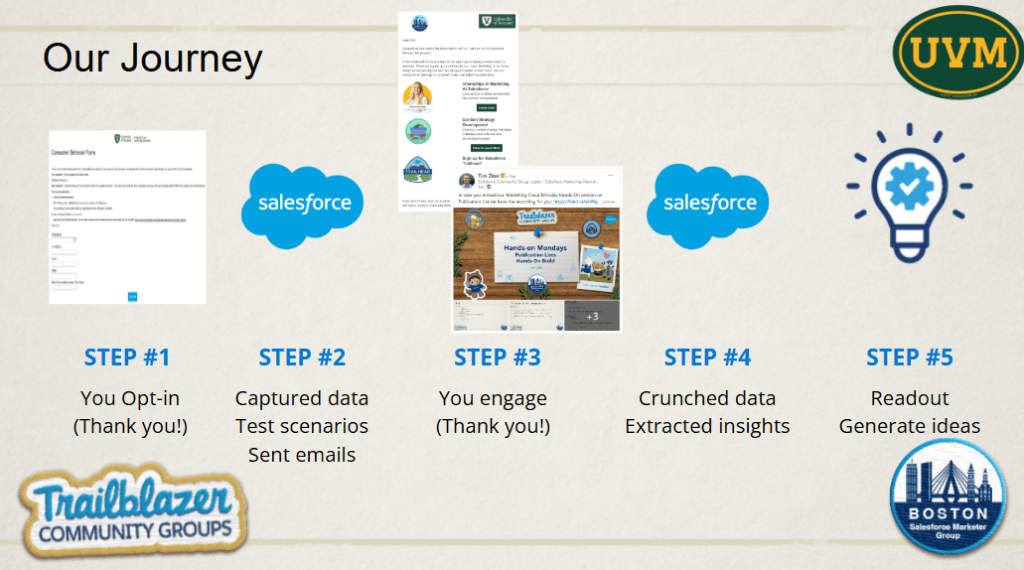
Here’s the email that was sent last week:
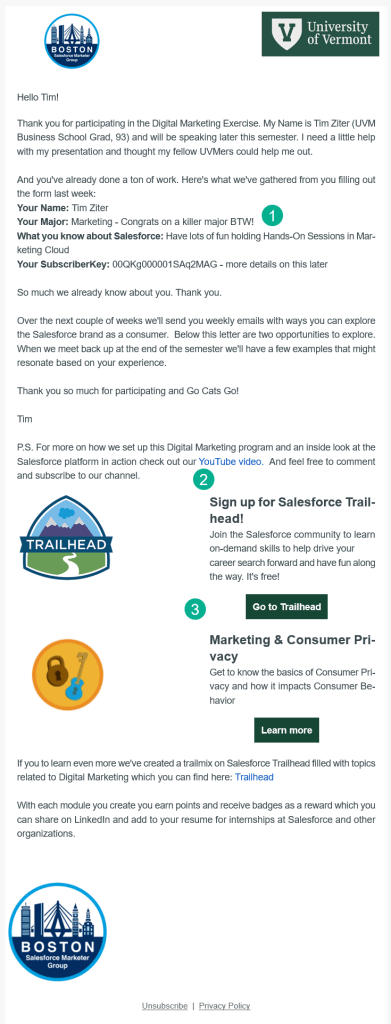
(1) We are showcasing the cool personalization capabilities of digital marketing by adding a greeting and replaying what each student provided when they opted in.
(2) We’re encouraging them to leverage social media by viewing and reacting to our YouTube video on the setup of the Digital Marketing Campaign: https://www.youtube.com/watch?v=7iE3trdttdI&t=1941s
(3) And we’re hoping they will engage with the email by clicking into the Salesforce Trailhead content to become more engaged with the brand.
The email was sent, let’s take a look at the analytics.
Step I: Review analytics of the email communication
Since we are only reviewing analytics for a single email we’ll walk through a way to get a quick read on the performance of your email in Marketing Cloud.
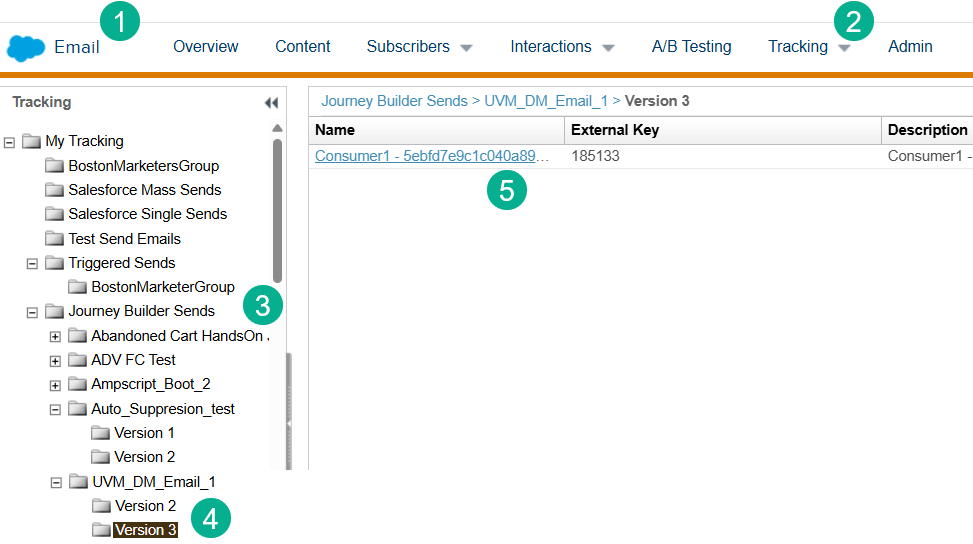
(1) In Email Studio.
(2) Click on the Tracking tab.
(3) Select Journey Builder Sends on the left menu.
(4) Scroll down to the Journey and select the correct version.
(5) And click on the email send.
Clicking into the analytics of this first email we encountered two problems.
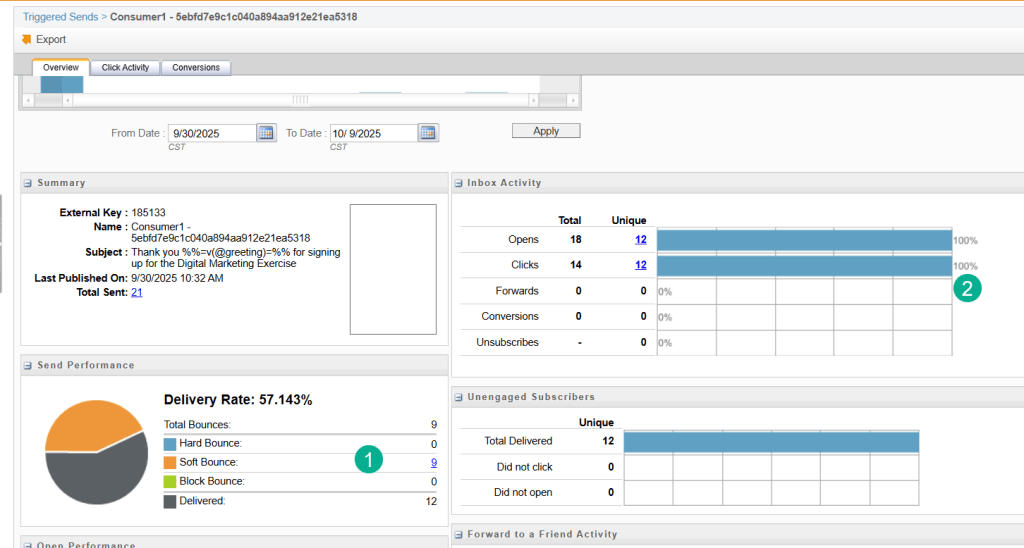
(1) The delivery rate was at 57% with 9 out of the 12 sends Soft Bouncing.
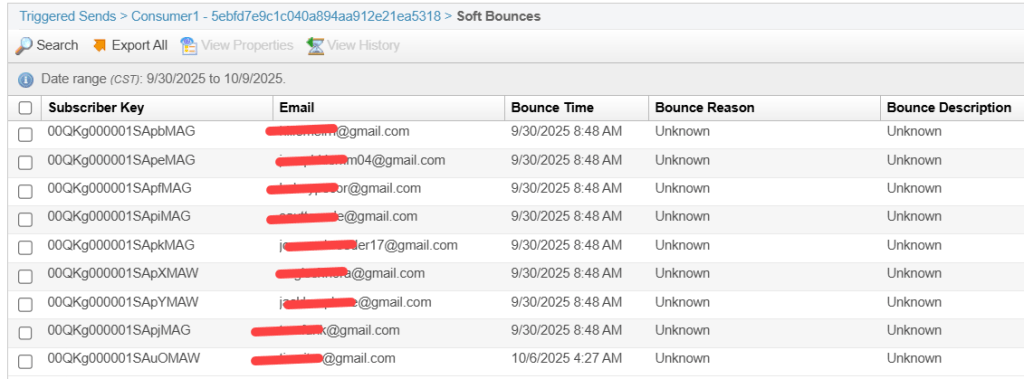
When we clicked into the soft bounces we could see we had a gmail problem as all gmail email addresses bounced.
(2) Of the 12 that were sent all 12 opened and clicked on the email. Not that we don’t love a ton of engagement, but a 100% engagement…
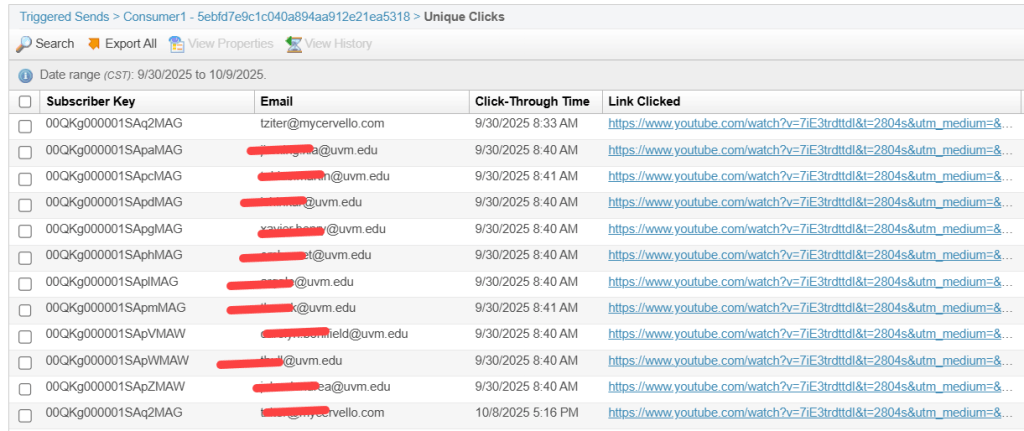
And when we look at the clicks we can see that each subscriber clicked on the same link which is odd and makes us think this wasn’t real engagement, maybe it was a bot.
Our biggest problem to solve was finding a way to send the emails to the gmail address students.
Step II: Why did Gmail emails soft bounce?
To get more information on the soft bounces than the “unknown” reason detailed in the analytics we created a query leveraging the Marketing Cloud data views. For more on these amazing data views check out Mateusz’s comprehensive blog: https://mateuszdabrowski.pl/docs/salesforce/marketing-cloud-engagement/config/system-data-views/#_bounce
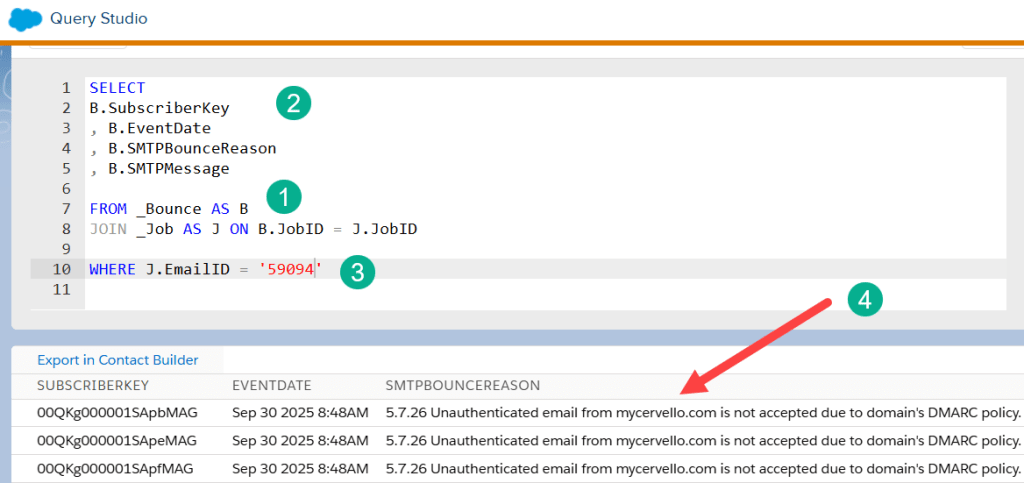
(1) We leveraged the bounce dataviews joined with the job data view to pull in the data based on the emailid.
(2) The Bounce dataview has detailed information especially the SMTPBounceReason which we are listing in the Select statement to output.
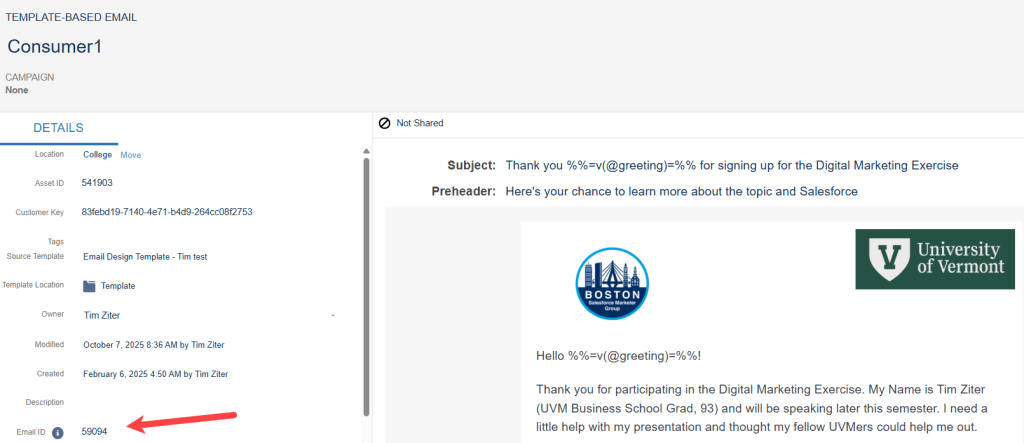
(3) We pull the emailid from the email content in content builder.
The SMTP reason provided helpful information which indicated it could be due to the DMARC policy which is typically set for the instance. Full disclosure we are sending emails from a Partner sandbox account which isn’t fully setup like a real live account.
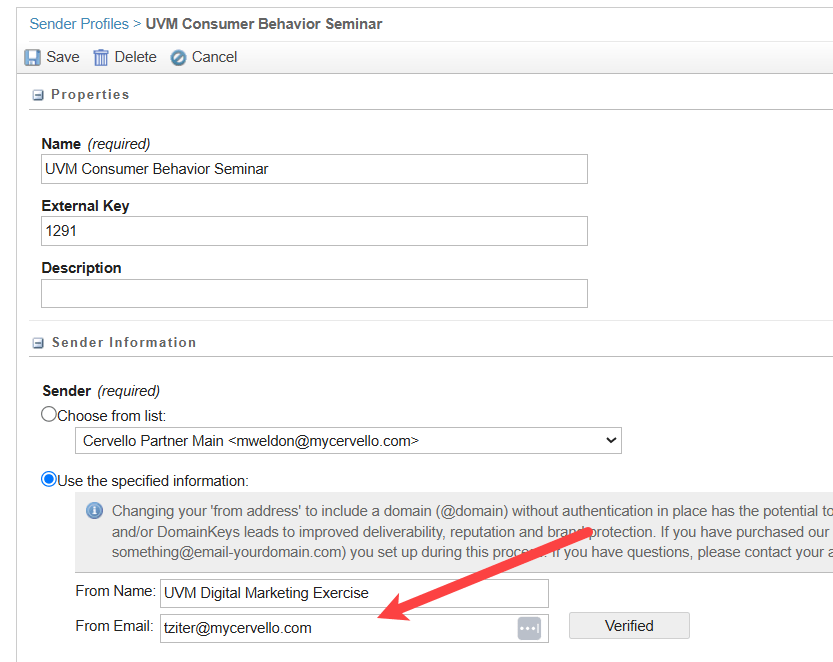
In addition we are using a domain for our firm in our sender profile which also makes this use case a bit of an edge case.
With this helpful reason we opened a ticket with SFMC support asking about if we could modify our DMARC and here’s what we got back as a response.
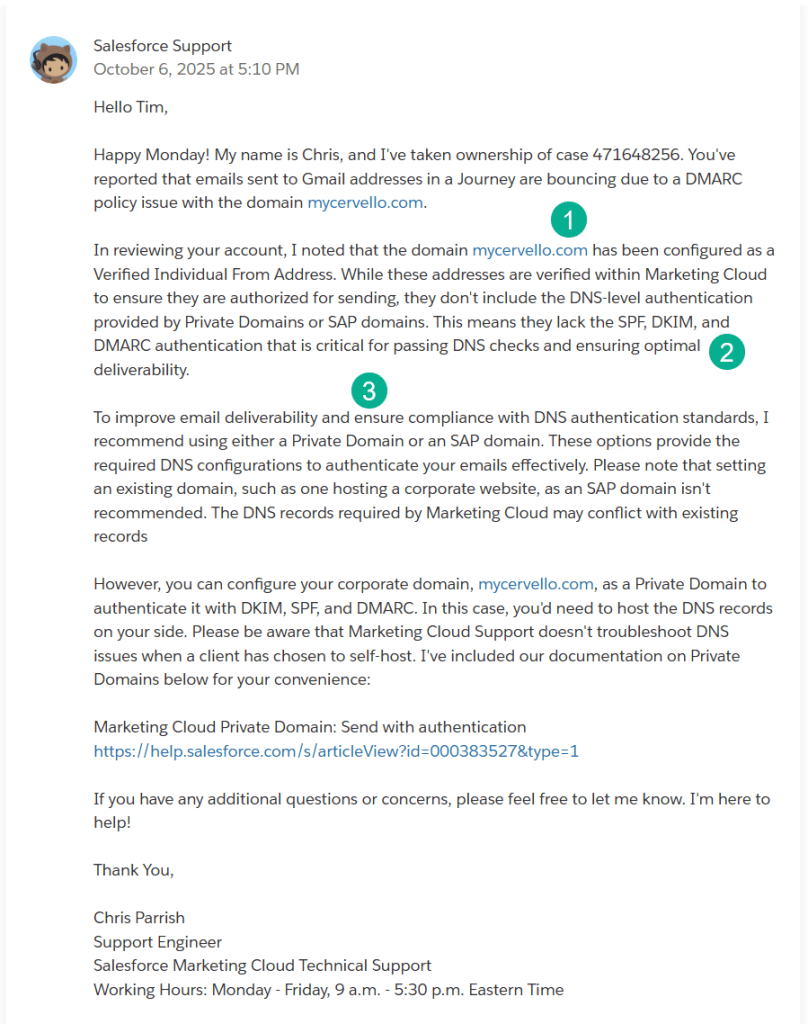
(1) Support provided helpful information about how the mycervello.com domain was set up.
(2) This confirms the bounce reason provided by the _bounce dataview above.
(3) Our path could be to send the email from a sub domain which fortunately have at mail.mycervello.com.
Step III: Sending out the email again to the bounced gmail addresses
We moved over to our Cervello production instance of Marketing Cloud to send to the gmail students. In that instance we created a sender profile that used the mail.mycervello domain.
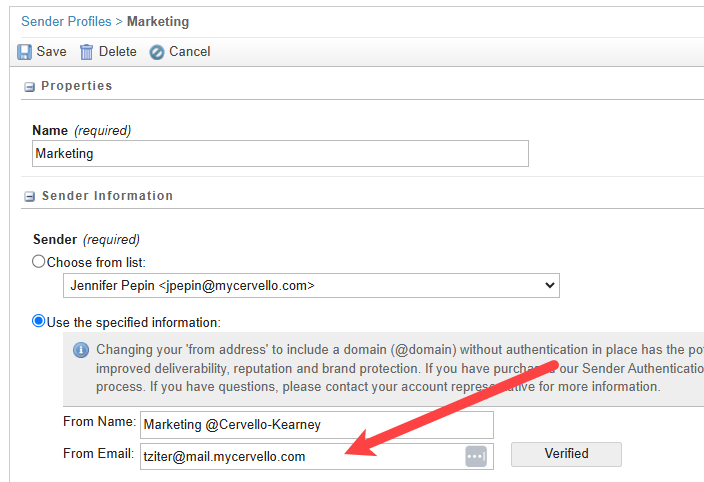
Recreated the email.
Uploaded the Student information into Marketing Cloud DEs and sent off the email.
In our testing (to my gmail address) we found that the email no longer bounced.
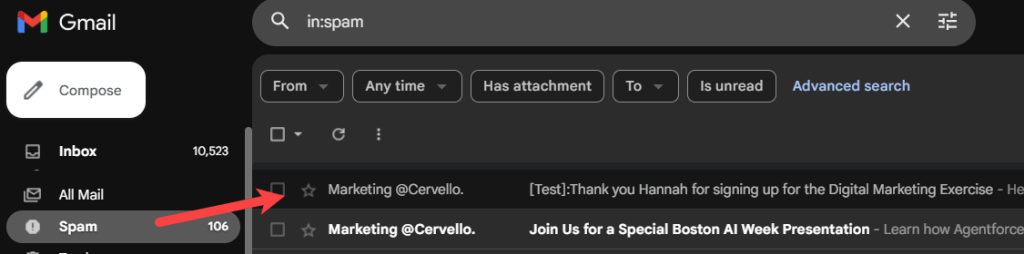
Unfortunately in Gmail the emails appeared in my spam folder.
For now it was the best we could do so we sent out the email to the rest of the gmail students and here’s our performance:
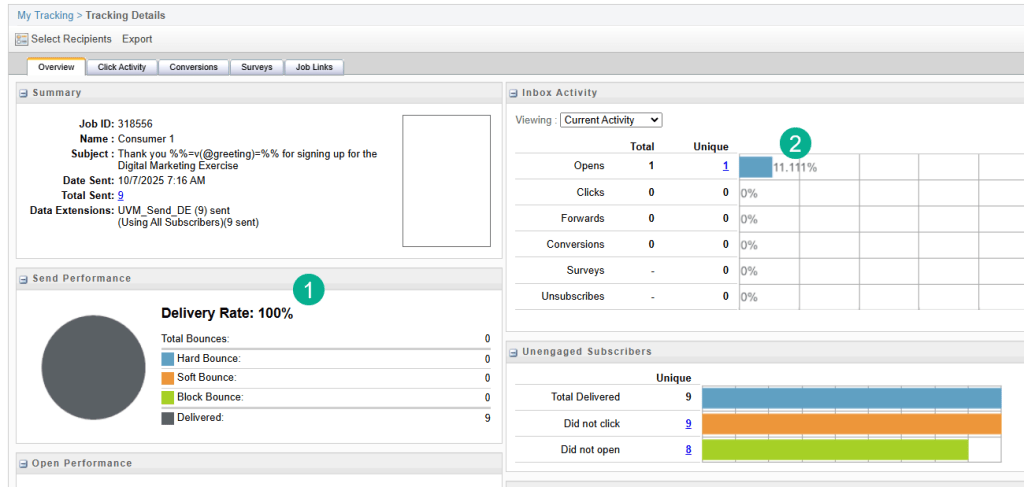
(1) 100% delivery! Yay, solved the bounce problem.
(2) 1 Open, which was my account. So zero engagement from the students which is expected if the emails landed in their spam folders on gmail.
Step IV: Next Steps
There are two next steps that came out of this exercise:
1.) We have a lot of fun topics to cover as part of this exercise and on the handsonsfmc blog like:
– email domain best practices
– how to set up DMARC, DKIM, etc
– how to verify inboxing of your email sends
– how does email work in general – what gets accepted vs rejected/bounced, etc.
2.) How are we going to communicate with these students if we can’t reach them successfully via email?
a.) We are going to send out a LinkedIn post today to see if anyone of the non gmail recipients actually clicked on the YouTube video link.
b.) We will reach out to gmail students and ask if they can provide us with the UVM.edu email address
c.) Explore ways to improve our emails going from Spam to Primary folder in Gmail
d.) Send out email #2 on Monday and see what happens
Thank you for following our Digital Marketing Exercise, we’ll keep you updated on how we progress and watch out for future articles on email domains, DMARC, inboxing, etc.
 handsonsfmc.com