
Data Cloud can connect to data from many sources. Before data starts flowing in, an admin must set up a connector, and then a Data Stream, that enables data to flow between your external system and Data Cloud.
Among the numerous ways to bring data in, the Ingestion API is one of the most powerful ones, and it allows you to programmatically push data into Data Cloud from any of your external applications. Data can either be ingested in small chunks – via the Streaming API, or in large volumes – via the Bulk API.
In this article, we’ll focus on setting up the connector and a Data Stream for the Streaming version of the Ingestion API. If you have already setup a connector, and only want to go through setting up a Data Stream, please skip to the second section of the article.
Set up the Connector
To get started, navigate to Data Cloud Setup > Configuration > Ingestion API. On the dashboard you’ll see a list of existing connectors and, on the top-right corner, the ‘New’ button (1) to create a new connector.


Once you provide a name for your new connector, the connector is created, but has a status of Schema Required. This is when you upload the schema file for your planned ingestions. If you’re unsure how to build this file, please checkout our article on how to create one from scratch.
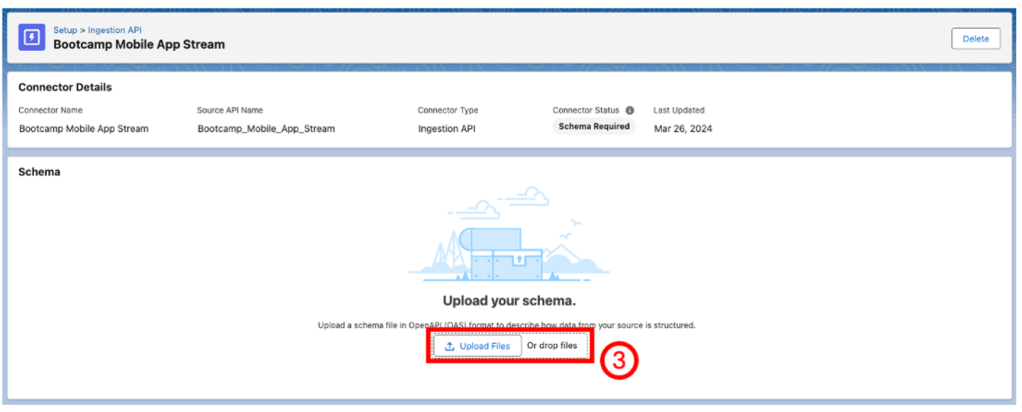
Now upload your YAML file that contains all the schema objects for the events you want Data Cloud to capture. If there’s an error at this step, please use the debugging tools suggested in linked article above, or refer to the official documentation for support.
If the schema file is property built, a modal with all the objects in the schema should open. Inspect these objects to make sure that no fields are missing and that all the fields have proper data types.

You cannot modify any of the fields later, and can only add new objects or fields after this step
When you click on Save, the Connector Status indicator on the top panel will now switch from ‘Schema Required’ to ‘Needs Data Stream’, so we must now create a data stream to use our new connector.

Create a Data Stream
In the Data Cloud app, navigate to the Data Streams tab and click on New to create a new stream.

If you have your connector set up, and schema uploaded, Ingestion API will appear as an option on the following screen. If you do not see Ingestion API here, please make sure that you have followed along the first part of the article, and properly set up the Ingestion API connector.
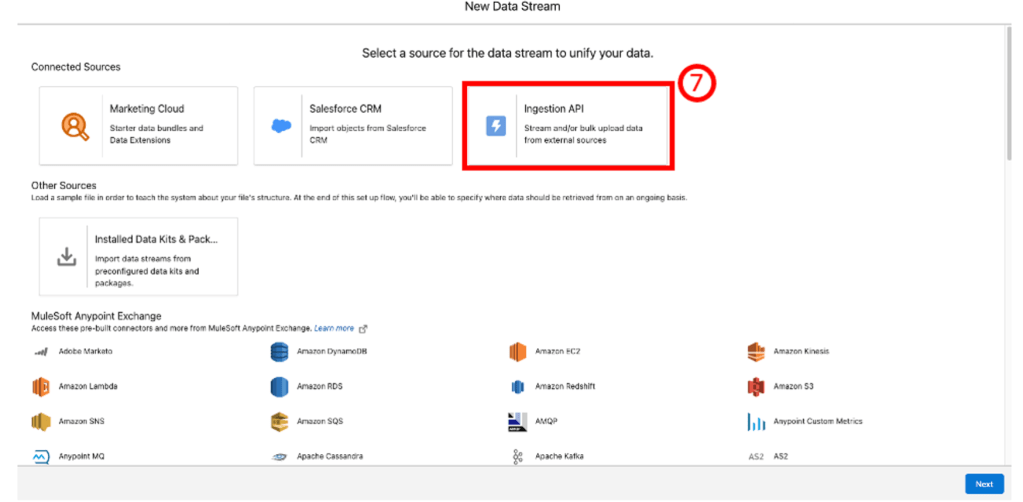
From the dropdown on the top-left of the modal, select the Connector that you previously set up, and then all the objects for which you want to create a stream, and click on Next

For every object you wish to stream into Data Cloud, you must select whether they’ll contain Profile information or Engagement events. This is an important step as you cannot change this assignment later. Please check out the documentation page to learn their differences.

In this step, you can optionally create formula fields to add computed data into your Data Cloud objects. The formula fields use record-level data to create additional fields in the Data Lake Object associated to this Data Stream.
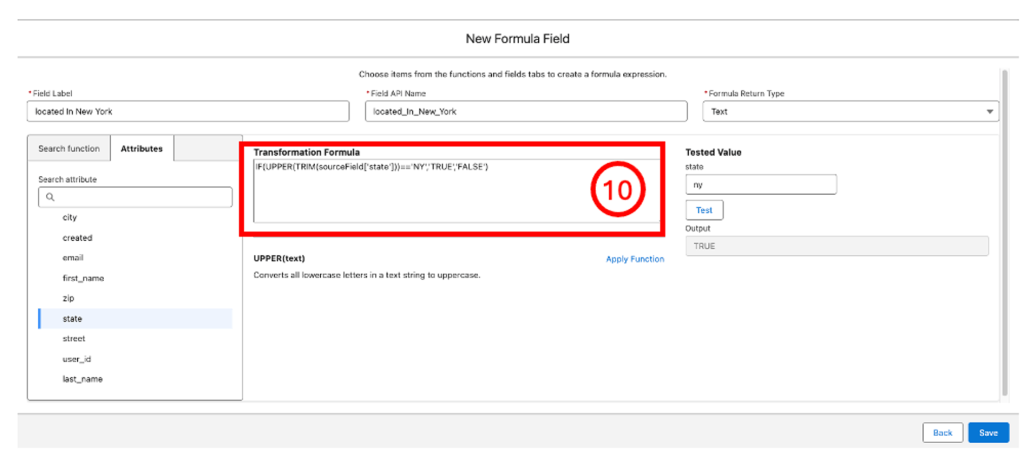
You can add formula fields to Data Streams post-creation from the Data Stream details page.
In this final step of the process, you can select the Data Space that the streamed objects should be assigned to, then click Deploy. Now the Data Stream is ready to receive API calls from your third-party application.

We’re working on a detailed tutorial on how to make these API calls from your application, so please stay tuned and thanks for reading!
 handsonsfmc.com
Leave a comment