Publications lists in Marketing Cloud are helpful tools to help you manage your communications to customers and prospects. They allow you to manage different audiences who can opt in and out of your various communications.
In this article we’ll break down the following about Publication Lists:
1.) What is the benefit of using Publication Lists
2.) How to create a Publication List
3.) How to use a Publication List
4.) How do Publication Lists work in action – let’s actually send to a Publication List
5.) How Publication lists work with All Subscribers
1.) What is the benefit of using Publication Lists
To explore the end benefit Publication lists let’s consider a common use case:
Let’s say you are a local bank that wants to send to customers tailored communications about specific products as well as general information about the bank. You might create an email series like a weekly investment tips series as well as a Monthly newsletter, plus you might want to reach out to your base every now and then about general information about the bank.
You could have one unsubscribe option in your communications where your audience could turn on or off all of those marketing communications. Or instead you could have your audience choose what communications they are interested in.
The end benefit to Publication Lists: You keep more of your audience subscribed or opted in.
This is because you can offer options to your audience where they can only opt out of those items they may not be interested in. Say for example some audience members aren’t interested in the weekly investments tips email but wouldn’t mind the monthly newsletter. They want to unsubscribe, but not to everything.
With Publication Lists you can offer ways for your audience to customize their communications with you. You have happier subscribers and maintain the largest audience to market your products.
2.) How to create a Publication List.

(1) Select Email Studio.
(2) Select Email.
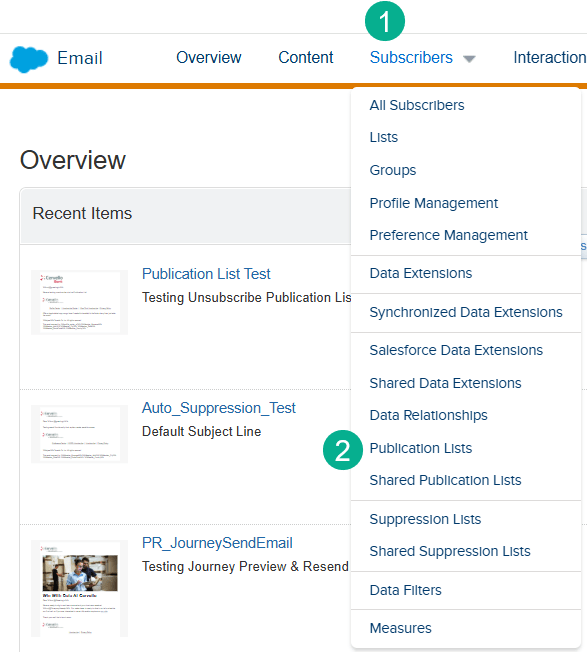
(1) Click on the Subscriber Tab.
(2) Select Publication Lists.
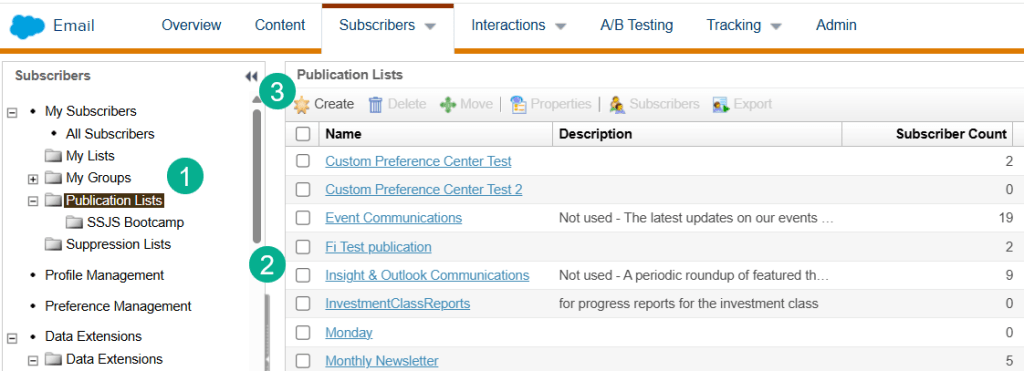
(1) Under the Subscriber tab on the left you will see Publication Lists. Just like most of the file structure in Marketing Cloud you can create sub folders of Publication Lists.
(2) See all of the existing publication lists that have been created in the main folder.
(3) Select the Create button.
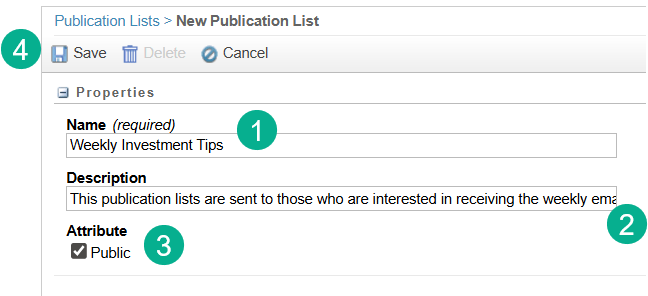
(1) Enter in a name for your Publication List.
(2) Enter in a description that will help you remember the purpose down the road.
(3) If you want this list to appear on the OOTB preference centers click here.
(4) Click Save and that’s how you create a publication list.
3.) How to use a Publication List
We are going to send a test email to a few different participants to showcase the functionality of how to use a Publication list.
Step I: Create a send-able data extension
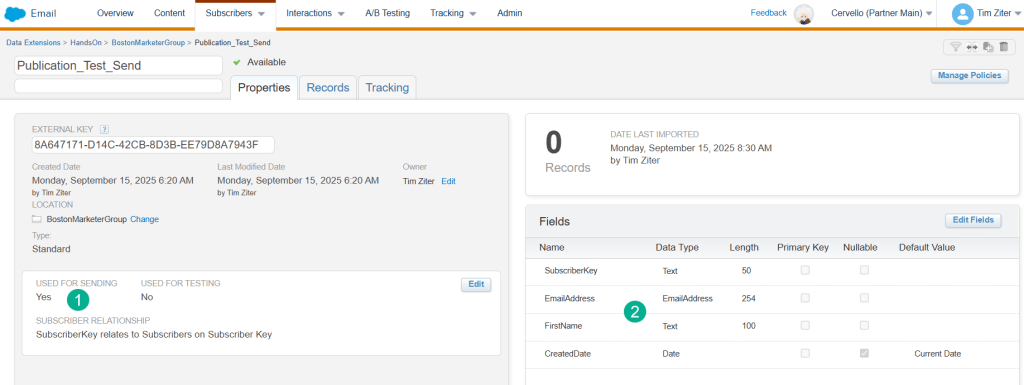
(1) We want to make sure the data extension is send-able.
(2) And include a variety of fields to send and personalize the email.
For more on how to create data extensions check out the following article: https://handsonsfmc.com/how-to-create-a-data-extension-in-marketing-cloud/
Now we need to upload subscribers into this data extension.

(1) We are going to create a Excel .csv and include fields to populate our subscriber like a SubscriberKey.
(2) An email address including an address that could bounce so that we can see how Publication Lists and All Subscribers handle bounces.
(3) And a personalization data point like first name.
We’ll upload these subscribers to our data extension and now we have our list of subscribers to send.
Step II: Create a test email to send
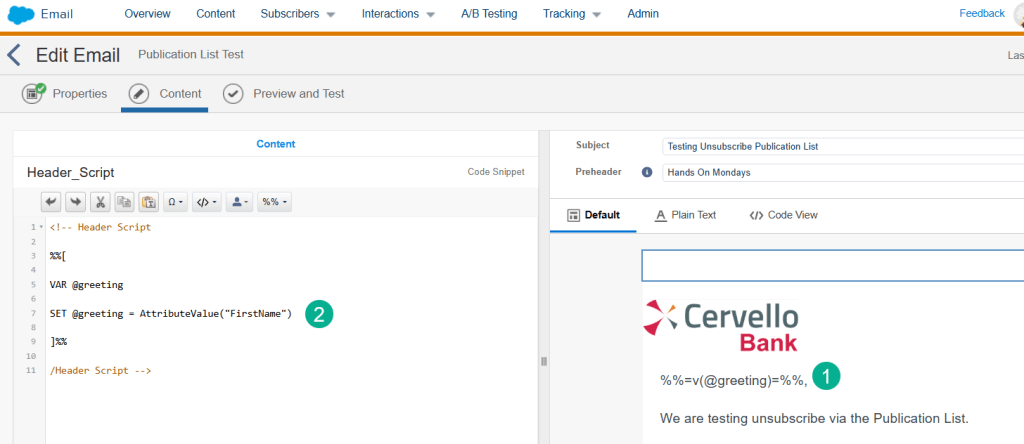
(1) We are adding basic personalization including a greeting.
(2) Setting that variable based on the data extension value created above.
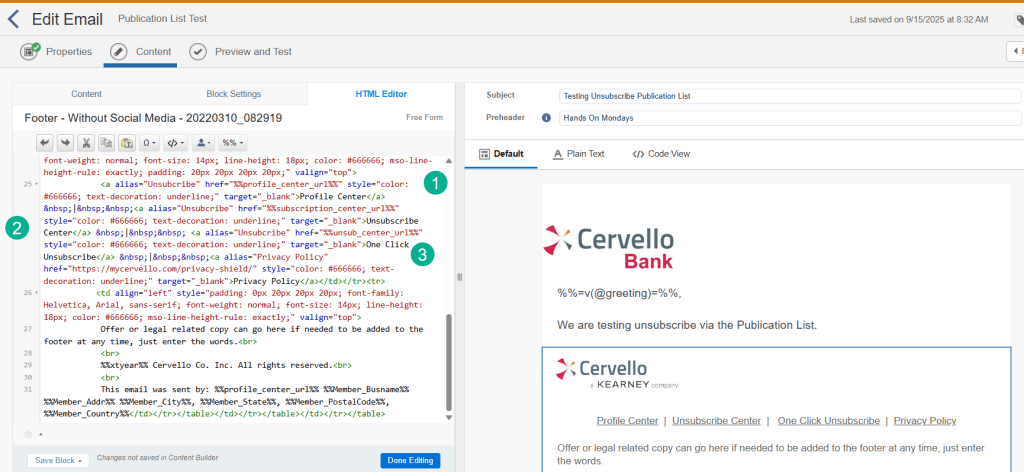
We are including the three out of the box preference/unsubscribe links.
(1) The out of the box Profile Center or preference center.
(2) The out of the box subscription center.
(3) And the one click unsubscribe link.
4.) How do Publication Lists work in action – let’s send to the publication list
We have all the parts to do a send. Let’s to a basic send while in the email shown above.
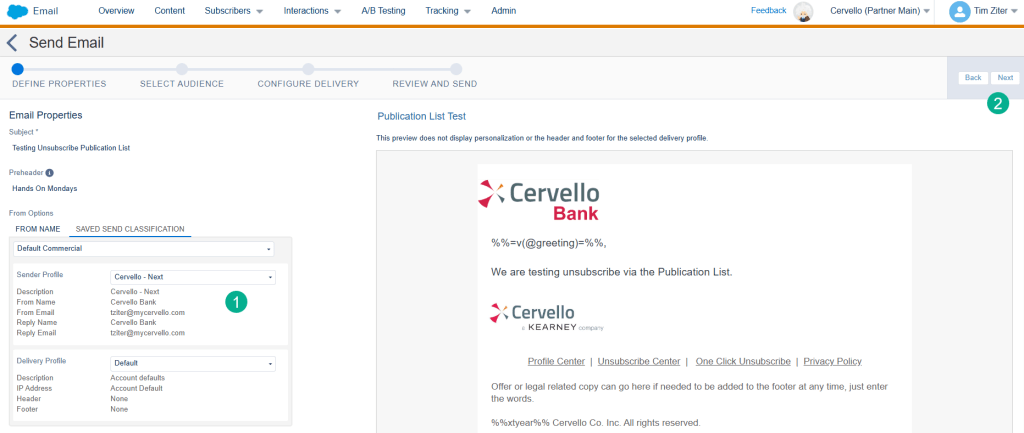
(1) Select the Sender profile.
(2) Click Next.
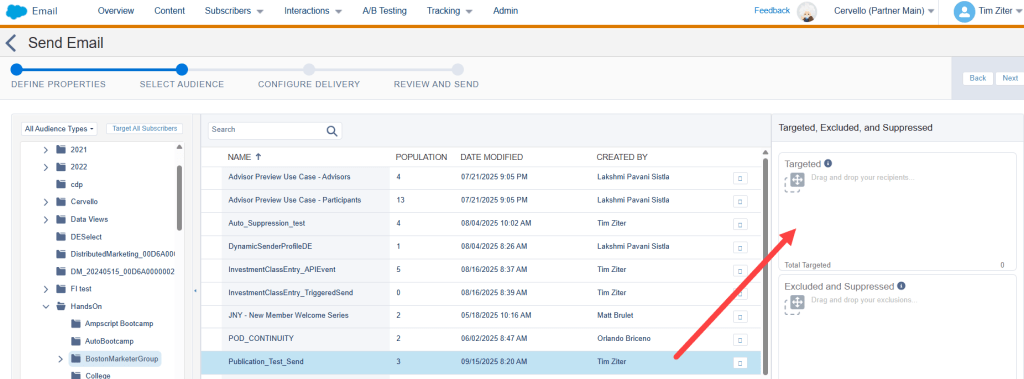
(1) Move the data extension into the targeted section.
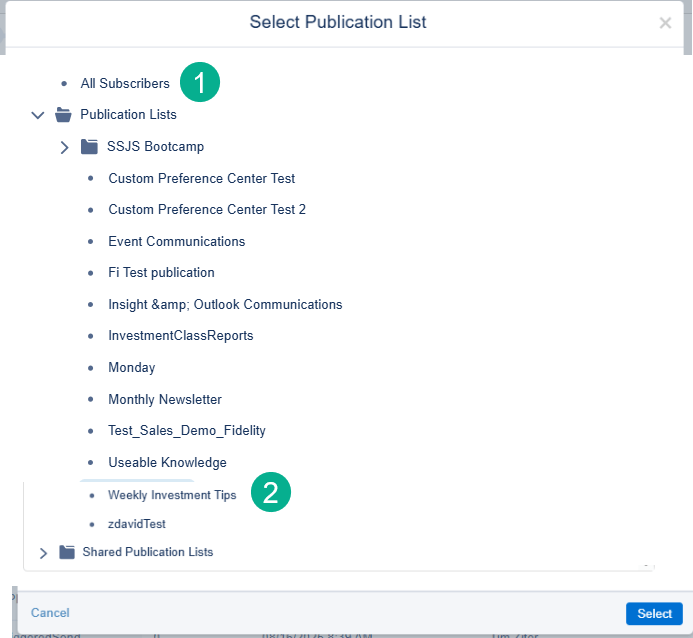
(1) Instead of selecting “All Subscribers”.
(2) Select the publication list in our case: “Weekly Investment Tips”.
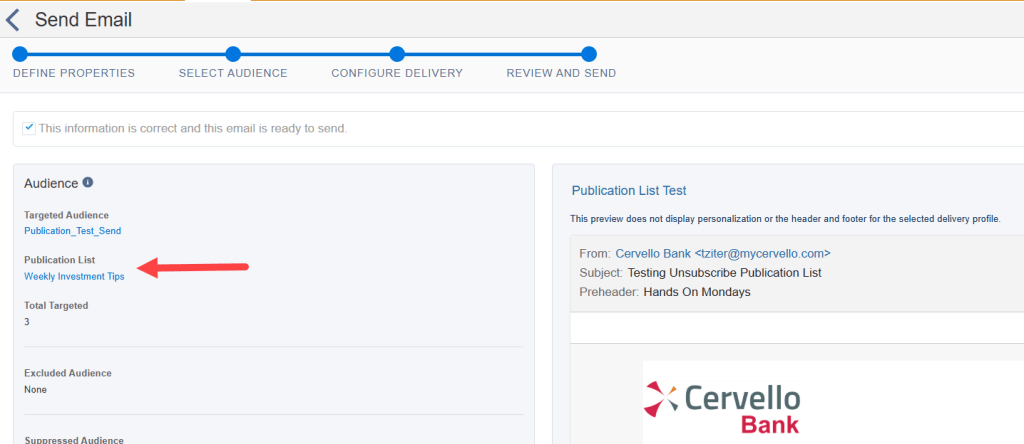
In the summary screen you can see the Publication List selected and not see All Subscribers.
Let’s send the email and take a look afterwards at the Publication List.

All three of the subscribers are now added into the Publication list.
Let’s use the third subscriber in this list or the one where the subscriberkey ends in BMAW. This Subscriber has opted into receiving the Weekly Investment Tips. Now let’s say that after a few weeks they don’t want to receive these emails but still want to receive general emails from Cervello Bank.
As a subscriber I’ll click on the unsubscribe button on the Weekly Investment Tips email.
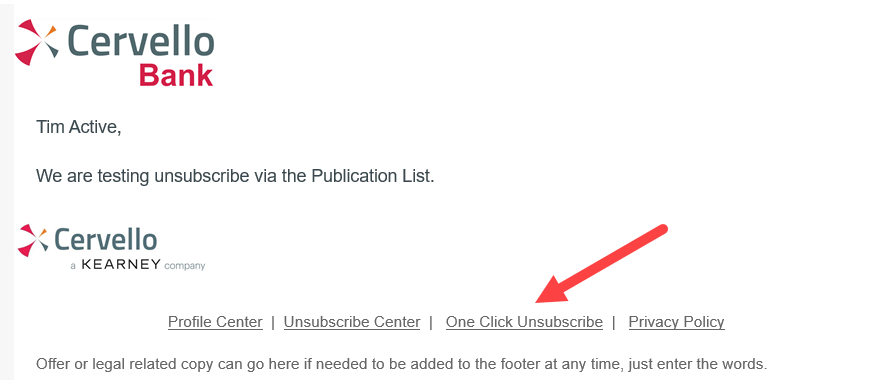
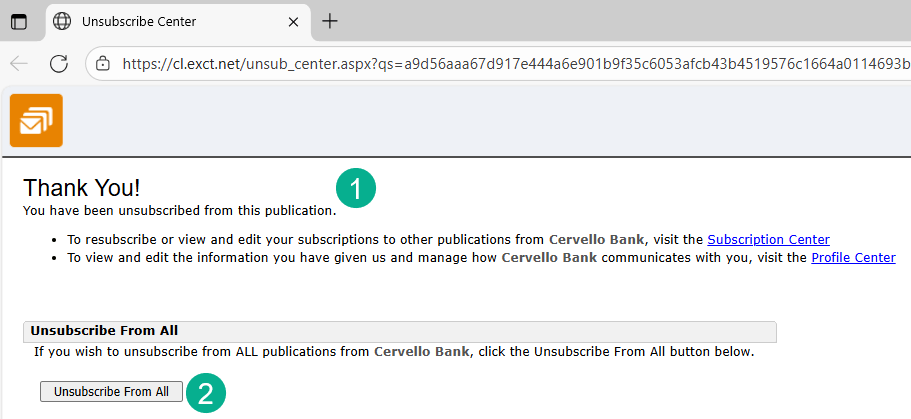
(1) The one click unsubscribe alerts me that I’ve unsubscribed from this publication.
(2) If I want to unsubscribe from all communications I can click here but let’s not do that and see what changes in Marketing Cloud.

Now I can see that I’ve Unsubscribed from the Weekly Investment Tips publication list. But let’s check All Subscribers to see if I’m unsubscribed there…
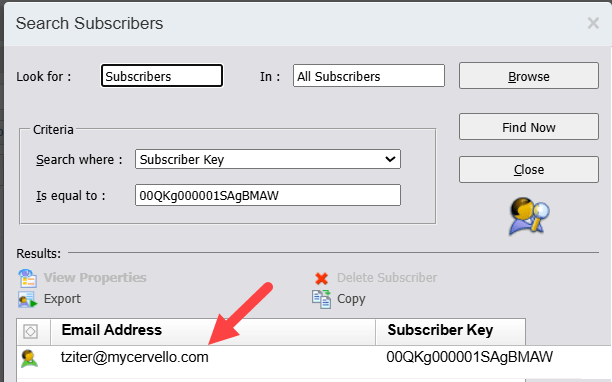
We can see that in All Subscribers or for general emails I’m still active as a subscriber.
This is an important point to call out in three ways:
(1) When you send to a Publication list that subscribers (if they don’t already exist in All Subscribers) is added to All Subscribers.
(2) All Subscribers status doesn’t change when someone unsubscribes from a Publication list.
(3) You don’t have to modify the unsubscribe functionality in your email to only work for a Publication List. Once you select the Publication List at send it tells the unsubscribe functionality to unsubscribe from the Publication List only.
Hopefully this has been helpful to see how you can use publication lists to select targeted segments to receive your various email communications.
Before we end let’s take a look further as to how Publication Lists work with All Subscribers. We’ve already shown that All Subscribers isn’t impacted when someone unsubscribes from a Publication List send.
5.) How Publication lists work with All Subscribers
One final point on how Publication Lists work with All Subscribers has to do with Bounce and Held statuses. Although All Subscribers doesn’t change when someone unsubscribes from a Publication List, if someone bounces it’s reflected in All Subscibers.
Let’s take a look at our example as we have two bounced subscribers:

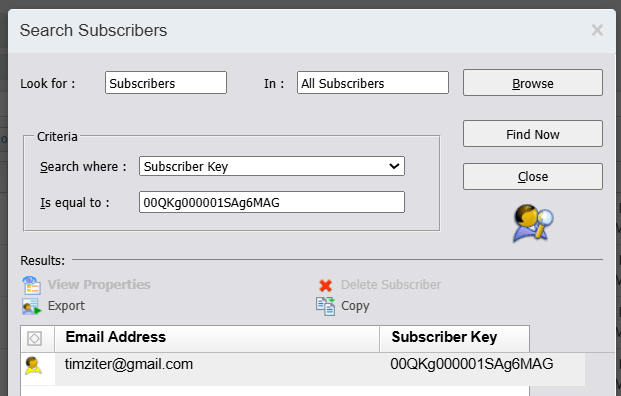
When we take a look at this subscriber in All Subscribers we see they are in a bounced status as well.
For more on Publication Lists check out this video from Akhona Mafenuka as part of our Marketing Cloud Mondays Hands-On sessions.
And here’s a video of our Hands-On session where we create and populate records in a Publication list.
 handsonsfmc.com