Salesforce Marketing Cloud tools are so user friendly that entire teams, no matter the role or experience with tech, can build out amazing marketing automation solutions together as a team. That’s what Hands-On Swarms are all about.
In this blog we’ll cover the essentials of you use Hands-On Swarms to build amazing solutions and nurture and grow your Marketing Automation team.
This topic was covered at Connections 2025 by Amanda Isaac and Tim Ziter, featured on the following video:
In this blog we’ll break down Swarms in five key areas:
1.) What is a Hands-on Swarm
2.) What could be some Swarm Rules
3.) Typical Swarm Roles
4.) The Swarm Format
5.) Swarm Tips
6.) We’ll include a few Swarm examples
Did you know the Boston Salesforce Marketer Group has weekly swarms every Monday? Join us to experience Hands-On Swarms where you can be the Builder or Instructor or any role. https://trailblazercommunitygroups.com/salesforce-marketer-group-boston-united-states/
Part I: What is a Swarm?
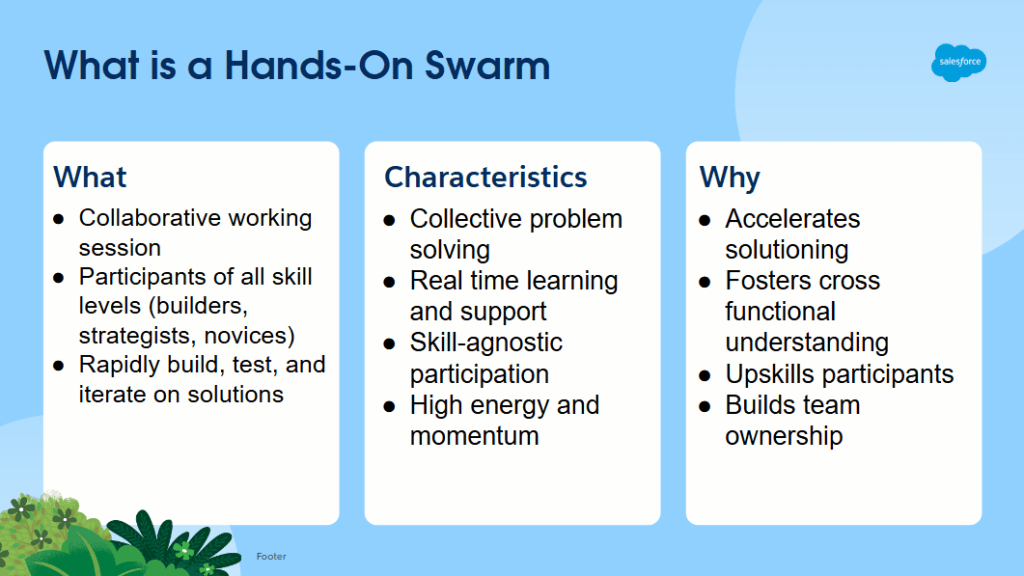
What is a Swarm?
A Hands-On Swarm is a fast-paced, collaborative working session where participants of all skill levels come together to rapidly build, test, and iterate on solutions—typically in Salesforce Marketing Cloud or Sales Cloud. It’s an inclusive environment that emphasizes learning through doing.
Swarm is a concept rooted in Agile practices, commonly used as a collaborative ceremony within Agile teams. We’ve taken the core principles of Agile swarming and adapted them—drawing from our own experiences—to better fit our team’s workflow, tools, and goals. The result is a more hands-on, inclusive approach that aligns with our needs while staying true to the spirit of Agile collaboration.
Key Characteristics of a Swarm:
- Collective Problem Solving: Everyone contributes ideas and insights to move the solution forward.
- Real-Time Learning: Knowledge is shared organically as the team works through challenges.
- Skill-Agnostic Participation: Both technical and non-technical team members benefit—hands-on building helps non-technical folks understand the “why” behind the “how.”
- High Energy & Momentum: The session thrives on rapid iteration and visible progress, creating a dynamic, motivating atmosphere.
Why Host a Swarm?
- Accelerate Solutioning: You’ll be amazed at how much progress a team can make in just 60–90 minutes.
- Promote Cross-Functional Understanding: It bridges gaps between technical and non-technical roles, creating mutual empathy and shared context.
- Upskill Team Members: On-the-spot problem-solving fosters immediate, practical learning.
- Drive Team Ownership: Everyone plays a role in shaping the outcome, creating a shared sense of investment in the end product.
Part II: What could be some Swarm Rules?
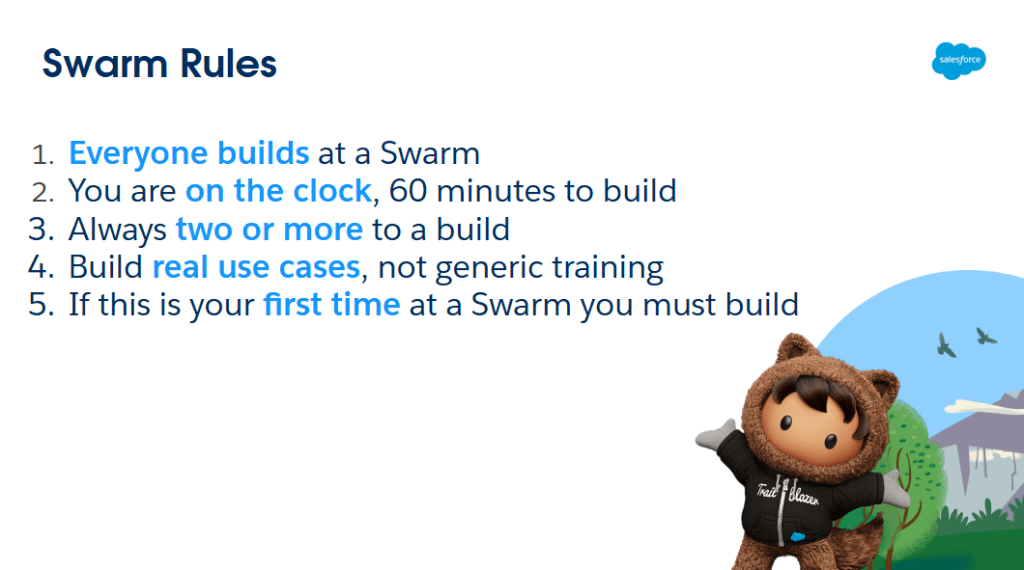
Do Swarms Need Rules?
Not necessarily—but having a few simple guidelines can help create guardrails that keep your swarms productive and inclusive over the long run.
Suggested Swarm Guidelines:
- Everyone Builds
Yes—everyone. Whether you’re a Business Analyst, Scrum Master, Marketer, or new to the platform, you’re expected to participate hands-on. Even non-technical roles benefit by gaining exposure to the tools, which improves empathy, communication, and requirement gathering. - Time-Box It
Set a clear time limit—typically 60 to 90 minutes—with a goal to build at least one working solution (or a piece of one). Timeboxing adds focus and helps maintain momentum. - Two or More to a Build
Avoid solo builders. Encourage multiple participants to share the load—this keeps the energy up and ensures more people stay engaged. Not everyone has to build on-screen; they can assist by researching, documenting, or validating the solution in real time. - Use Real-World Problems
Swarm around live use cases—real challenges your team or organization is facing. Avoid theoretical or certification-style examples. Solving actual problems makes the outcomes more valuable and actionable. - First-Time? You Build.
New to the swarm? You’re building—at least a little. No pressure to lead, but try something simple like logging in, sharing your screen, or updating documentation. It’s about taking that first step—and celebrating it.
Part III: Typical Swarm Roles
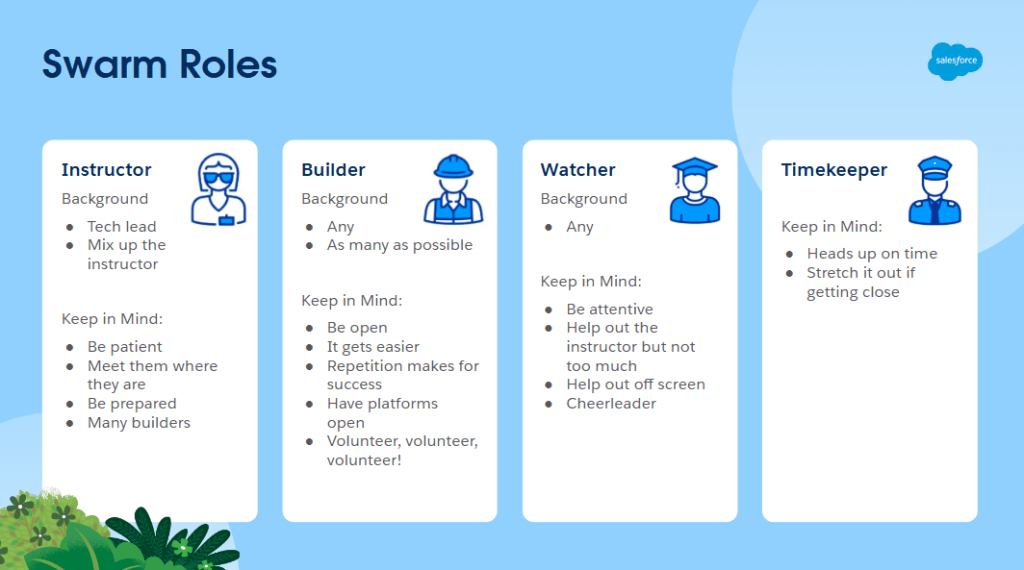
Key Roles in Every Swarm
While swarms are designed to be flexible and inclusive, having a few defined roles can help keep the session focused and productive. Most swarms include 3–4 key roles:
1. The Instructor
Leads the build and guides the session. This is often a tech lead at first, but anyone on the team can take on the role over time.
Tips for Instructors:
- Be patient and adaptable. Swarms rarely go exactly as planned—embrace the flow.
- Tailor your approach. Meet builders where they are; some may be brand new to Marketing Cloud or nervous to build live.
- Prepare in advance. Practice the core parts of the solution beforehand to avoid major blockers.
- Involve others. Encourage multiple team members to build—it boosts learning and team spirit.
- Maintain consistency. While instructors can rotate, try to keep a consistent structure to how solutions are built.
2. The Builder
Anyone on the team can and should be a builder—regardless of experience.
Tips for Builders:
- Be brave. Building live can be nerve-wracking at first, but it gets easier with practice.
- Be prepared. Have your platforms open and ready to go to avoid delays.
- Be proactive. Volunteer often—repetition builds skill and confidence.
- Be engaged. Don’t worry about perfection; swarms are about learning by doing.
3. The Watcher
Not everyone will build, but watchers still play a vital supporting role.
Tips for Watchers:
- Stay present. Avoid multitasking—be on screen and engaged.
- Be helpful. Offer tips or insights if needed, but let the instructor lead the session.
- Support behind the scenes. Help with research, documentation, or prepping assets.
- Cheer others on. Positivity and encouragement go a long way.
4. The Timekeeper
Keeps the team on track by managing the clock and providing time updates.
Tips for Timekeepers:
- Give timely cues. Let the instructor know when 5 or 10 minutes remain.
- Be flexible. If the team is close to completing a solution, extend the time a bit.
- Maintain focus. Help the team stay aware of goals without rushing the process.
Part IV: The Swarm Format
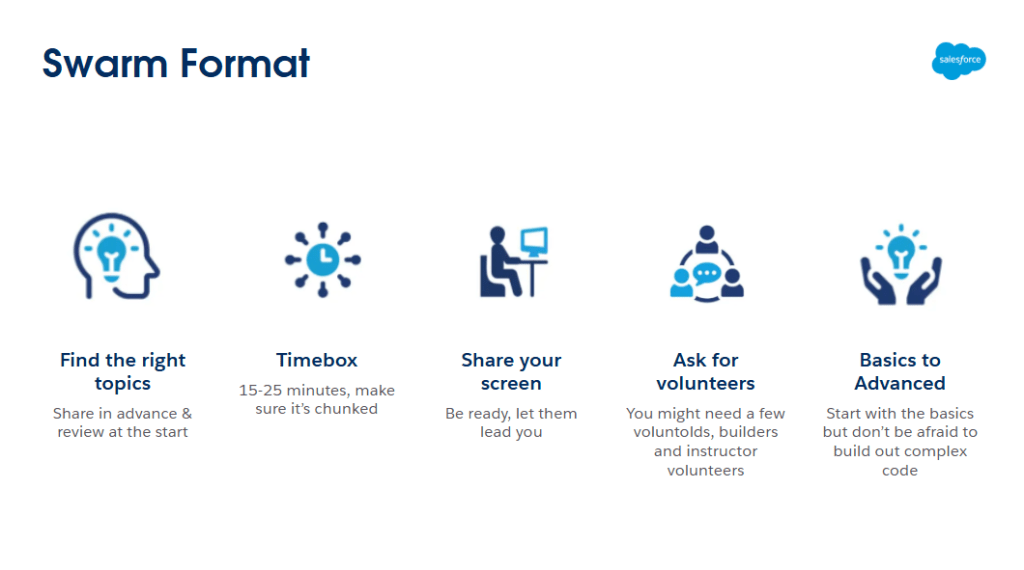
Key Swarm Format areas
- Share Topics in Advance
Encourage team members to submit swarm topics ahead of the session. At the start of each swarm, check in to see if anyone has new topics to propose. The team lead should help prioritize and focus on the most relevant or time-sensitive items to maximize impact. - Timebox Each Topic
Allocate 15–25 minutes per topic and do your best to stick to it. If you’re not making meaningful progress after 20 minutes, consider pausing and breaking the topic into smaller, manageable chunks. Avoid letting one topic dominate the entire session—it can limit participation and often signals that the problem needs to be scoped further. - Share Your Screen
Builders should always share their screen—whether you’re in person or on Zoom. The builder drives the session hands-on, while instructors and watchers guide, support, and observe. If you’re a watcher or timekeeper, stay on camera when possible to stay connected and engaged. - Ask for Volunteers (and a Few “Voluntolds”)
Give team members the opportunity to volunteer as instructors or builders, but don’t be afraid to nudge quieter participants—especially newer team members. A little encouragement early on can go a long way in helping them feel comfortable and confident contributing. - From Basics to Advanced
Swarm topics can range from foundational (like gaining platform access) to advanced (such as writing AMPscript or SQL). Start simple and ensure every team member has access to core systems first. Build up from there—gradually increasing technical complexity as confidence and capability grow across the team.
Part V: Swarm Tips
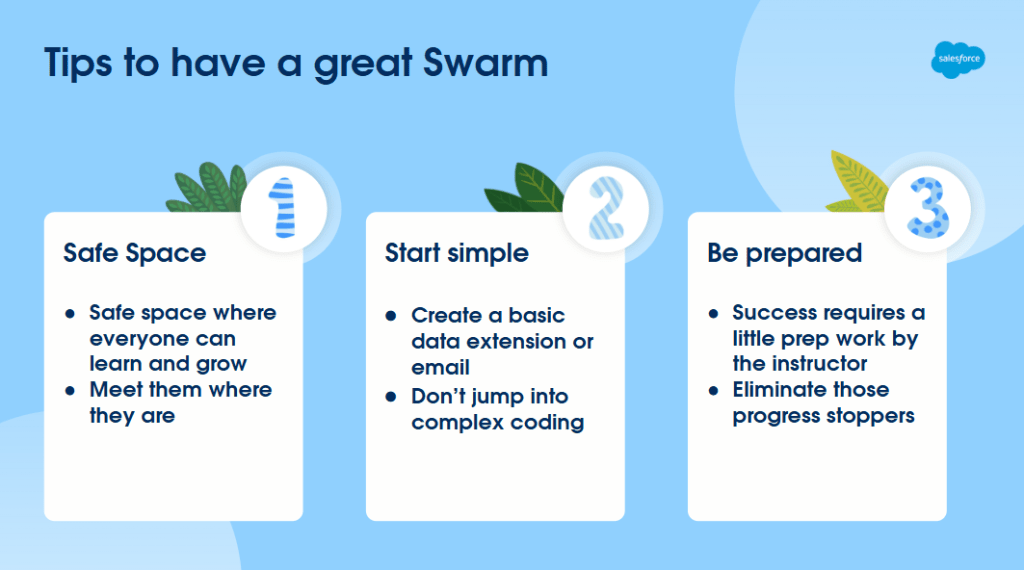
Key Mindsets for a Successful Swarm
- Foster a Safe, Supportive Space
Swarms should be welcoming, encouraging environments where everyone feels comfortable learning at their own pace. Avoid overly technical deep-dives early on, especially if you have non-technical team members in the mix. And if someone takes a bit longer to build—be patient. Celebrate every volunteer; each builder is taking a brave step forward, and that should be acknowledged. - Start with the Basics
Kick things off with simple tasks—like creating a data extension or building a basic email. Don’t jump into advanced code or complex logic too soon. Remember, some of the most impressive swarm outcomes happened after the team had time to build up their skills and confidence. - Come Prepared
If you’re leading as the instructor, practice ahead of time. Do a dry run or two to work through any blockers and get a feel for how the session might go. In early swarms, consider building a complete solution end-to-end—this helps set expectations and shows what’s possible when the team collaborates effectively. - Everyone Builds—No Exceptions
Whether you’re a Business Analyst, QA tester, or Scrum Master, you’re part of the build team. Even without prior experience, team members have contributed to writing code and configuring automations. Involving everyone—regardless of title—not only upskills the group, but gives non-developers valuable insight into how their roles connect with the technical side. The goal is to build a team that’s cross-functional, confident, and ready to jump in at a moment’s notice.
Part VI: Swarm Examples
At the Salesforce Boston Marketer Group we do a weekly Hands-On Swarm and publish them each week to our Youtube channel. Here are a few examples of Swarms we’ve had in the past to give you an idea of the format:
Hands On session: 6-2-25 Continuity Build III
Link: https://www.youtube.com/watch?v=Px-NLN_tMJo&t=552s
Instructor: Tim Ziter
Builder: Orlando Briceno Gomez
Cool thing: Orlando as the builder recommends a better way to create a query automatically with Query Studio
Hands On session: Email Specialist #4: Automation Studio
Link: https://www.youtube.com/watch?v=O32Y9gSD21Y&t=1934s
Instructor: Matt Brulet
Builder: Tim Gee
Cool thing: Matt provides an overview of key areas of Automation Studio and does a Hands-On session in the 2nd half
Join us for our weekly Marketing Cloud Mondays Hands-on Sessions: https://trailblazercommunitygroups.com/salesforce-market
 handsonsfmc.com