We are super excited about the new Marketing Cloud growth edition from Salesforce. Over the coming months we’re going to be blogging as we dig in and utilize the tool for all of our marketing automation needs.
In this series of blog posts we are going to explore how to build emails in Marketing Cloud Growth like you would in Marketing Cloud Engagement.
Come Explore with us each week!
Each week we’ll be exploring these features and functionalities as a team as part of the Marketing Cloud Mondays Hands-On session with the Boston Salesforce Marketer Group. To sign up for these ongoing sessions please click here: https://trailblazercommunitygroups.com/salesforce-marketer-group-boston-united-states/
Step I: How to create an email from a template in Marketing Cloud Growth.
First let’s take a look at how we create an email from a template in Marketing Cloud Engagement.
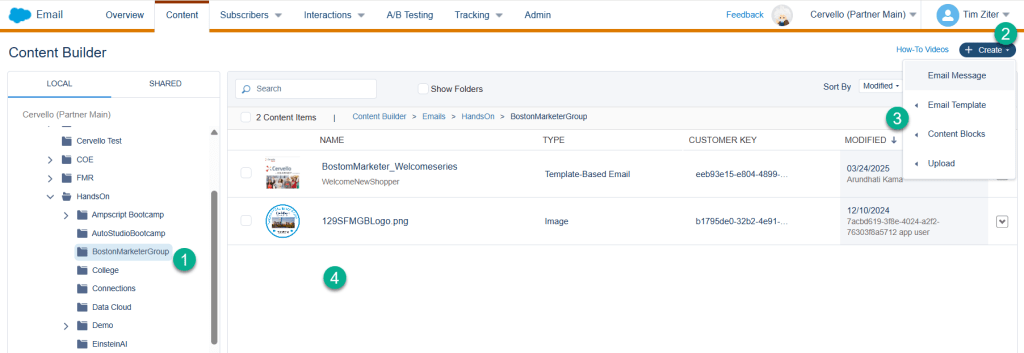
(1) Navigate to the folder in Content Builder where you want to create the email.
(2) Select the Create button.
(3) Click Email Message (if you are creating a new template then you’d click “Email Template”.
(4) And then once created the email would appear in the folder view.
In the next screen you’d select your email template:
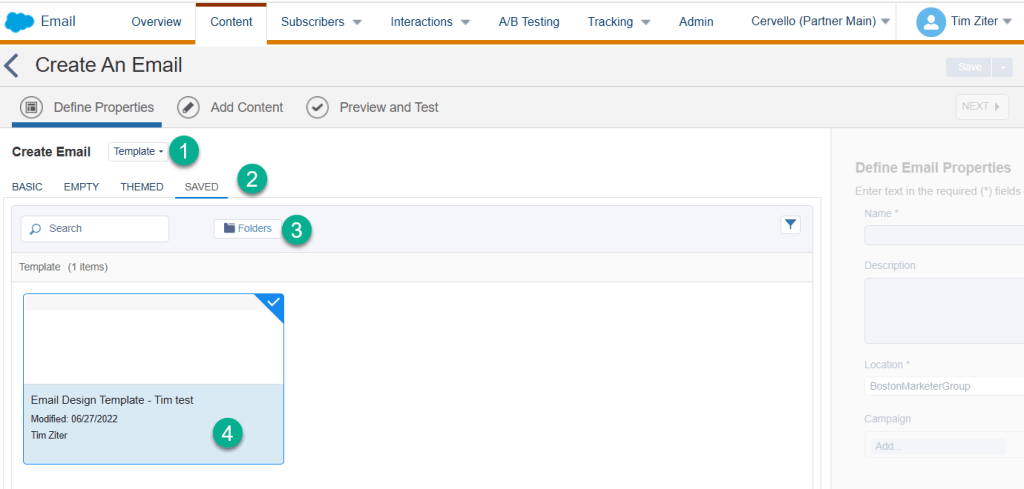
(1) Select the template button.
(2) Select the Saved tab.
(3) Click on the Folders button/folder.
(4) Navigate to the folder that contains your template, click on the template and select the blue button on the bottom right.
Let’s take a look at the same process in Marketing Cloud Growth.
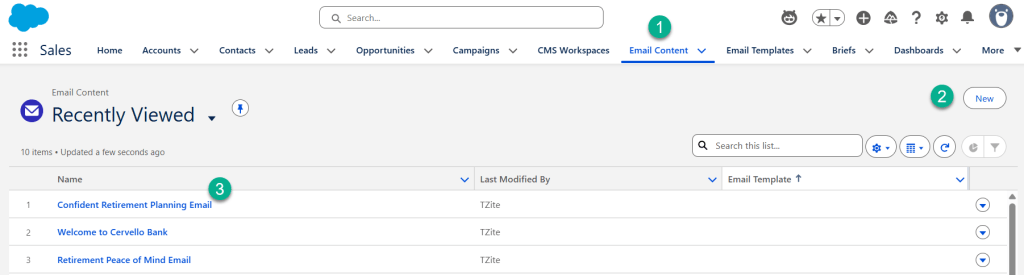
(1) In Marketing Cloud Growth add the “Email Content” object to your navigation.
(2) Clicking into the navigation you can add a new content record.
(3) Or you can edit or clone existing emails.
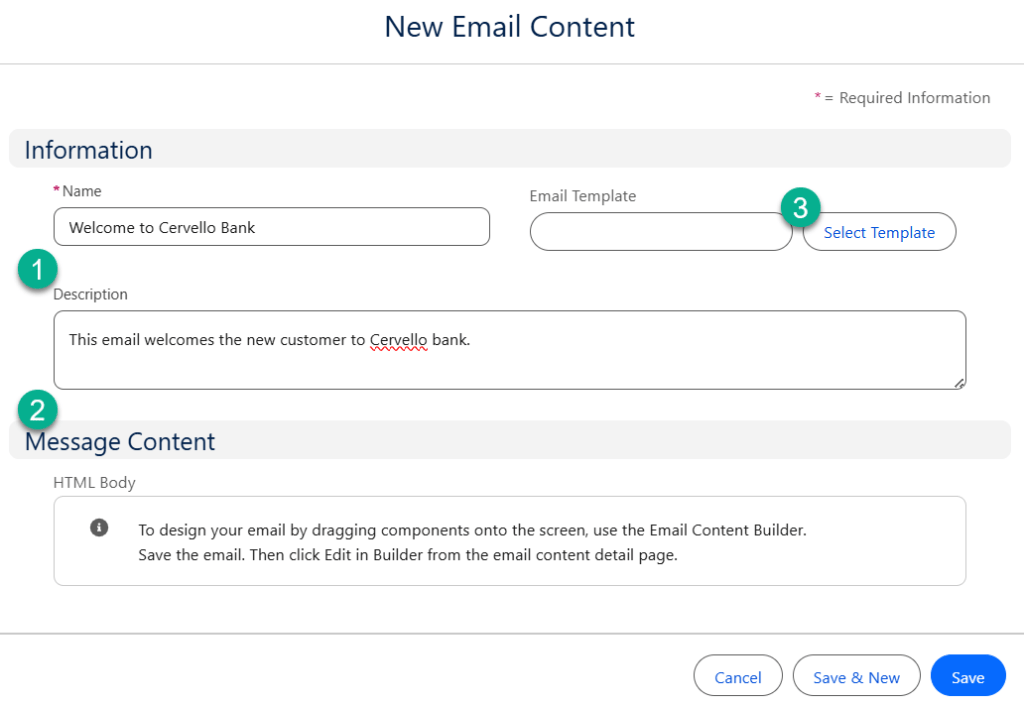
(1) When you create a new email you can fill in the name.
(2) There’s no way to save it in a specific folder however (not a huge issue).
(3) To select a template it’s handy that the button is very available to the user.
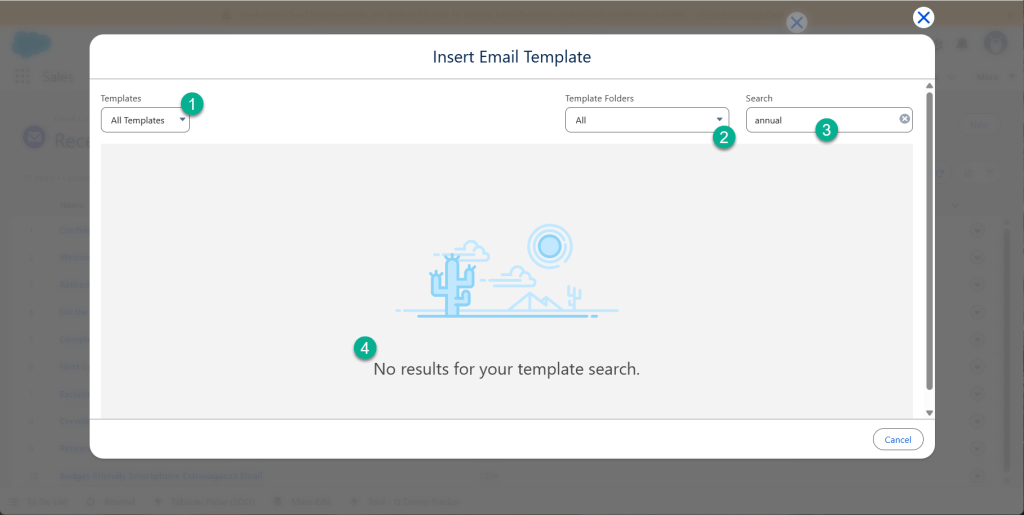
When you select “Select Template” above you are taken to a screen that isn’t very helpful.
(1) You can toggle between “My Templates” or in this case “All Templates.”
(2) And even when you configure the settings to be “All” in this drop down as well.
(3) You can’t search and find any of the available templates. This is a little concerning because there’s no way to select a template.
What’s interesting is that in this instance we have a long list of template so we’re not sure what we’re missing. For example here’s a sample listing of the email templates available:
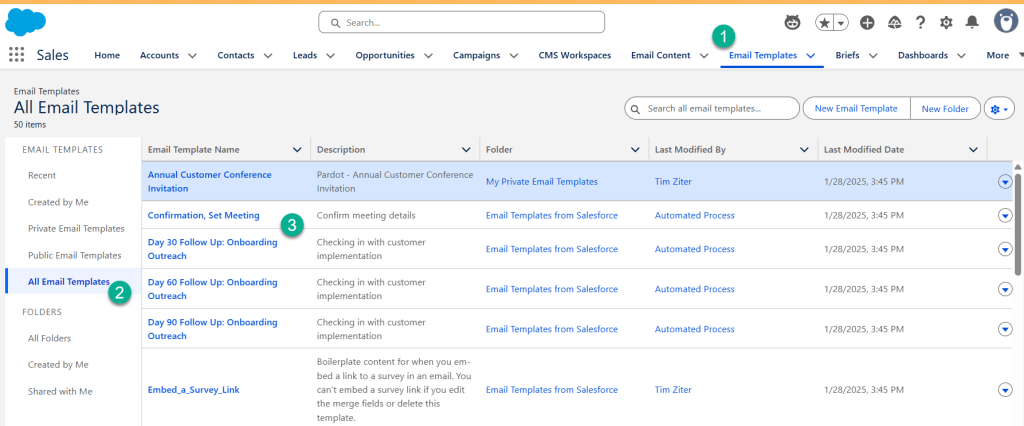
(1) Click on the Email Templates tab accessing the Email Template objects.
(2) Select All Email Templates.
(3) Thank you Salesforce because they provide a wide variety of templates to leverage. So why can’t I select them when creating an email.
In our next Hands-On session on April 3rd we’ll dig into the following questions related to the topic of creating an email from a template:
(1) How do you create an email from a template.
(2) How do you create folders to store email content.
Our next topic we’ll be exploring is how to create a basic email in Marketing Cloud Growth once we have the template all figured out.
Thank you for joining and look forward to your participation as we explore what’s possible using Marketing Cloud Growth.
 handsonsfmc.com