The Random Split activity is a simple yet powerful tool to add advanced functionality to your Journeys in Marketing Cloud. In this blog we will cover three ways to utilize the activity as we walk through the configuration.
Use Case #1: A/B testing
You can use the out of the box A/B testing offered by Marketing Cloud but it has limitations when used in a journey. We’ll show you how to add a random split to create different paths for not only sending/testing different emails but also including different journey activities in that path.
Use Case #2: Spreading out object update API calls to Salesforce Sales Cloud
In our walkthrough of how to update fields in Salesforce: https://handsonsfmc.com/how-to-update-salesforce-object-fields-in-bulk-with-journey-builder/ we mentioned adding functionality to spread out the API calls made when updating fields in bulk in Salesforce. In this use case we’ll update the journey to spread out the field updates over hours to prevent hitting API limits.
Use Case #3: Throttling email sends
In a previous blog post we covered how to use the Random Split activity to throttle email sends. For more on this use case click here: https://handsonsfmc.com/how-to-throttle-email-sends-in-marketing-cloud-journey-builder/
Random Split: A/B Testing
Before we dig into the configuration of the random split for the A/B testing use case, let’s review the journey paths for this A/B use case.
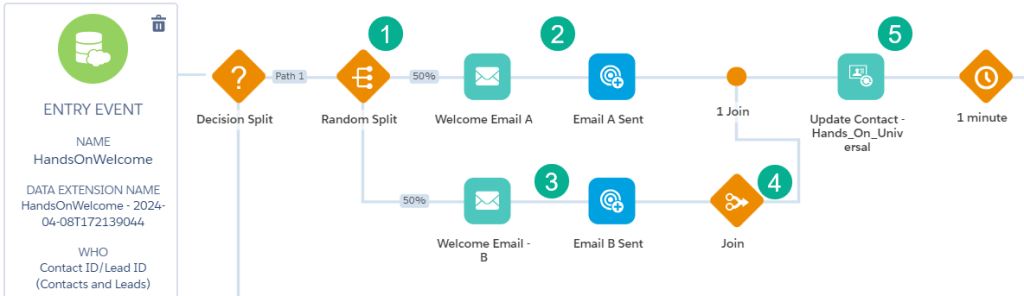
(1) We dropped in a random split activity before our email sends and have selected a 50/50 split to two paths.
(2) In Path one subscribers will not only receive email A but will also have additional custom activities included as part of the test, in this case an update to the Campaign member status in Sales Cloud to Email A Sent.
(3) Path two has our B email as well as updating a different status in Sales Cloud.
(4) We’ll use a join to bring both paths together.
(5) Where all subscribers can equally kick off universal activities.
Now let’s take a look at the simple configuration of the Random Split in a journey.
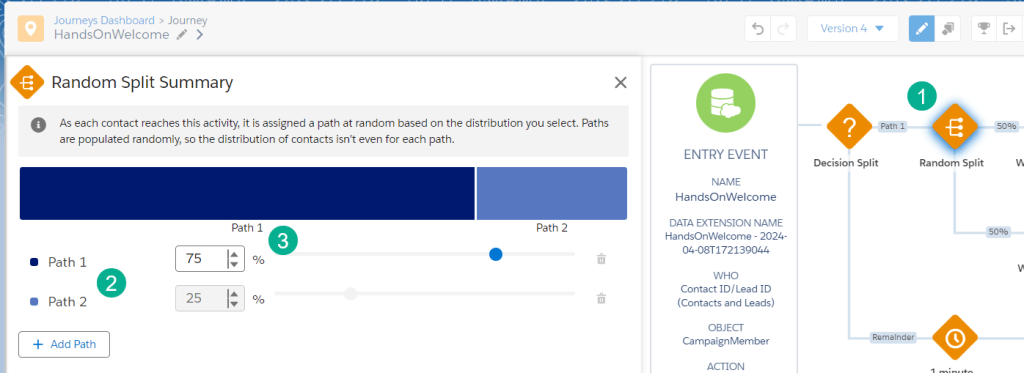
(1) Adding the Random Split to the journey canvas is as easy as dragging it from the menu on the left and dropping it on the canvas.
(2) The default for the activity is two paths.
(3) You can easily modify the percentages up or down for each path. So in this example if you feel that Email path A is stronger you can select 75% of subscribers to go down the preferred path.
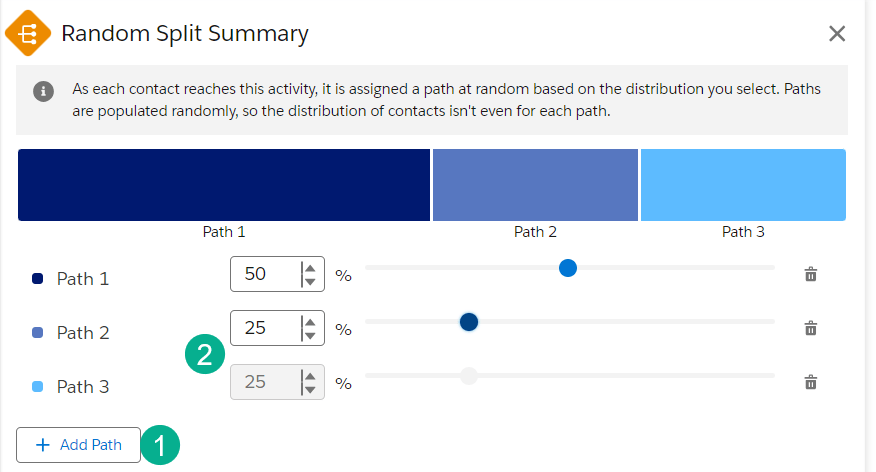
(1) Let’s say you wanted more paths simply click on the Add Path button. Let’s say you were doing an A/B test against a control creative that has been working for years, but you have not one option to test, but two.
(2) You can break paths 2 & 3 evenly so that for the challenger email the sends are split equally to determine the best replacement test email path.
Random Split: Spread Out API Calls
In a previous post we covered how to update Salesforce records in bulk with Journey Builder: https://handsonsfmc.com/2024/07/20/how-to-update-salesforce-object-fields-in-bulk-with-journey-builder/
In that blog we created a simple Journey that updated the Campaign Member status to Add to Journey:
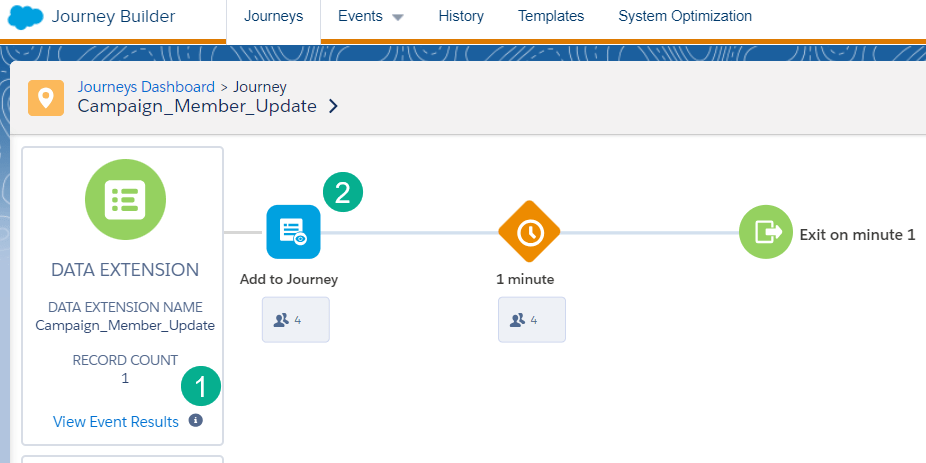
(1) We created a simple data extension of campaign members to update in Salesforce.
(2) Add fed them into a journey where the only activity was to update their status to “Add to Journey”.
Let’s say you have tens of thousands of records to update and you are concerned about hitting those API limits. Let’s add in a Random Split to spread out those updates over a few hours.
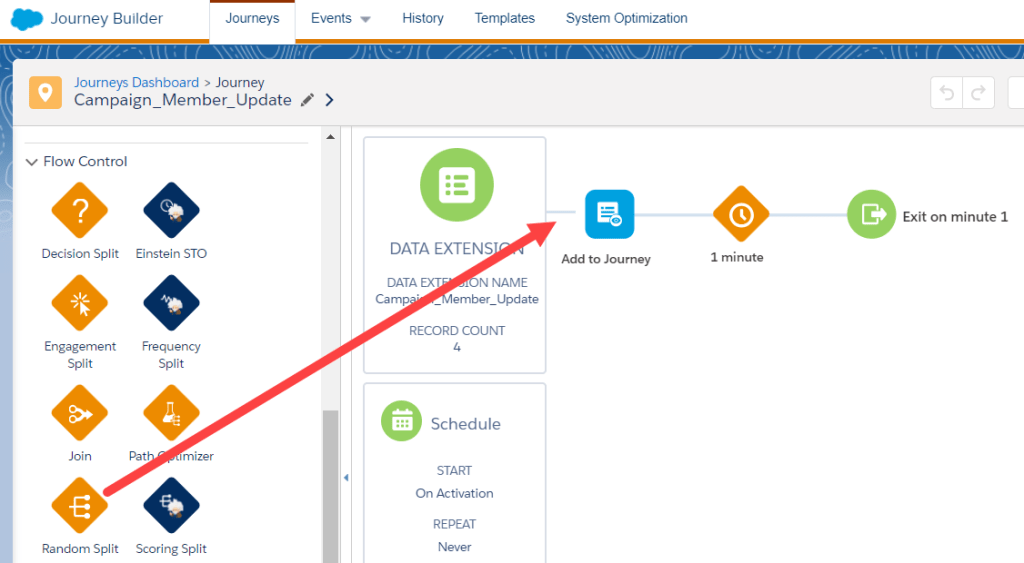
First we’ll add the Random Split activity to our Journey canvas.
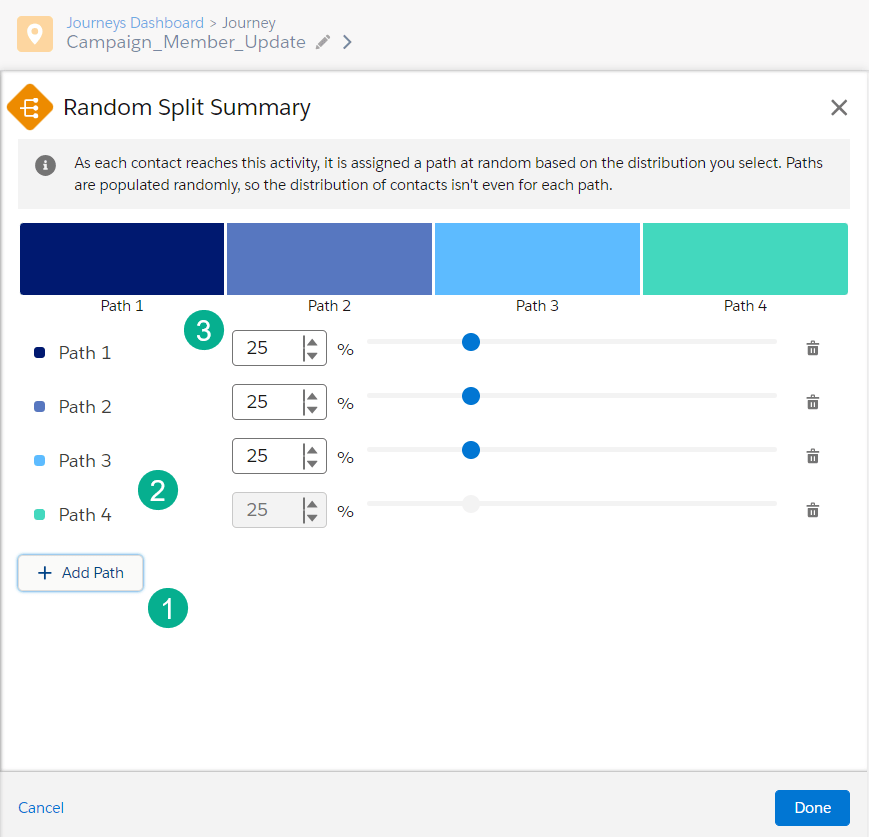
(1) We’ll add additional paths, in this use case two more paths.
(2) Paths 3 and 4.
(3) We’ll keep each path equal at 25%.
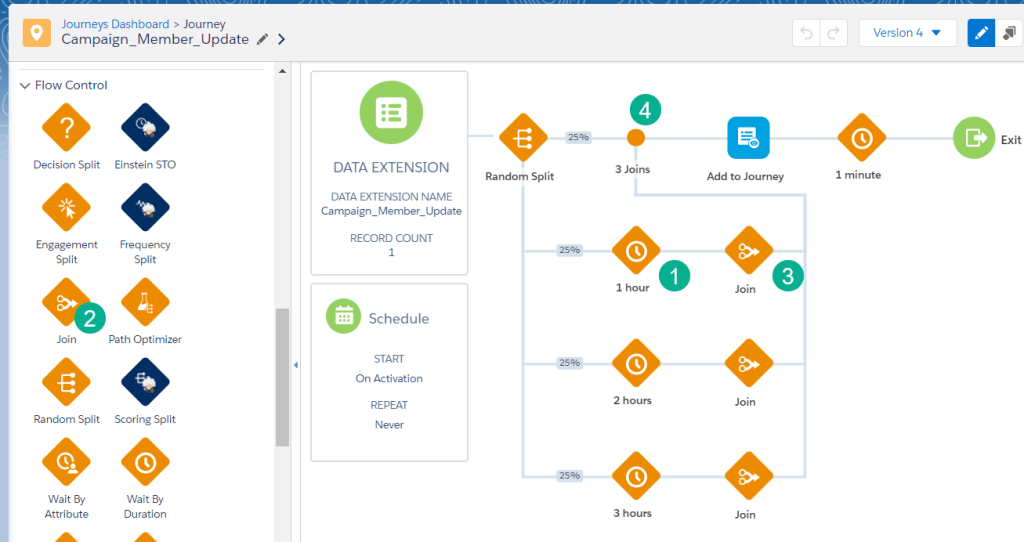
(1) We’ll add wait steps on each path to delay each subscriber by 1-3 hours.
(2) We’ll add a Join activity.
(3) And we’ll add the Join to each path.
(4) Directing the path to feed back up right before the Campaign Member activity.
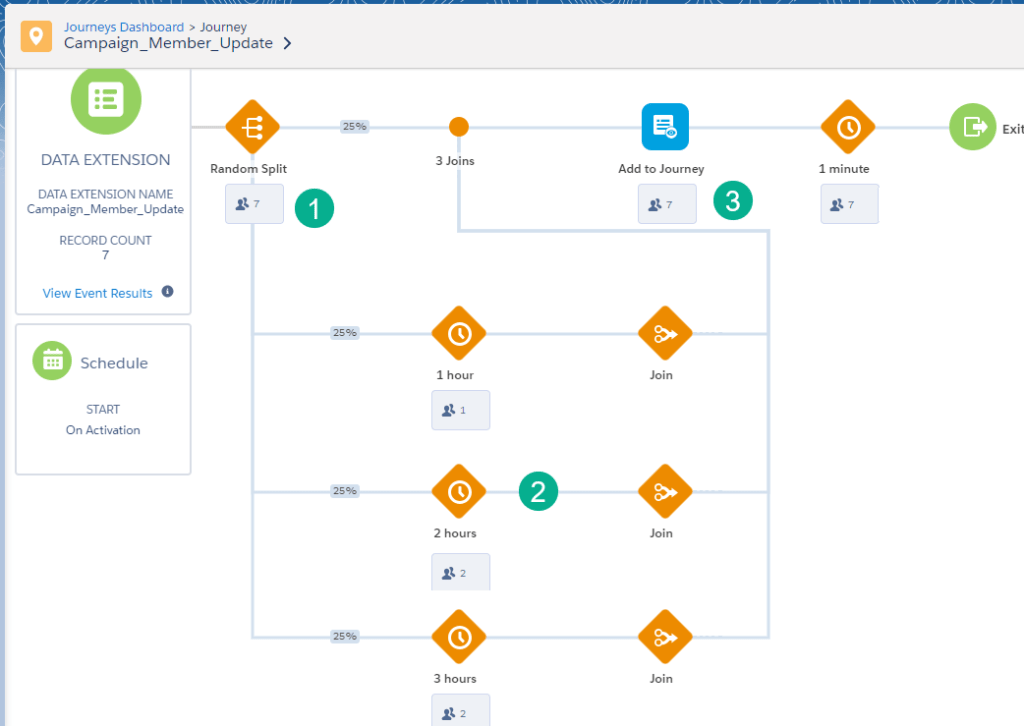
(1) Running our test records through the journey we have 7 records entering.
(2) We see 5 of the seven going down paths 2-4.
(3) And all Seven subscribers coming back through several hours later to perform the Sales Cloud update.
Hopefully that gave you not only a walkthrough of how to configure a Random Split activity but also highlights three different use cases and Journey examples of how to leverage this function.
Please share ideas on how you use this very cool Journey Builder activity.
 handsonsfmc.com