If you missed our third HandsOn session here’s the video and recap with commentary from the team.
Session Overview:
Builder: Malik Amodi – Thank you Malik for participating and building with us!
Topic: Displaying loyalty steps using the LookupRows function
Ampscript Functions used: LookupRows, IF/THEN, Concat, Propercase and more
Use Case: Northern Trail Outfitters has kicked off their loyalty program signing up a large list of members. NTO wants to reach out to each loyalty member providing a list of customized steps they can take to maximize their loyalty program.
IT has provided a file of loyalty steps across all loyalty members. Our team needs to reference this loyalty steps database and display each unique step for each loyalty member.
Setup – Data Extensions
Here are the two data extensions that Malik will be referencing to power this solution.
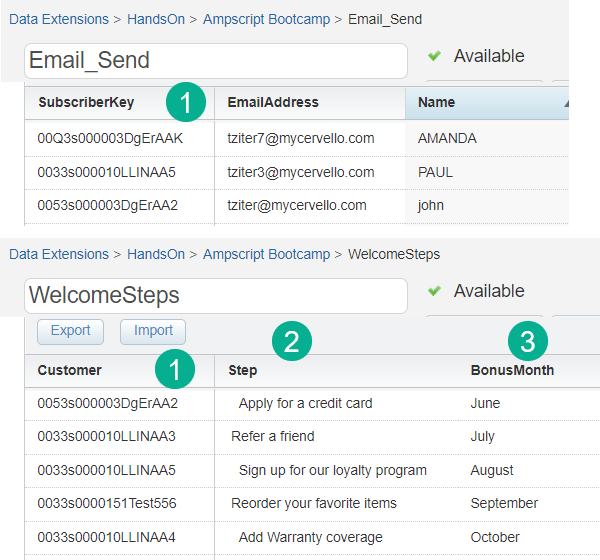
(1) The most important relationship is how the email send data extension (Email_Send) relates to the Loyalty steps (WelcomeSteps) data extension. The relationship is based on the Salesforce Contact/Lead id that was designated as the subscriberkey in Marketing cloud.
(2)(3) The two fields that will be displayed for each loyalty member, the Step and the Bonus Month.
To help us look up the data fields in the correct data extension we’ll be using the LookupRows function.
LookupRows Overview
Let’s take a look at the details provided by Salesforce on LookupRows in their ampscript function reference: https://developer.salesforce.com/docs/marketing/marketing-cloud/guide/lookuprows.html
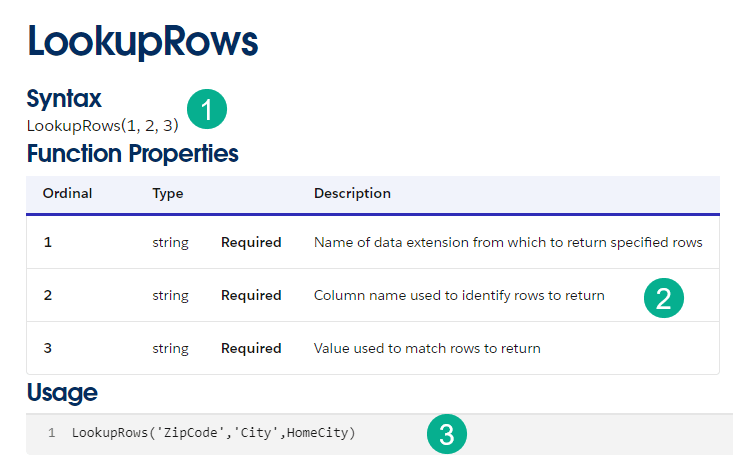
(1) Here’s the basic syntax for the function, there are three required fields.
(2) The first field is the name of the data extension that the data is being pulled. The second is the column that is used to identify the record(s) needed and the last field is the value that will be used to match the column.
(3) Here’s an example of a sample syntax which Malik copied into the sample email.
Copying the code into the email Malik swaps out the data points to tailor the code to our use case.

First he sets a variable @SubscriberKey to be used for the third value. And based on the screen capture above ‘WelcomeSteps’ is the name of the data extension and ‘Customer’ is the field that matches the @SubscriberKey variable or the name of the customer key.
LookupRows For Loop
With the basics of the function in place we now need to pull in a code example to create the For Loop. The AmpscriptGuide has an excellent example as part of their explanation of the code: https://ampscript.guide/lookuprows/
Malik drops this code into the email template and makes some modifications which we’ll go over here:
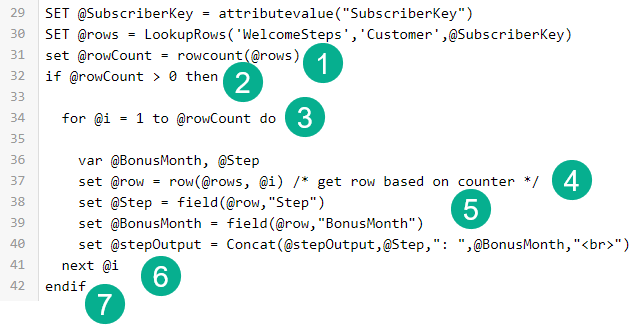
(1) the rowcount function converts the @rows variable that is returned by the LookupRows function into a number that can be counted.
(2) Using an IF THEN we want to only process the following code if the rowcount is greater than 0. If there’s not a match then we can skip the code.
(3) The for loop! The @i variable is the counter and the for loop will cycle through the next set of code starting at 1 to the end of the rowcount number.
(4) @row determines the row in the data extension to pull the data.
(5) In this section you can set variable using the field function based on the @row or row determined in the for loop.
(6) This is the end of the for loop. This function will send the process back to the beginning of the for loop unless @i is at the last number in the row count.
(7) The endif is the end of the IF statement.
Concat Function
With the For Loop in place the last part is displaying each step in the email body. Concat comes in handy when needing to string together lots of different data to be outputted, in this case rows of steps and bonus months.

(1) Choose the variable that will be used to display the content.
(2) When cycling through multiple rows of content always begin the Concat with the variable so it continues to add rows.
(3) In our output line we want to dispaly the Step or @Step variable first. In a Concat any variable does not need any quotes around it. To add formatting the next variable is a colon and a space “: ” you can add any formatting just make sure to have it surrounded by quotes.
(4) The second variable to add, the Bonus Month.
(5) To display each step on its own line Malik added HTML formatting surrounded by quotes.
Previewing the work
All that is left to do is output the variable in a text content block.
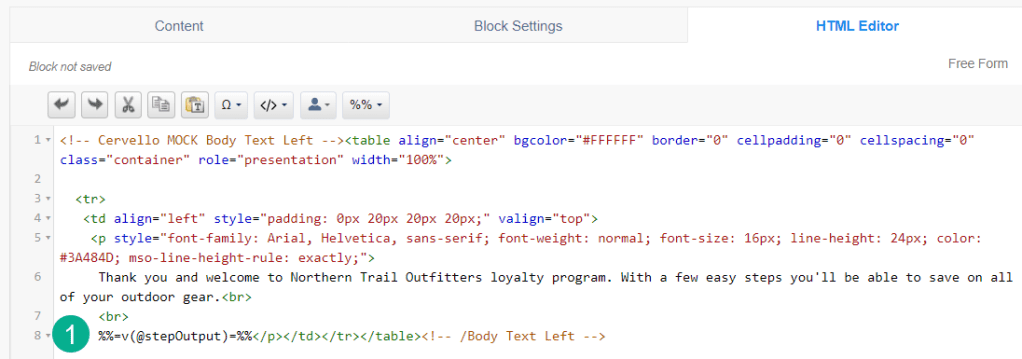
(1) Utilizing the V function to output the steps/month content with the correct spacing above and below. We recommend using the HTML editor as much as possible vs the WISIWIG editor.
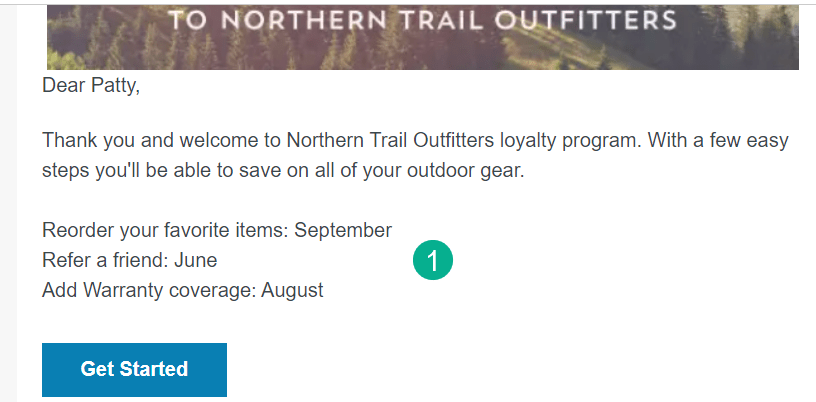
Previewing the email against the email send data extension we can see (1) for Patty three different loyalty steps.
Thank you Malik for volunteering to be part of a Hands On build session. For more information on LookupRows please read this walkthrough article: https://handsonsfmc.com/part-3-lookuprows-function/ which also has a YouTube video of the day two of our Ampscript bootcamp: https://www.youtube.com/watch?v=L8QULuslEn0&t=603s
You can sign up to build in one of our upcoming sessions at: https://handsonsfmc.com/contact/
 handsonsfmc.com