What fun we had in our first ever Hands On build session.
Here’s an overview of the session:
Builder: Shonica Mitchell – Thank you so much Shonica for being our very first builder!
Topic: Personalizing a welcome email to render first name pulling from multiple data sources.
Ampscript Functions used: Attributevalue, V, Lookup, Empty
Use Case: Northern Trail Outfitters wants to send an email thanking those who recently signed up for their loyalty program. The design team created a nicely designed email and the copywriters have developed a nicely written message. We work in marketing operations/IT an need to add coding to the email to personalize the greeting with the first name.
There are two data sources to pull the first name personalization: (1) A send data extension that has a first name field for most, but not all records and (2) a universal data extension that has a full name for all subscribers.
Let’s take a look at Shonica’s build step by step.
Part I: Set & Display Data Extensions fields

Let’s go into content builder and pull up the email that Shonica was working on refining in the session.
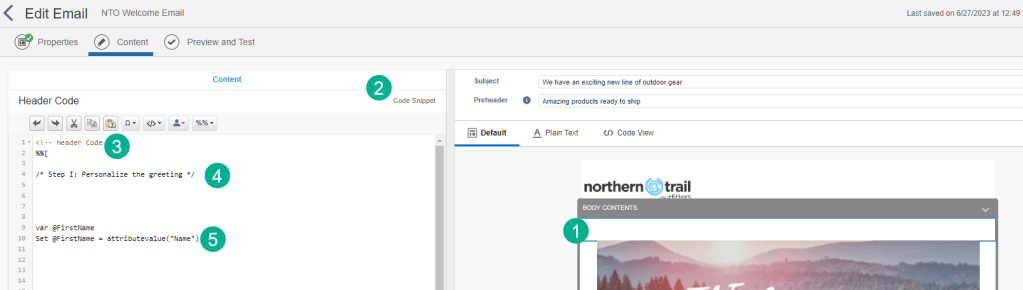
We want to call out a couple of key areas to set the stage.
(1) This email is built as an email design system. We’ll have more sessions on how to build out an email design system so please be on the lookout. Reach out in the meantime if you have any questions on how to set up an EDS in Marketing Cloud.
(2) We’ve created a Code Snippet block at the near top of our email where we want to store the majority of the ampscript code. This is recommended in two ways
(a) Having most of the code in one place makes it easy to troubleshoot when problems arise
(b) It’s recommended when possible to store your code in a Code Snippet block
(c) Free Form and other blocks can change your code to conform with the WISIWIG editing tool
(3) Use this syntax to “Hide That Ampscript”, for more information see Michelle’s Ampscript bootcamp session for a detailed breakdown here: https://handsonsfmc.com/part-6-math-functions/
(4) Commenting out your code is always best practice. For these hands on sessions we pre-built this code snippet and pre-commented out sections to break out the different code builds.
(5) AttributeValue, the simple but effective function to normalize your data. For more information on this function check out Tim’s session here: https://handsonsfmc.com/part-i-attribute-value-v-and-empty-functions/
Let’s take a closer look at the attributevalue function that Shonica built here. The variable @firstname can be set/named any value. So where did she get the “Name” part of this line of code?
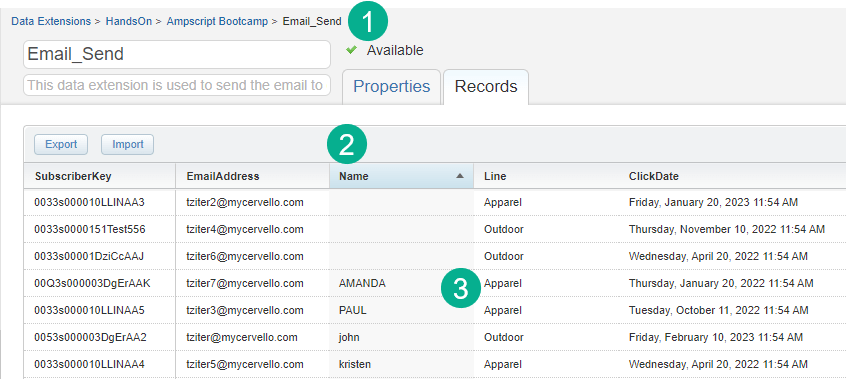
In our data extension we are intending to use for the actual send there is a field called “Name” which contains the first name of our subscriber. Any data extension field can be set to a variable in this method.
(1) The directory location of the data extension navigated through Email Studio.
(2) The “Name” field that was used to set the variable @firstname
(3) Notice that some subscribers have a name or first name and some do not. The data isn’t consistent.
Part II Displaying the @firstname variable
The tough part is done, now all we need to do is display the variable that was set.
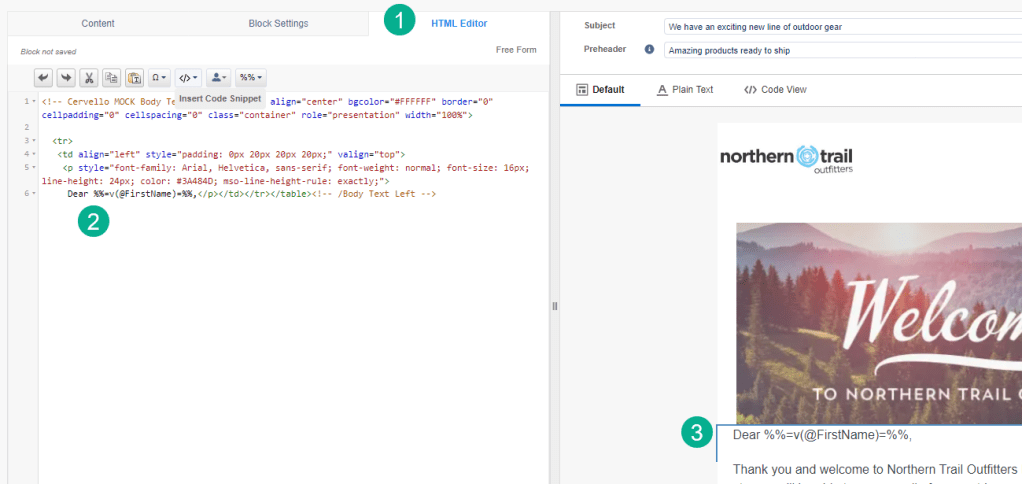
Here’s a quick walkthrough of the approach to display the variable.
(1) Yes you can use the WISIWIG in the Content block for a Free Form block, but we find that the coding will be more consistent if you use the HTML editor. If it is coded correctly in the HTML you are guaranteed to avoid problems.
(2) Right in the HTML Shonica adds the proper coding to utilize the v function.
– As we all know any inline ampscript has to start with %% and end with %%
– To use a function we need to add a = before and after
– Then it’s the function itself in this case the “v” function
– And then insert the variable surrounded by parenthesis.
Part III Lookup function to pull in that alt name
Before we dig into the Lookup function we need to set context about our second data set the Universal data extension that contains a lot more detailed information on each subscriber.
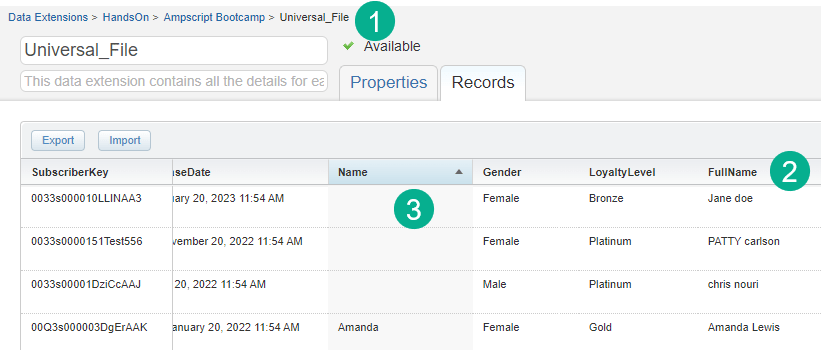
(1) The location of the universal data extension and name.
(2) The “FullName” field that can be used as an alternate name field.
(3) Visually seeing the use case where the “Name” field isn’t populated but the “FullName” field has data.
Now let’s walkthrough Shonica’s build out of the code using the Lookup function.
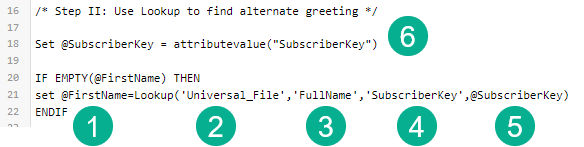
(1) Setting the same @FirstName variable as we did above. You could set a separate variable, but in this use case because the Lookup will be part of an IF THEN statement it works as the same variable.
(2) Now we fill in all the required fields for the Lookup function, first field is the data extension looking up which we detailed above.
(3) Second is the value we want to return and set to the @FirstName variable. This was #2 in the DE overview above.
(4) Next up is the value that we are going to be able to match the record in the data extension. In this case both data extensions have SubscriberKey as their primary key so that will be a good match.
(5) The variable that we will be using for the match for each send that is set in the next step.
(6) Using our favorite attributevalue function!
Part IV IF THEN and EMPTY
The home stretch! Now that we’ve created the functionality to look up an alternate field we need to create an IF THEN to only do the lookup if the @firstname variable field is blank.
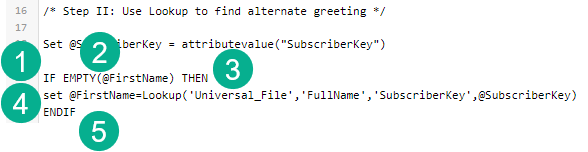
Sorry these numbers are jammed together
(1) Our IF statement
(2) The EMPTY function just add the variable in parenthesis and it will check to see if there is a value in that variable
(3) THEN, it’s a little simple, but don’t forget the THEN in your IF statement
(4) SET, this is where we want to drop in our code to do the lookup only if the @firstname variable is empty.
(5) ENDIF, don’t forget the ENDIF a common mistake
Let’s do a quick preview and test to see if Shonica’s code works
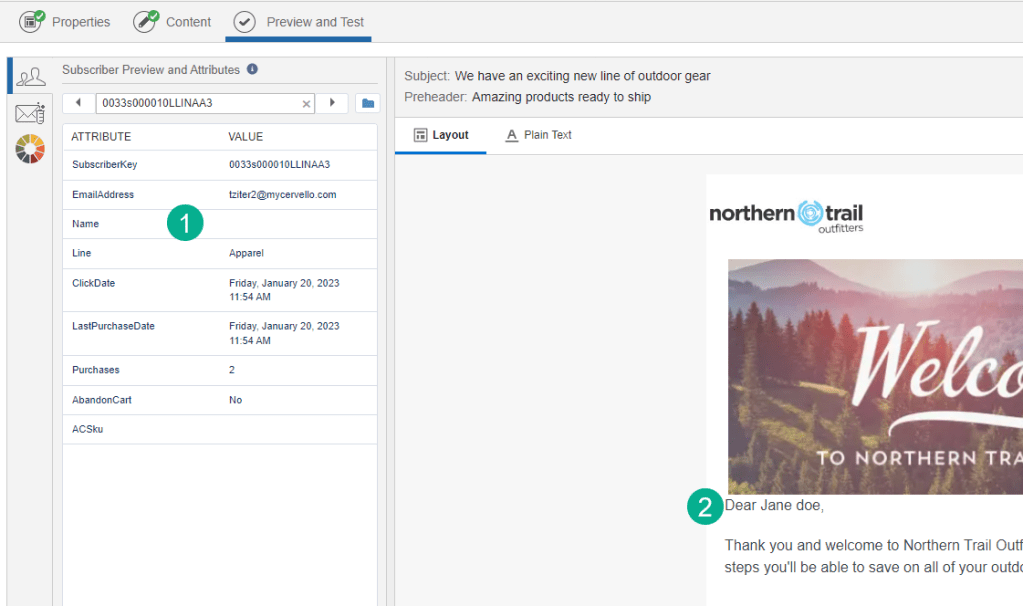
Success!
(1) When a record has a blank or empty “Name” field the IF statement sets the @firstname to the “Fullname” variable in the Universal_File data extension.
(2) And we have personalization in all use cases.
Great job Shonica!
Here’s some feedback from Shonica about her first exposure to coding in Ampscript:
- It’s not that bad
- It helps if you have a little experience building emails in other platforms
- She likes being able to dig into a section of the email code, having it be locked down and only edit one section
- Love to partner in the future, really enjoyed the experience
Please join us for the July 11th Hands On build where we continue to build out this use case and add more personalization including:
– Trimming the greeting so only first name comes through
– Adding customized loyalty program steps
– and much more
Sign up via the Phoenix Salesforce Marketer Group to join our July 11th session at this following link: https://trailblazercommunitygroups.com/salesforce-marketer-group-marketing-cloud-phoenix-united-states/
You can sign up to build in one of our upcoming sessions at: https://handsonsfmc.com/contact/
 handsonsfmc.com