Welcome to the second part post breaking down in more detail the Mardreamin(https://mardreamin.com/) presentation on the 5 Next-Level Ampscript tips. Plus we’ll be showing additional functionality that we didn’t have time to share in the presentation so don’t miss out.
If you want to skip ahead in the video below, the following section starts in 45:43 of the video. In case you missed part one you can check it out here: https://handsonsfmc.com/2023/11/06/5-next-level-ampscript-tips/
Five Tips
We wanted to reiterate the five tips as we’ll be highlighting all of them in our second part of this session. Our focus will be on LookupRows, IF THEN and For Loops from step #4.

Even though we’ll be featuring advanced functionality it will be rooted in the basics of #1. We’ll be leveraging resources like: https://ampscript.guide/lookuprows/ from step #2, but will be breaking down the code step by step to understand it, inspired by step #3, owning our code.
Last but not least we hope that these concepts Push the limits #5 a bit for you.
Use Case Overview
Now that we have a strong foundation built for our welcome email Norther Trail Outfitters wants to take things to the next level by boosting the 1-to-1 personalization in the email communication featuring the custom loyalty steps for each member.
When a NTO subscriber signs up they are presented with a variety of steps they can take to get the most out of their loyalty program. What’s more each step has a bonus month where the subscriber can earn additional bonus points if they complete the step before month end.
DataSet
The loyalty data isn’t part of Marketing Cloud and is fed from an AWS S3 bucket into Data Cloud where it is matched to the Marketing Cloud subscriber key and dropped into a data extension. This data set contains a list of all loyalty steps for the quarter each identified by their subscriber key.
Here’s the data extension that contains our dataset:
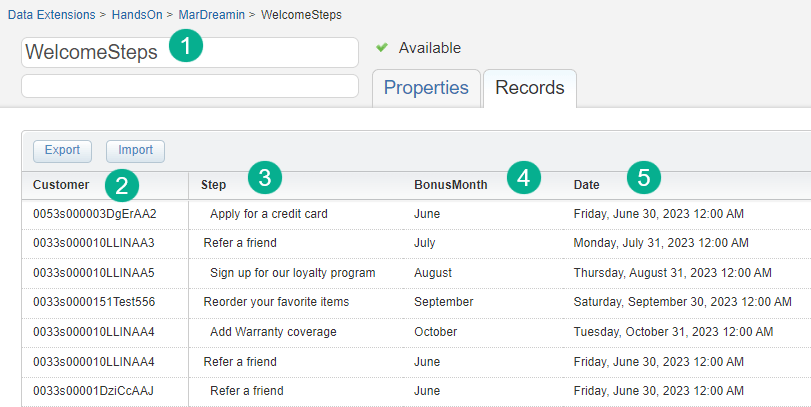
(1) The name of the data extension created with the data from Data Cloud
(2) The subscriber key in this case Contact ID from Salesforce Sales Cloud. Thanks to Data Cloud profile unification the loyalty step data was able to be attributed to a subscriber key that we can use in Marketing Cloud.
(3) The loyalty steps for each subscriber/member.
(4) The bonus month to gain extra loyalty points for each member.
(5) The bonus month expiration date, a field that we’ll be using in the LookupOrderedRows functionality.
Let’s build the functionality to populate in our welcome email the custom loyalty steps for each member.
How to Use LookupRows
In the email we are sending to loyalty members we have a subscriberkey which aligns to the Customer field in our Loyalty Steps data extensions.
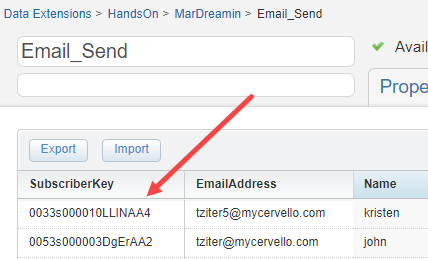
What we need to accomplish is for each subscriber in the Email_Send data extension we want to lookup into our WelcomeSteps data extension and display every step associated with that Subscriber/member.
Searching for LookupRows in the Ampscript Guide: https://ampscript.guide/lookuprows/ we get a very thorough breakdown of the function as well as very relevant example.

Only fields 1, 2 and 3 are required:
(1) The name of the data extension we are looking up, in our example WelcomeSteps.
(2) The column in this data extension which has the unique key to link the two data extensions, in our case it is Customer.
(3) And last, the unique key from our source data extension that will identify the rows that we want to lookup, in that case it’s SubscriberKey from Email_Send.
Further down on the page Ampscript Guide provides a detailed example of how to use LookupRows as well as a For Loop.

We will copy the above code and drop it into our code snippet block. This example is meant to be inline in the email and we need to clean it up a bit to be used in a code snippet block.
First let’s paste in the LookupRows function line only and we’ll clean up/prep our code as well:

(1) Add all variables to the VAR statement to follow best practices in declaring. We’ve added an additional VAR to list our For Loop/LookupRows variables separately.
(2) Comment out the code – in this example we’ve commented out the previous exercise, setting the greeting variable.
(3) In the spirit of commenting out let’s add comments for the loyalty steps section.
(4) Here’s the LookupRows line from Ampscript Guide.
(5) Function variable #1: the name of the data extension.
(6) #2: The name of the column where the unique key exists.
(7) #3 The unique key set in our Email_Send DE which was set back on Line 7 used in the Lookup on line 12.
With that set @rows will return a value if there are any rows in the lookup data extension that match the subscriber key. The For Loop comes next.
How to use For Loops!
For loops allow you to cycle through multiple rows of data sets. So if one subscriber has four loyalty steps in our WelcomeSteps data extension a For Loop will loop through four times to pull out variables for each row.
Taking the Ampscript Guide’s code and cleaning it up a bit we have the following:

(1) rowcount – this is a very important ampscript function: https://ampscript.guide/rowcount/ as it converts the value that’s returned from the lookuprows function (@rows) to a number which can be used in the For Loop.
(2) IF THEN – used here to only perform the For Loop if a row in the data extension is found.
(3) The For Loop begins and ends at (7). You’ll need to designate a variable in this case we are using @i. We are telling the For Loop to perform the steps between 2 and 7 for each row based on the row count. @i will start at 1 and go up to the count.
(4) A VAR statement inside your For Loop can be helpful to reset the key variables to be outputted. Be careful of which variables you place in here as you might want variables to not be reset in each loop.
(5) SET @row is another critical step as this determines the exact row to pull the data from in this loop. As you can see in step 6, the two variables we are setting are being instructed to use @row to determine the row.
(6) Set those variables. This is the data we need to pull out of each row. It’s setting a variable to the specified row and the column in the Data Extension to find that data point.
(7) Next – this is the end of the For Loop. The code will send it back to #3 to continue if the rowcount hasn’t been reached.
(8) The ENDIF which closes out the IF THEN statement on #2.
To validate the LookupRows and For Loop is working correctly let’s output the @rowcount (%%=v(@rowcount)=%% variable in our content to see the number of rows for each subscriber.
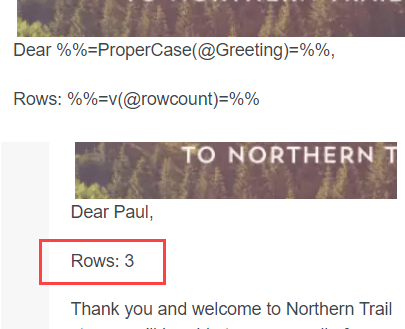
Looking good, confirmed we are seeing 3 rows in the WelcomeSteps data extension for Paul. This reinforces step #3 owning your code as using the v function can help you validate the data at each step of the way.
How to Use CONCAT
This little function:https://ampscript.guide/concat/ is simple but super powerful.
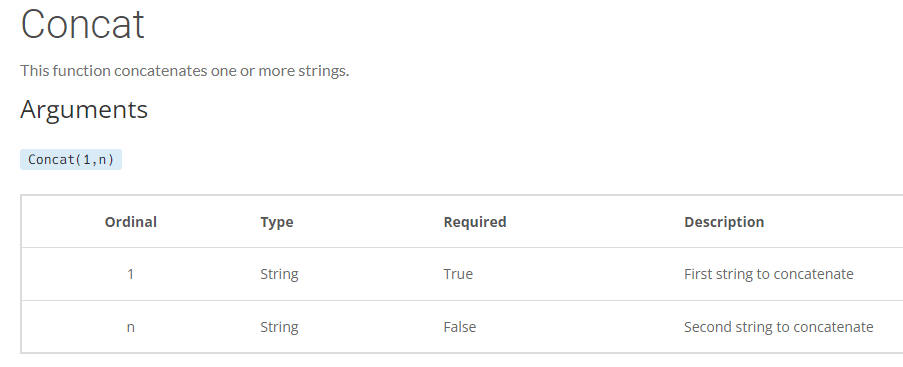
It’s just merging or adding two variables or strings, text, html, etc. together. What makes it powerful in a For Loop is that it allows you to add the data to a variable each cycle through the loop. Plus using HTML and text you can format those data points.
Here’s how we used CONCAT to create a variable that creates rows of personalized Loyalty steps customized to each member.
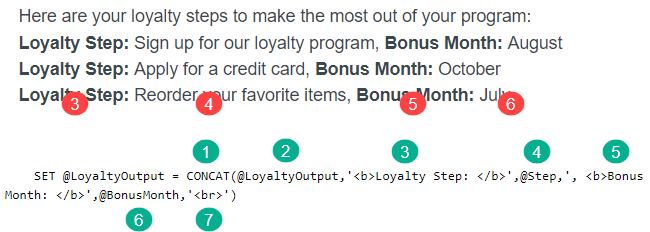
(1) The CONCAT function
(2) The first variable/string in most CONCAT functions should be the variable itself so that the variable can build rows each time through the For Loop.
(3) Let’s add some static text as our next string which is surrounded by single quotes. Note you can use HTML as well as text. Each part of the string is separated by a comma.
(4) The Step variable set in the For Loop is next.
(5) The next set of static text describing the Bonus Month.
(6) And last the Bonus Month variable.
(7) One last step adds a <br> to add a line break between each personalized row.
To output all of the rows of data for each subscriber simply add the @LoyaltyOutput variable to the content block in the email.

In our next and last post on this presentation we’ll dig into two functions that we didn’t have time to explore at MarDreamin which are LookupOrderedRows and In Line IF THEN statements.
 handsonsfmc.com