As you may know Ampscript is the proprietary coding language for Marketing Cloud which allows the user to personalize as well as update data within the platform. Whether you are starting out with Ampscript or have had a few years experience these five tips can help you continue to build a solid foundation.
This topic was presented at MarDreamin (https://mardreamin.com/) in early November of 2023 which you can watch below. This post will detail a few more areas we didn’t have time to cover in our 5 Next-Level Ampscript tips presentation.
5 Next-Level Tips
#1 – Focus on the basics – To take your ampscript or personalization to the next level you need to build a solid foundation in your ampscript coding. This will take time, patience and commitment from you and your team. Here are a couple basics to think about:
a.) Use a Code Snippet Header block – Adding a code snippet block has multiple benefits (1) It organizes the functionality all in one convenient place so you don’t have to search across the email when you have to make updates, (2) Salesforce recommends placing as much of the ampscript in a code snippet block for better performance and (3) Free form and other blocks can automatically change/format ampscript where as a code snippet block will always stay the same.
b.) Variable-ize your data points – There’s nothing wrong with displaying the data points as %%Name%%, it works. Setting that data point to a variable will set the foundation to allow your data points to be used across a variety of functions.
c.) Comment out your code – Using comments throughout the code like /* This section of code trims the first name from the FullName variable */ is thinking of your future selves and other developers by leaving key notes about each section of code.
#2 Leverage resources – The Marketing Cloud community is incredibly strong and there are numerous high quality resources out there to seek help while you are coding. If you are struggling through an ampscript use case more often than someone in the community has faced that problem, has solved it and provided a solution.
a.) https://ampscript.guide/ – is the definitive resource. It’s free, but totally subscribe as it’s worth it and pays back to Eliot and Adam who created and maintain the Guide. Can you imagine a world without the ampscript guide?
b.) https://salesforce.stackexchange.com/questions/tagged/marketing-cloud – Stack exchange with a Marketing Cloud filter is an incredible resource to find out those previous challenges with ampscript and solutions. You’ll see the industry moguls like Eliot, Adam, Greg Gifford and more answer questions and help you work through each challenge.
#3 Own your code – Don’t just copy ampscript code from a solution found in the community paste it into your solution and think that you are done. Break down that code line by line to understand exactly what it’s doing. Be able to re-create it from scratch and output data points along the way.
#4 Champion the Big Three – When your team starts building more advance ampscript Lookups, IF/THEN and For Loops will be the core functions that are worth knowing inside and out. There are a ton of functions out there to learn and leverage, but try not to spread out your knowledge and utilization across many functions when concentrating on the key functions might serve you better.
#5 Push the limits if logical – There’s no limit to what you can create in ampscript. The entire email can be customized and personalized if needed. Push those limits, be creative with the code but be mindful to not over complicate the build just because. Let the use case drive the need for personalization, not the need for using a cool new function.
To illustrate these five next level tips we’ll walk through two build use cases that build a solid foundation in ampscript coding and use advanced functionality.
Build #1 – Basic Personalization
In this use case we are looking to add basic personalization to a welcome email.
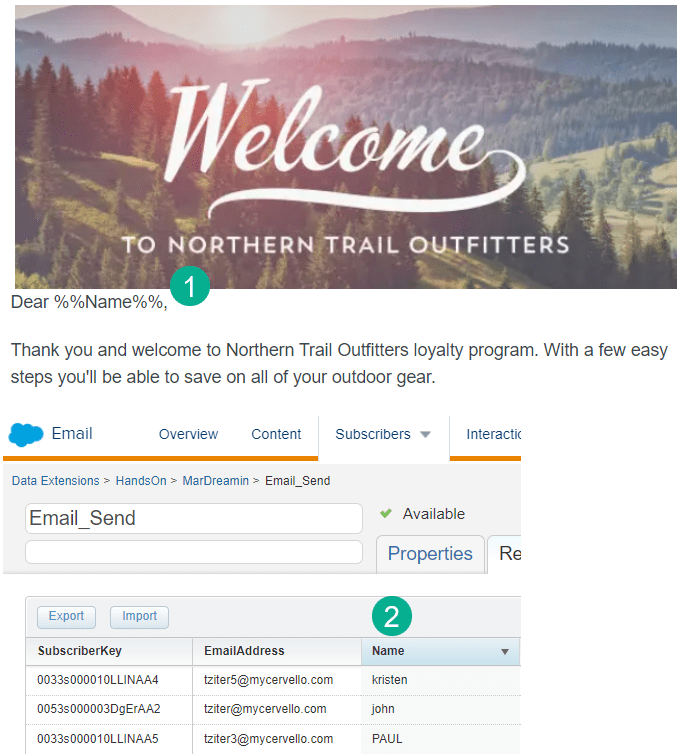
(1) The %% coding execution here is a perfectly fine execution of personalization in ampscript but it does limit you for more advanced functionality. Don’t forget to think about the large library of variables available upon send time called personalization strings: https://help.salesforce.com/s/articleView?id=sf.mc_es_available_personalization_strings.htm&type=5
(2) The Name variable used above is being pulled from the email send data extension where it contains the first name of the subscriber/loyalty member.
To set up your email to optimize personalization not only for the greeting variable but also for advanced functionality follow these steps:
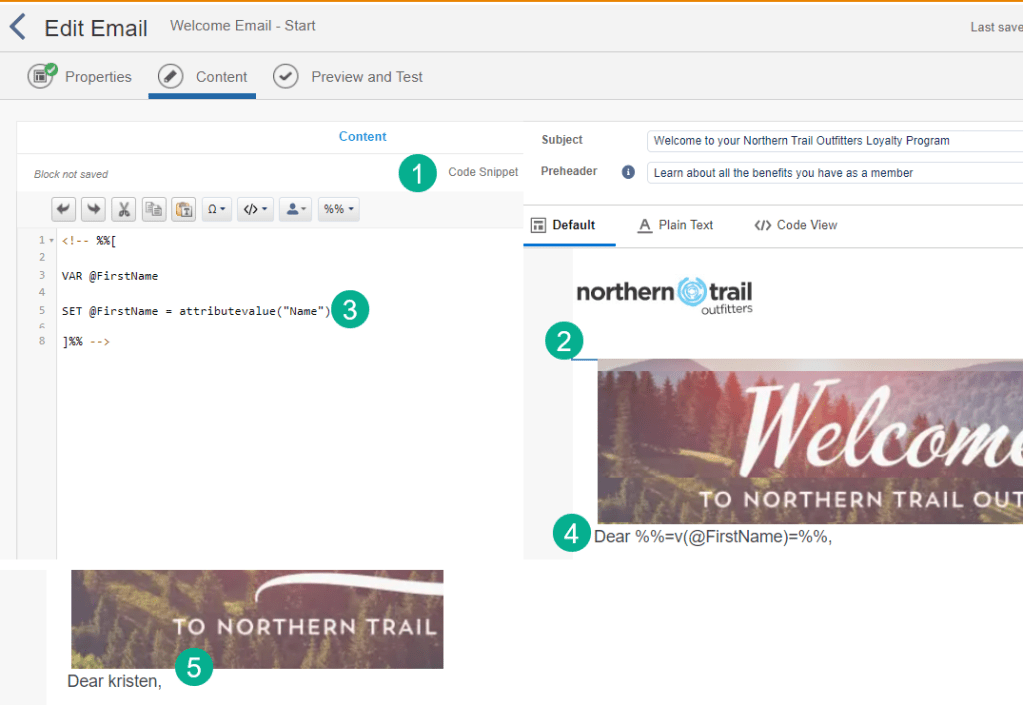
(1) Add a code snippet block and add it to near the top of the email (2)
(3) using attribute value set the @FirstName variable
(4) Update the personalization utilizing the “v” function to output the first name variable
(5) Which outputs correctly when previewed against the Email Send data extension.
The Big Three – Lookup
Now that you have the first name variable set you can check to see if the variable is empty and populate an alternative name variable.
To improve on the functionality of the personalization we need to check to see if the First Name variable is populated. If it’s not populated we’ll want to lookup to a different data extension that has an alternate name field.
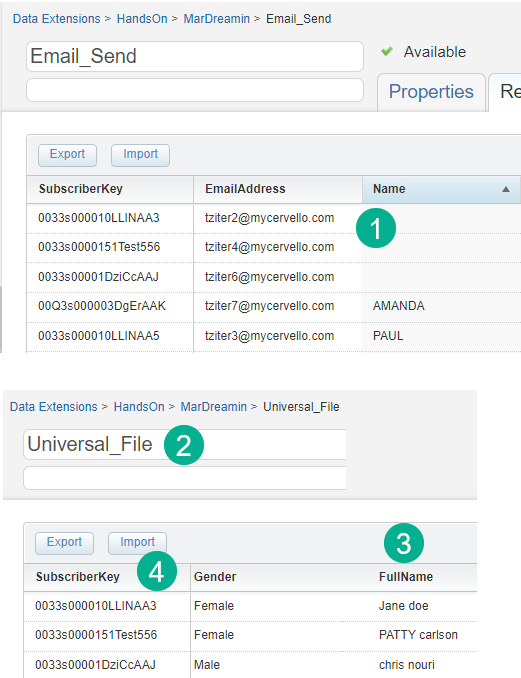
(1) The email send data extension has incomplete data, not all subscribers have a first name.
(2) The Universal_File data extension is a good back up resource to find an alternate name field for each subscriber. A Universal data extension is typically used by companies that might not be connect to the Salesforce Sales Cloud where synchronized data extensions can be made available to lookup alternate first and full names.
(3) In this data extension the FullName field as another source for a greeting if the Name field isn’t populated.
(4) Each subscriber in this data extension is identified by their SubscriberKey or in this example what would be a contact id.
To access the FullName field we’ll need to utilize the Lookup function which is detailed in the Ampscript guide: https://ampscript.guide/lookup/
Ampscript guide explains the syntax for this function as follows:

There are four fields in this function:
#1: The name of the data extension that you are looking up, which in our case would be Universal_File.
#2: The column on that data extension that we are looking to return, in our use case it’s FullName
#3: The column in the data extension that identifies the row or subscriber. In our use case that would be SubscriberKey.
#4: Is the variable or data point that identifies the value used to look up for #3. In our code snippet we’ll need to create a variable for the Subscriber key in the email send data extension.
Copying the syntax and pasting the code into our code snippet block we get the following:
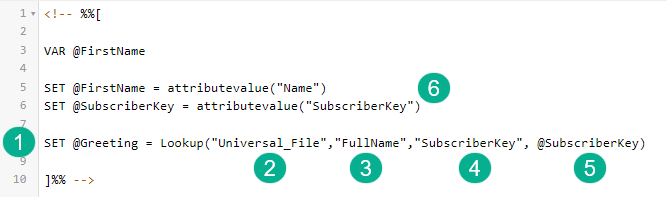
(1) Setting the @Greeting variable to return the Full Name from the Universal_File data extension.
(2) The name of the data extension
(3) The name of the column we want to return
(4) The field in the data extension that identifies the row/subscriber
(5) The variable that identifies the subscriber
(6) The value “Subscriberkey” being set as a variable using the attributevalue function
To validate the Lookup function add an additional block to output the @Greeting variable using the “v” function.
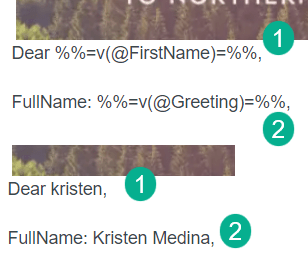
(1) The first name variable block using the v function as above.
(2) The @Greeting function outputted with the full name for Kristen here.
IF THEN with EMPTY
Now that we validated that the lookup function is working we can use the new variable in an IF THEN statement setting the Greeting variable based on the data from both variables.

(1) The IF/THEN begins by checking if the @FirstName variable is EMPTY using the EMPTY function: https://ampscript.guide/empty/
(2) Set the @Greeting variable
(3) Using the ELSE statement set the @Greeting variable to the @FirstName variable because it contains a value
(4) Every IF/THEN needs to end with an ENDIF
In the mail content, change the @FullName variable to @Greeting and validate the output. Previewing the data extension we validate the personalization as follows:
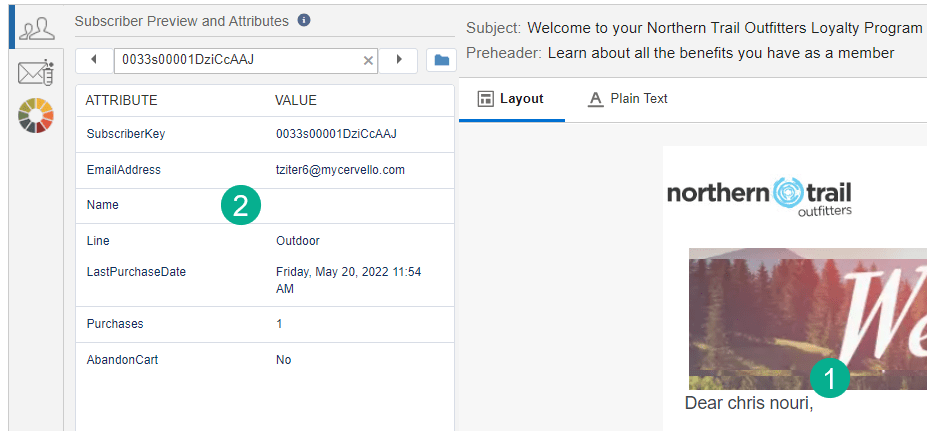
(1) A personalization value, the subscribers first name is displayed when
(2) the Name field is empty
Substring to display First name only
There are two more areas to improve this personalization field, the first is to not just output chris nouri as we’ve seen above, to make the personalization consistent we want to always display only the first name.
To extract only the first name out of the FullName variable let’s use the Substring ampscript function: https://ampscript.guide/substring/
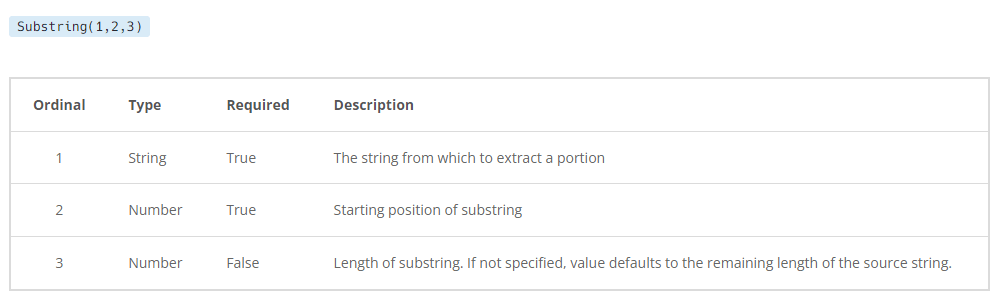
The Substring function has three variables:
#1: The variable that you want to reduce to just the first name
#2: The starting position of the value you want to pull out of the variable. In our example since we want the first name this will be the first character or the value of “1”.
#3: This is the tricky part, the length of the first name. Every first name will be different so how do we determine the length each time.
Let’s add this code to our ampscript block and fill in the easy parts of this function:

The first value @Greeting has the full name that we want to reduce to the first name. And we want to start value #2 on the first character position. That leaves the last value which we need to figure out.
So how do we determine the length. Luckily we have a identifier in every example of the full name that identifies when the first name stops which is a space, so “chris nouri” there’s a space we can identify in this variable or string.
Let’s use the function IndexOf which will identify the position of any variable in a string: https://ampscript.guide/indexof/

#1: The first variable in the function is easy, it’s the variable we are looking to reduce to only first name
#2: The value that we want to determine the position in the variable which we’ll use the space.
And last we need character position one less than the position of the space so we’ll use the Subtract function to remove one number from the Indexof. Subtract: https://ampscript.guide/subtract/.
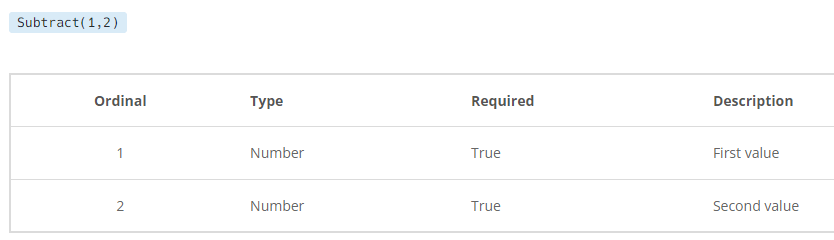
#1: This variable is the first value
#2: Is the variable that will be subtracted from #1
Let’s take a look at the code that pulls this all together.

(1) Substring is the outer function.
(2) In the third value in Substring it starts with Subtract which is taking the IndexOf function as the first value and reducing it by the second value which is just 1.
(3) Last is the IndexOf function which will find the length of the first name at that space.
Previewing the v output of the @Greeting variable:

We no longer see Chris’s last name, just his first name and the space isn’t outputting as well.
Once last function to feature before we close out this build is ProperCase:https://ampscript.guide/propercase/ which will initial capitalize the @Greeting variable so the personalization is consistent.
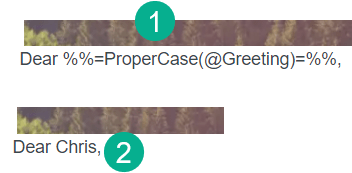
(1) Swap out the “v” function with the ProperCase syntax
(2) And personalization is now consistently outputting as initial caps.
In our next post we’ll go into the second build using more advance personalization functionality with LookupRows and For loops.
 handsonsfmc.com