The HandsOnSFMC team has the opportunity to speak to students in Professor Carolyn Bonifield’s Digital Marketing class at the University of Vermont’s Grossman School of Business this semester.
In the hope to showcase real world examples of Digital Marketing the team wanted to take the students through an exercise where they would be marketed to by a brand. And use the amazing tools of Salesforce to create and execute that brand.
We’ll be blogging about this exercise over the next couple of weeks. The first blog is about how we set up the campaign in Salesforce to get the students engaged.
This blog will cover the following steps:
1.) The use case: Salesforce wants to market to college students
2.) Overview of the Digital Marketing Campaign
3.) The build: how we executed the start of the campaign in Salesforce
Step I: The Use Case: Salesforce wants to market to college students
Salesforce, the CRM software company, is interested in marketing to college students for three reasons:
(1) Salesforce wants College Grads to work at Salesforce: College graduate talent are hard to attract and traditional recruiting methods are complicated and can be expensive.
(2) Salesforce wants College Grads to be advocates for Salesforce in their new jobs: These future business leaders most likely will be using a CRM software in their career. Being knowledgeable about Salesforce right from the start of their careers will help them become advocates.
(3) Salesforce want consultants to recommend Salesforce: Business students often work in consulting so Salesforce wants their software to be top of the list for their client recommendations.
Step II: The Digital Marketing Campaign
Here the goals of the campaign:
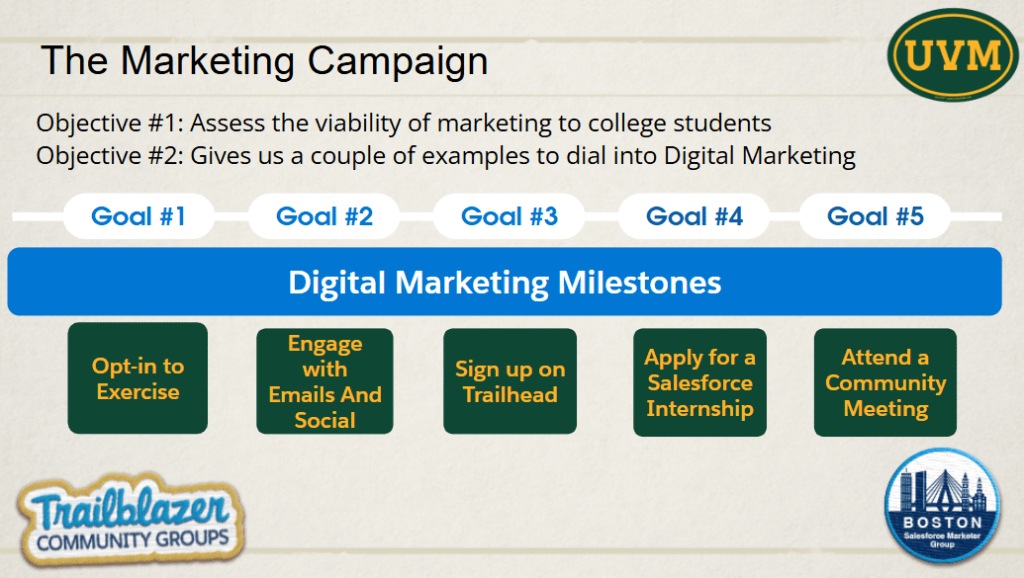
Goals #1-#2: To accomplish our first two goals we’ll be creating a form page and a series of emails that will be center of the campaign broken down into the steps below.
Goals #2-#5: These goals are up to the consumer or our students. We will be promoting trailhead and the internship opportunities but it comes down to their interest in the exercise and Salesforce in general.
Goal #5: This will be accomplished naturally because the presentation on November 20th at the Business School will also be a Salesforce Boston Marketer Community Group meeting: https://trailblazercommunitygroups.com/events/details/salesforce-salesforce-marketer-group-boston-united-states-presents-digital-marketing-exercise-at-the-university-of-vermont-grossman-school-of-business/
Students will be able to log into the community meeting and network with community members in the New England/Boston area.
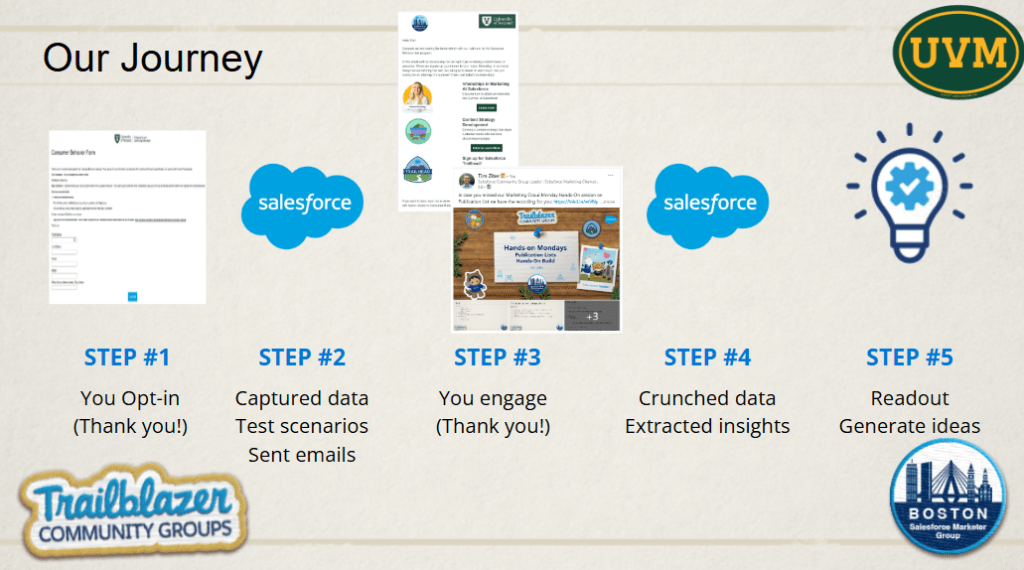
The above steps will be accomplished over the weeks leading up to the presentation on November 20th. And we’ll breakdown how to set up a basic form page in Marketing Cloud and tips on building personalized emails as well.
One more note before we move onto the build section of this post. Here’s an outline of the different areas of Digital Marketing this exercise will cover, all facilitated through the Salesforce platform:
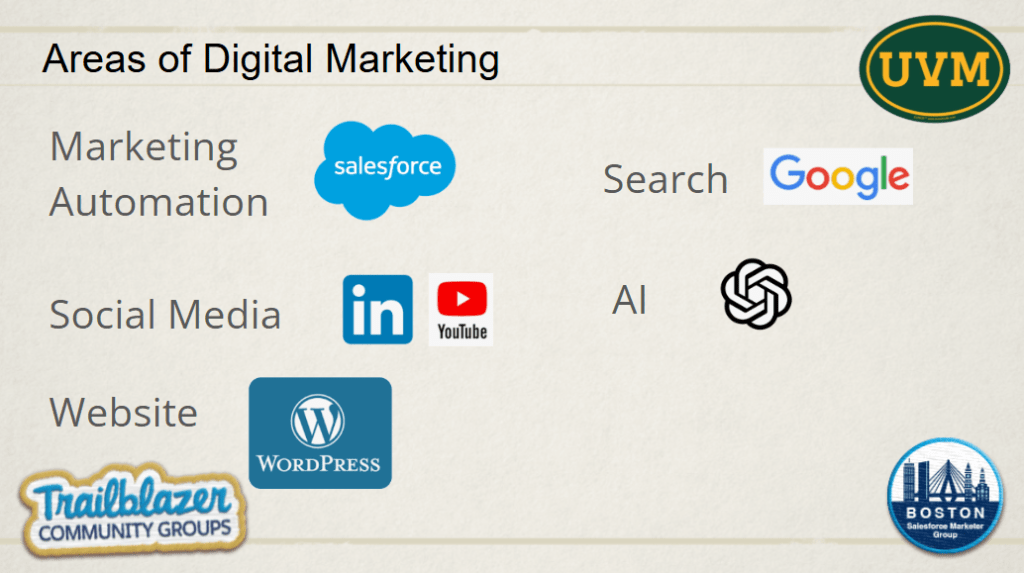
(1) Marketing Automation – the Star of the show. We’ll be leveraging Salesforce Marketing Cloud to create the form page, manage the subscriber data and send out emails in the campaign.
(2) Social Media – LinkedIn will play a component in the campaign as we’ll be sending out social posts for the students to engage. Also we’ll be recording key sessions and posting the content on YouTube like the setup section covered a week ago: https://www.youtube.com/watch?v=7iE3trdttdI&t=1937s
(3) Website – This post is hosted on the WordPress website platform. Students will have the opportunity to react and even create content that can be posted and shared with the community and beyond.
(4) Search – We’ll watch to see how these pages that we create on the topic will rank in SEO on Google.
(5) AI – We’ll be using AI to write copy and support the campaign overall. Who knows, next time it might be doing the entire campaign.
(6) Event Marketing: One more area that wasn’t covered is Event Marketing as the presentation will be a Salesforce Community event!
Step III: The Build – how did we create the campaign functionality in Salesforce
Part I: The Opt-In Cloud Page Form.
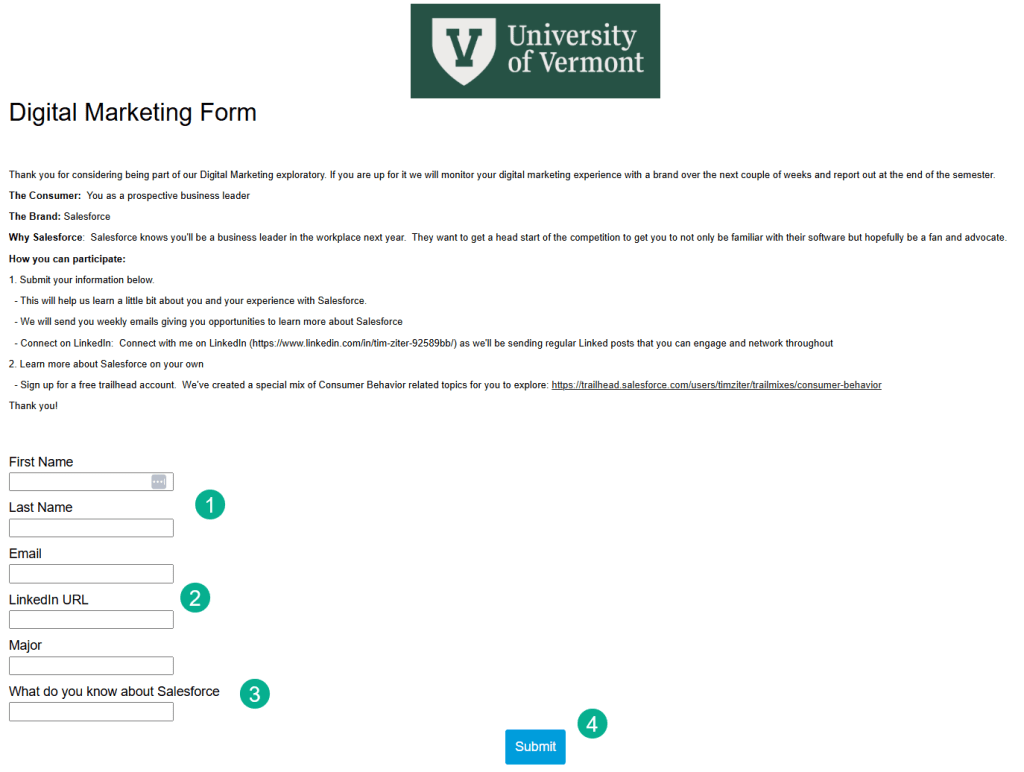
(1) Here’s the final cloud page form. You can fill it out if you want: https://mcj6f75tfbrhpcl2vw02ptm-bbfm.pub.sfmc-content.com/pcgj3e3pies
We wanted to collect first/last name to be able to personalize the communications.
(2) Email address was critical in order to communicate as well as the LinkedIn address for networking.
(3) We wanted to gather a few thoughts prior to the Salesforce campaign as well as seeing if majors responded differently.
(4) All the students needed to do was click on the submit button.
In Marketing Cloud this form is a basic Cloud Page:
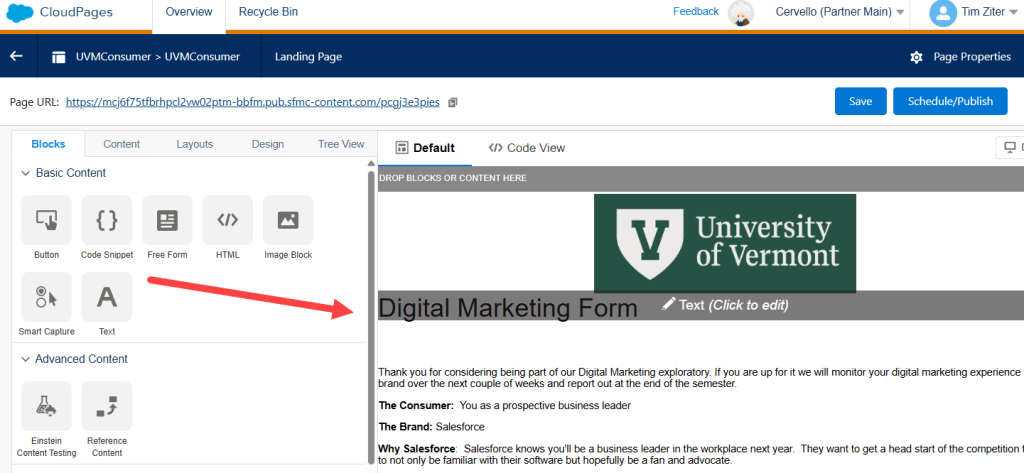
The page consists of an Image Block at the top and two text blocks that follow.
And at the bottom we have a Smart Capture block that creates the form.
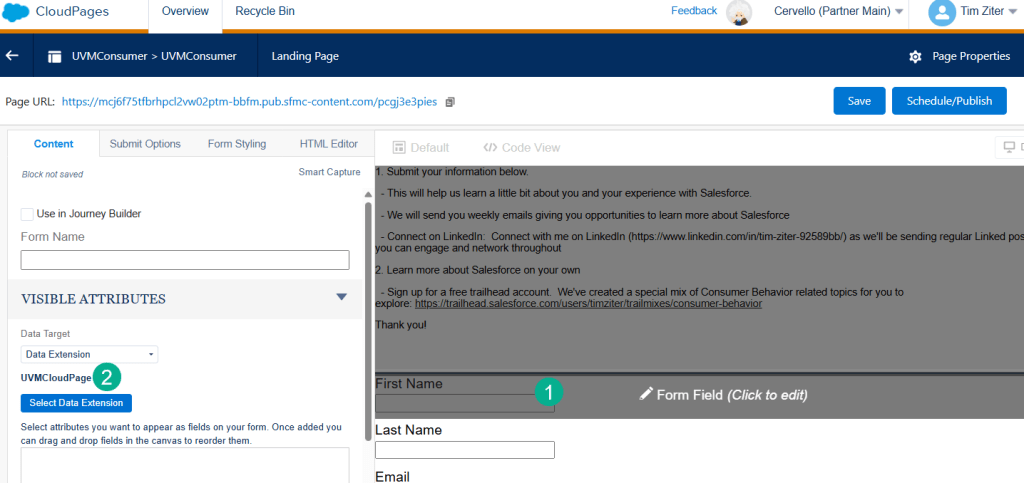
(1) Each field is created in the editor which is very easy.
(2) A Data Extension is created in advance, configured to meet the requirements of all the fields collected.

Here’s the example of the fields populated with test data in the final data extension.
Part II: Migrate the data to Salesforce to create leads
Now that we’ve collected the participants in our campaign we need to bring them into Salesforce as leads so that we can managed them holistically in the Salesforce CRM platform.
First thing we need to build is an Query based automation to send these newly created subscribers into a Journey that will create lead records in Salesforce.
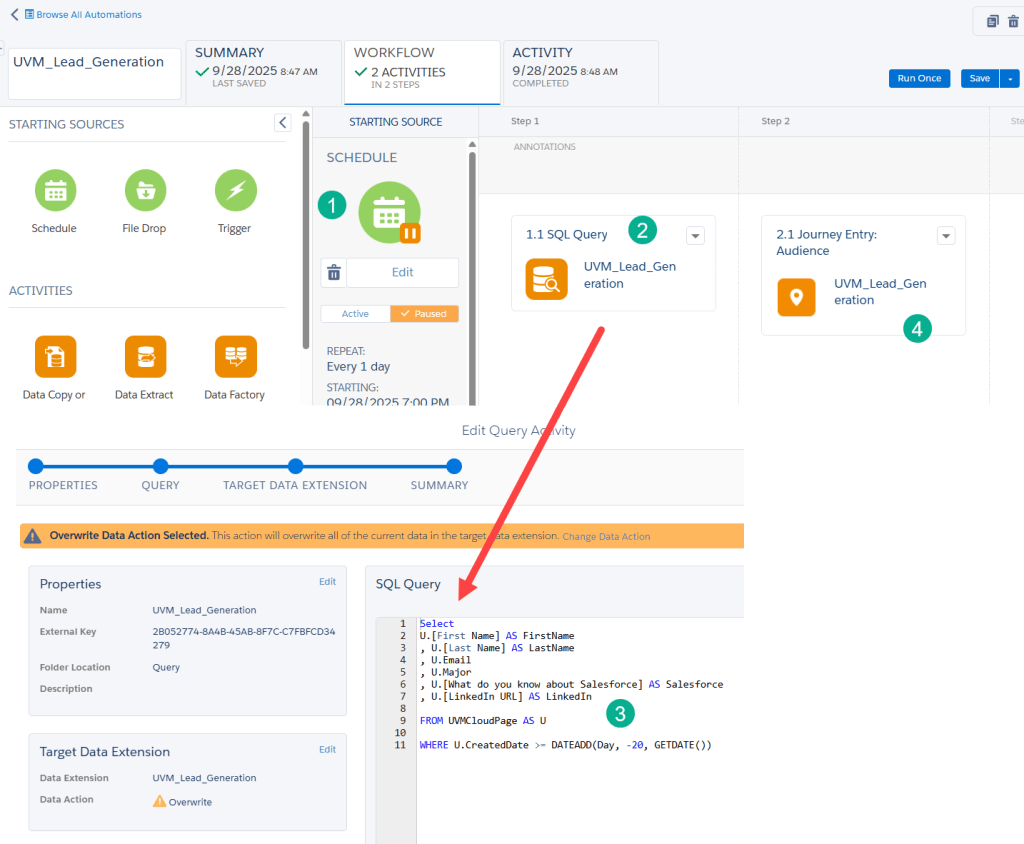
(1) We are going to create a scheduled automation that we can pause and run once to feed in the subscribers to the journey.
(2) We’ll create a query that will populate those subscribers.
(3) Those subscribers are coming from our data extension above that was populated by the Cloud Page form.
(4) And fed into the Journey which we’ll detail next.
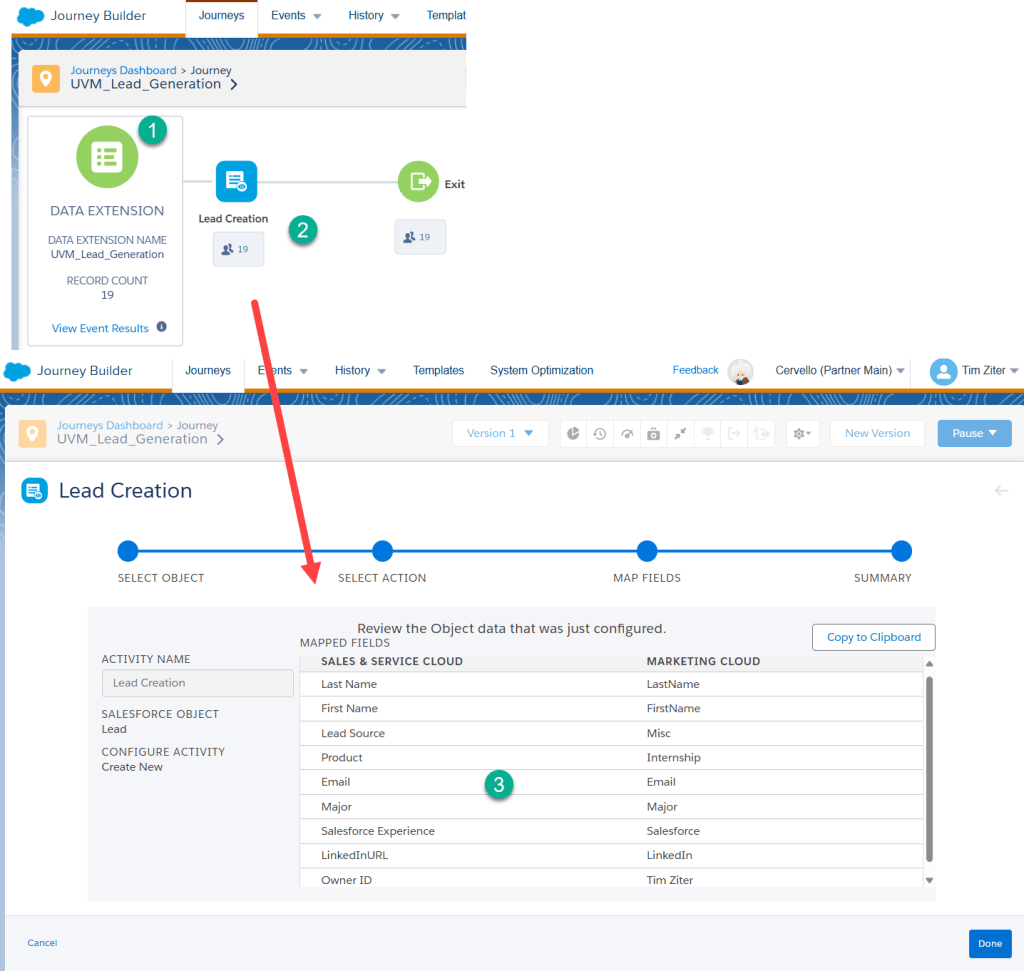
(1) The Journey starts off with a Data Extension entry source.
(2) And only one activity, a Lead Creation activity.
(3) Which populates the required data in order to create a lead in Salesforce CRM and personalize fields based on what we’ve gathered.
Part III: Add leads to a campaign triggering the email send
Let’s take a peek at these newly created leads in Salesforce:
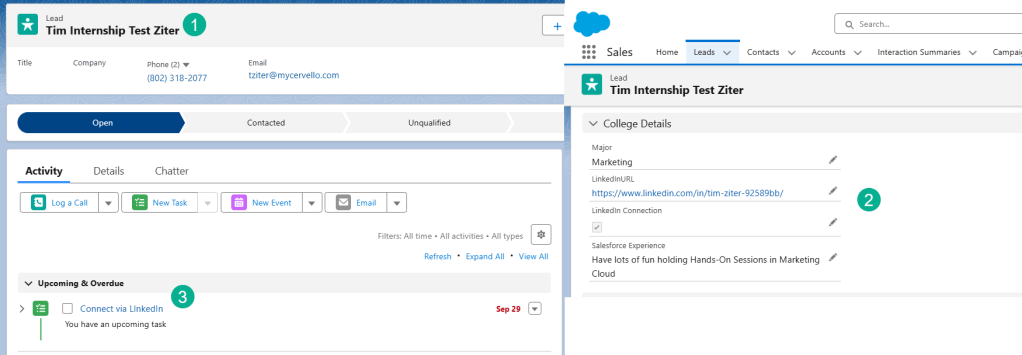
(1) Each lead has been created as planned.
(2) All of that rich data captured on the form is captured.
(3) We’re able to capture our interactions with each student in Salesforce, for example this activity tracks connecting via LinkedIn.
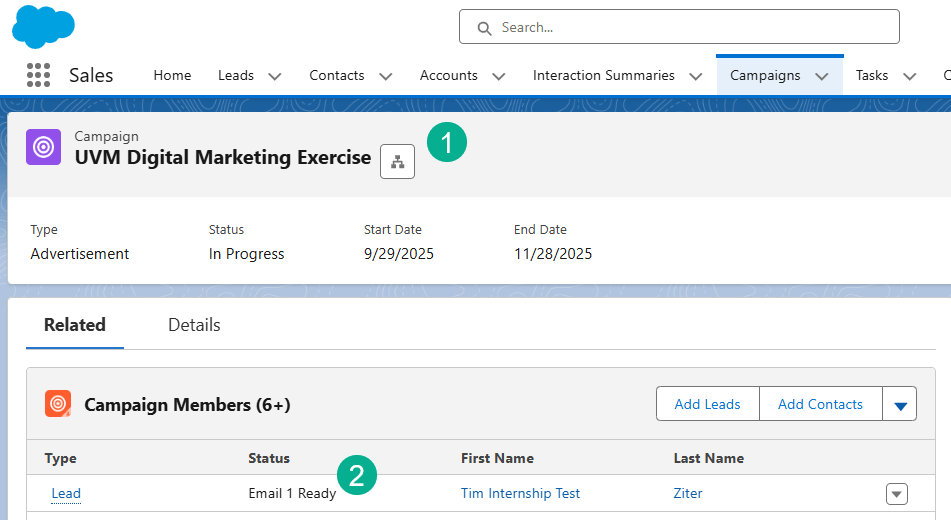
(1) Last step in Salesforce we create a Campaign for our marketing exercise and add each lead to the campaign.
(2) With the Status of “Email 1 Ready” which will kick off a Journey in Marketing Cloud.
Back in Marketing Cloud we should see each student enter the Journey to send out their first email.
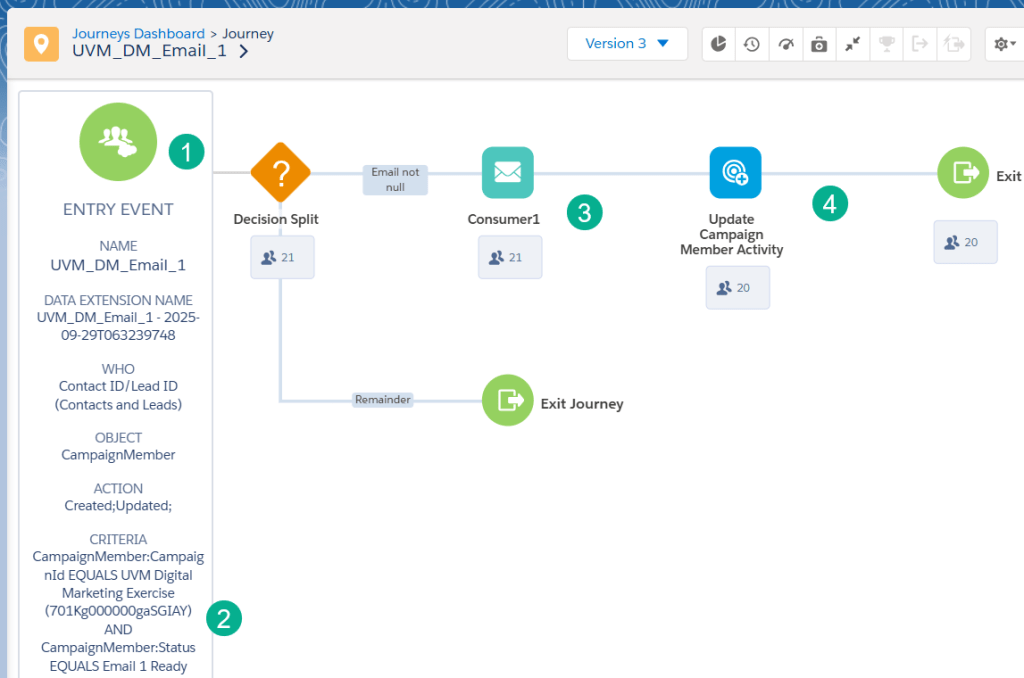
(1) The entry event of the Journey is a Salesforce Data Entry event.
(2) That pulls in subscribers who have been entered into the Campaign mentioned above with a status of “Email 1 Ready”.
(3) On the Journey canvas we have the email itself.
(4) And a campaign member update activity which will update the Campaign Members status to “Email 1 Sent”.
Let’s take a look at the first email sent to the students:
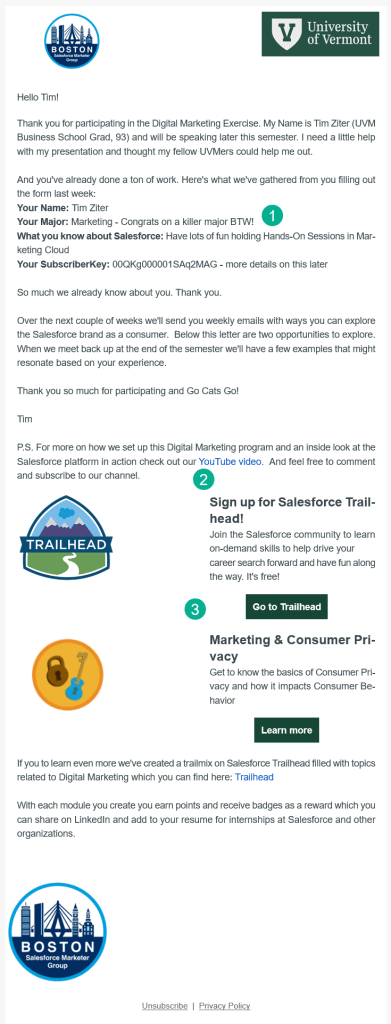
(1) We’re personalizing the email not only with a greeting but replaying all the non-sensitive information they provided.
(2) We’re providing them a video link to the overview of the setup of the campaign that this blog is based on on YouTube: https://www.youtube.com/watch?v=7iE3trdttdI&t=1938s
(3) And gives them a chance to explore more about Salesforce on Trailhead.
In our next blog we’ll check in to see how the email campaign performed and if we can get these students to engage and learn more about the Salesforce brand.
 handsonsfmc.com
Leave a comment