Flow builder in Salesforce can be a powerful tool to make your Marketing Automation easier in Marketing Cloud. After all a Journey is built on flow functionality.
In this blog we’ll explore a use case where combining a Flow with a Journey will help improve the efficiency of the overall marketing automation build.
Use Case: How to handle Multiple Marketing and Operational exception codes
In this scenario the user has subscribers that may need to be opted out of sending based on a variety of marketing and operational codes on their records.
In our example today we have fields on the Contact record in Sales Cloud that contain a string of Marketing and Operational codes:
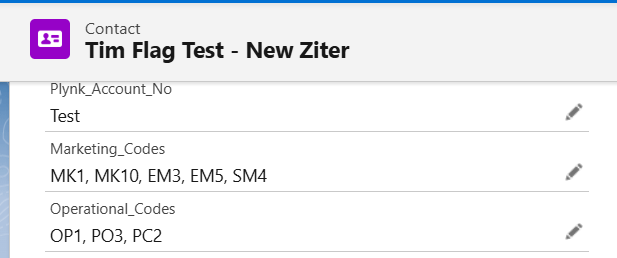
These codes will impact Journey building in two places:
(1) Subscriber entry – In order to enter the journey the subscriber should not have a variety of marketing and operational codes.
(2) Decision splits – to determine if the subscriber should receive additional communications while in the Journey we’ll use the decision split to check for a variety of codes at key points in the journey.
Limitations in Journey Builder checking a single field with multiple codes
I. Salesforce Entry Events don’t have the Does not “Contains” option
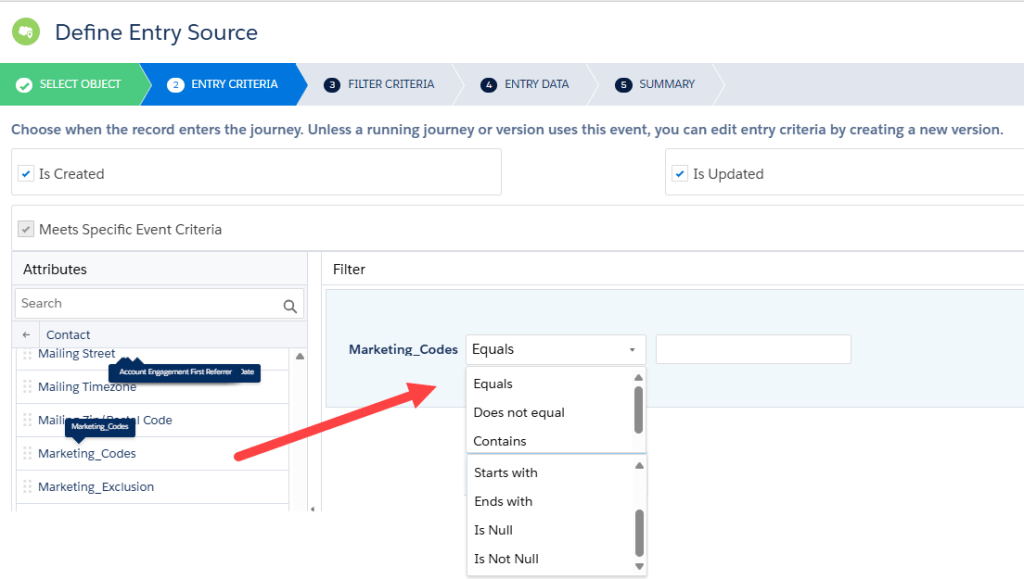
In order to filter on multiple values in a field you’ll need to use the “does not contain” function and unfortunately in the Salesforce Data Entry Event configurations “does not contain” is not an option. Equals won’t work because the value is a string and can contain multiple values.
So you would be limited to only use a Query based automation solution for your journeys.
II. Complicated Decision Splits
Fortunately Decision Splits on the Journey canvas do contain the “contains” function, but if you have a large number of exception codes it can be very cumbersome and time consuming to create decisions splits.
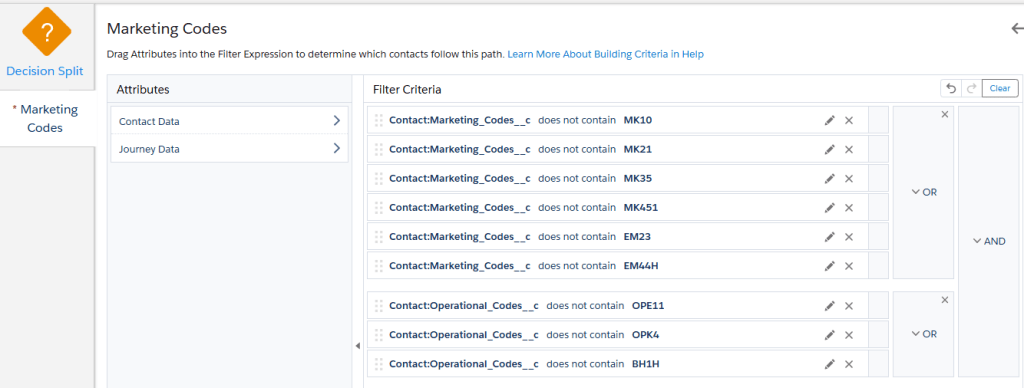
Above is an example of how you can execute a multi-value functionality in a decision split but as you can see it can be very cumbersome and not really scalable.
It would be so much more efficient if a record could be flagged if any of those exception codes were present.
Solution: Let’s build a flow that flags a separate field if any of those exception codes exist for the subscriber.
Step I: Create a checkbox field to be flagged
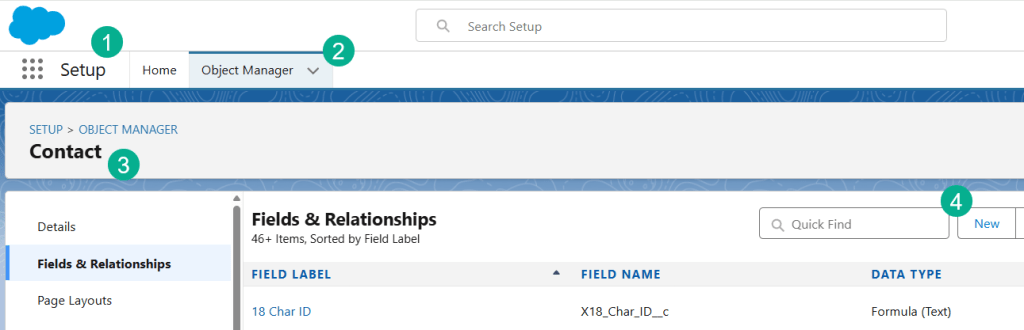
(1) In Setup in Sales Cloud.
(2) Select the Object Manager.
(3) Select the Contact Object (or whatever object is being used to flag the Marketing or Operational exception codes.
(4) Under Fields & Relationships select the “New” button.
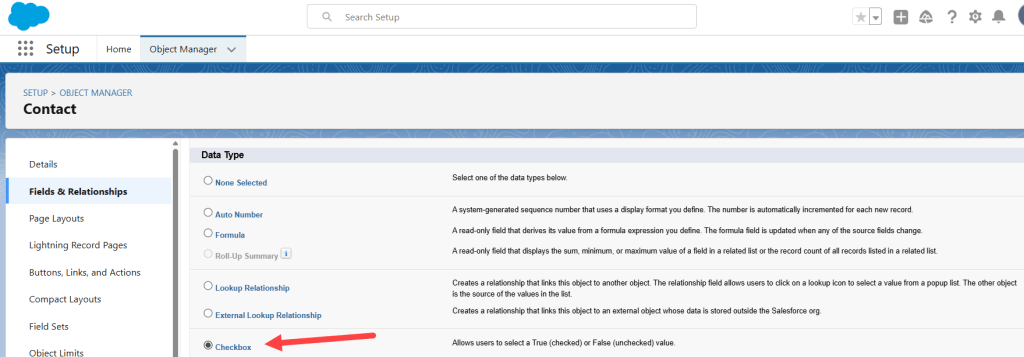
You’ll want to select the “Checkbox” data type and follow the standard steps to name and create a typical checkbox field.
Don’t forget to add the field to your page layout as well.
Step II: Create a new Flow in Flow Builder
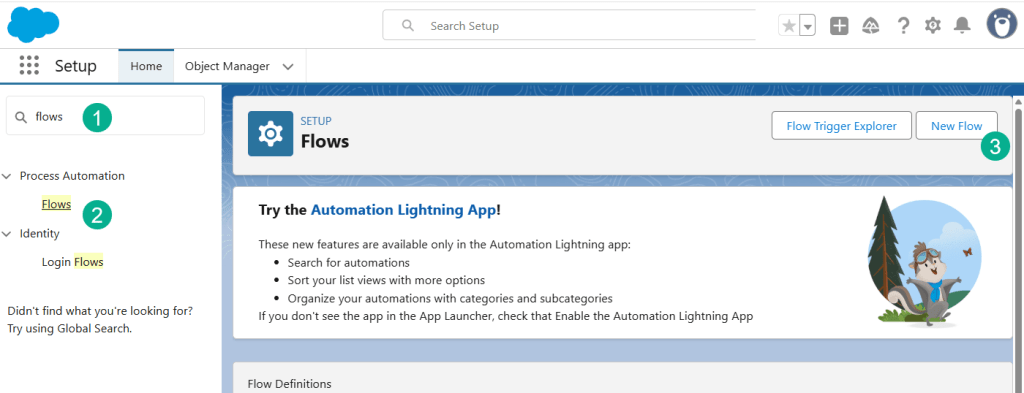
(1) Still in Setup search for Flows.
(2) Click on Flows.
(3) Click on the New Flow button.
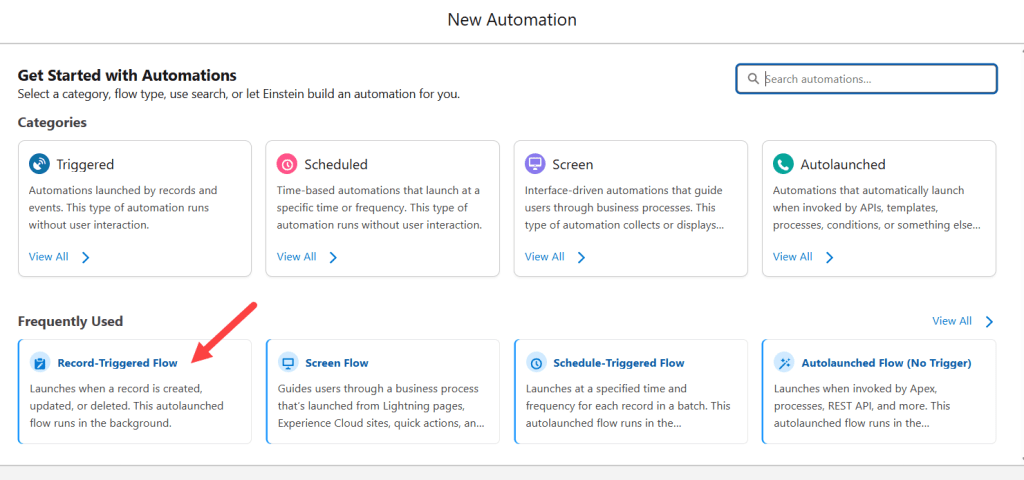
Select the Record Triggered Flow option. The option we’re looking for launches the flow when a record is either created or updated.
Step III: Configure the flow trigger
The flow trigger is a critical part of the flow as it determines when the flow is kicked off. In our case this configuration is relatively simple.
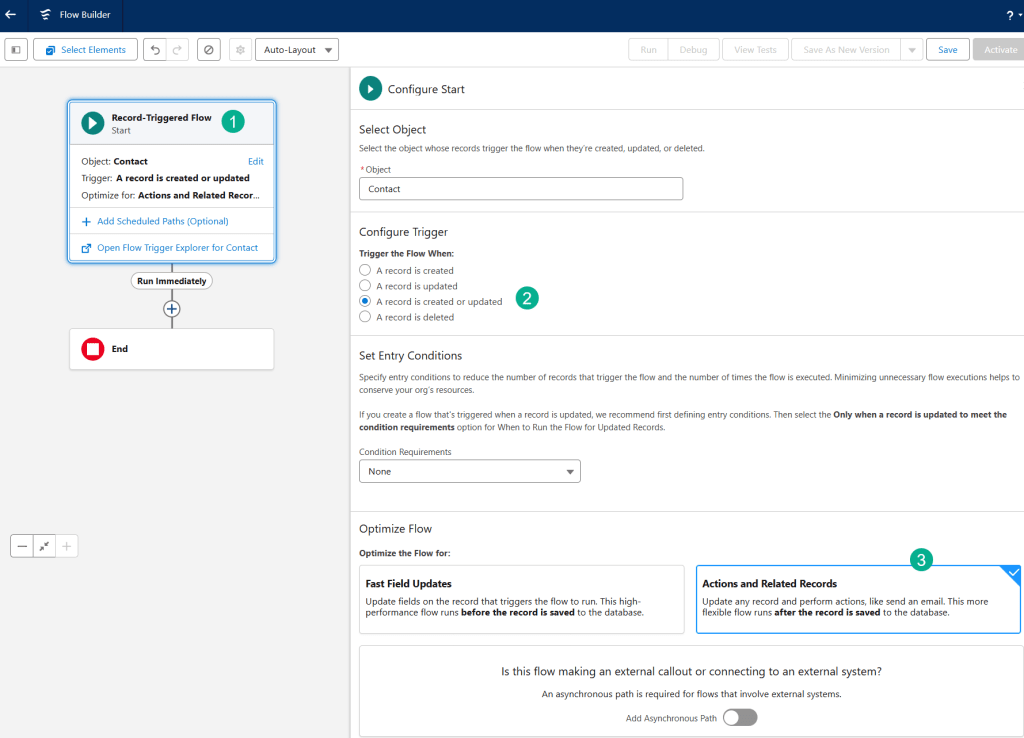
(1) Click on the Record-Triggered Flow box.
(2) Select the Record is created or updated radio button.
(3) Leave the Actions and Related Records selection as it’s usually best to trigger only after the user has saved the record.
Step IV: Add a Flow Decision Split
Now you want to add a new activity to the flow to check to see if the Marketing or Operational codes functionality.

Click on the plus sign right below the flow trigger activity.
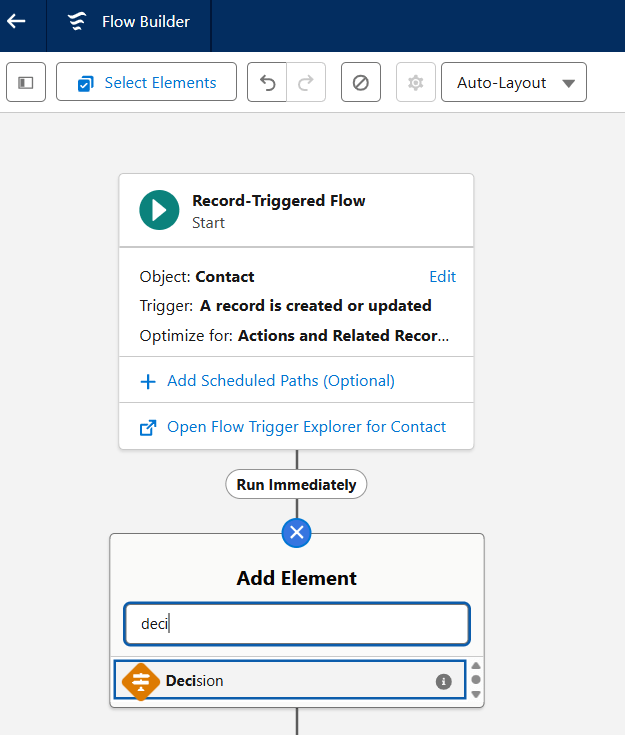
Type in “deci” or Decision Split, the activity search will auto populate Decision with only a few letters. Select the Decision Split activity.
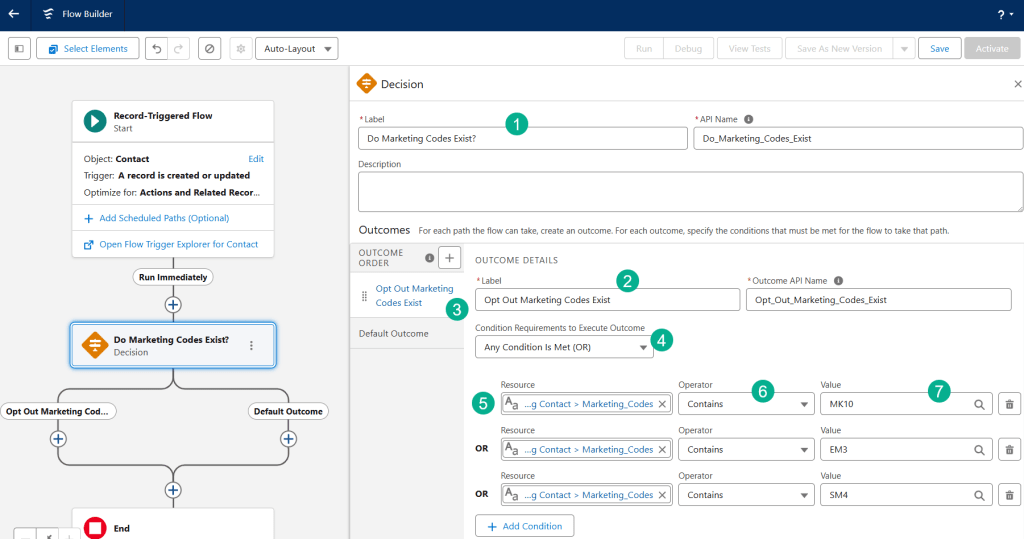
(1) Name your Decision Split so that when you are reviewing your flow it’s clear what it’s doing.
(2) Label and configure the outcome #1 path. In this case a record would travel down this path if a Marketing exception code was found.
(3) You’ll see on the left the two different paths to configure. You can also add new paths if necessary.
(4) In our case we want to select “Any Condition is Met (OR) not (And).
(5) And then we want to enter in all of the exception codes by selecting the field that contains the codes.
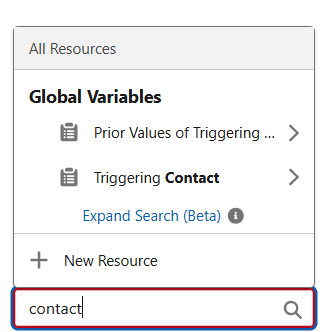
To find the right field you’ll want to search for the Contact object in the resources and select the triggering Contact. This can vary depending on what object your field is located.
(6) Selecting the “Contains” function.
(7) And entering in each value.
Step V: Add a Update Record Activity
If a record contains any of the Marketing Codes we now want to update and flag the field we created above. First you want to add the Update Record activity.
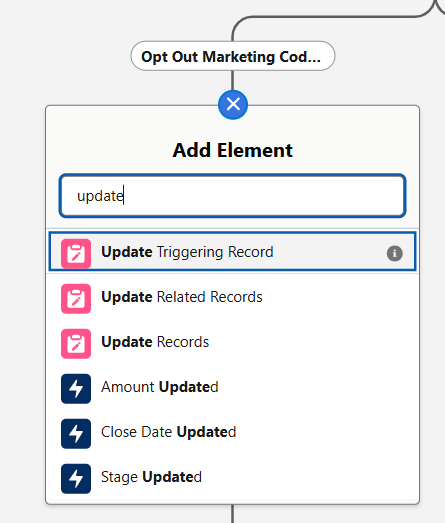
Search for Update Records.
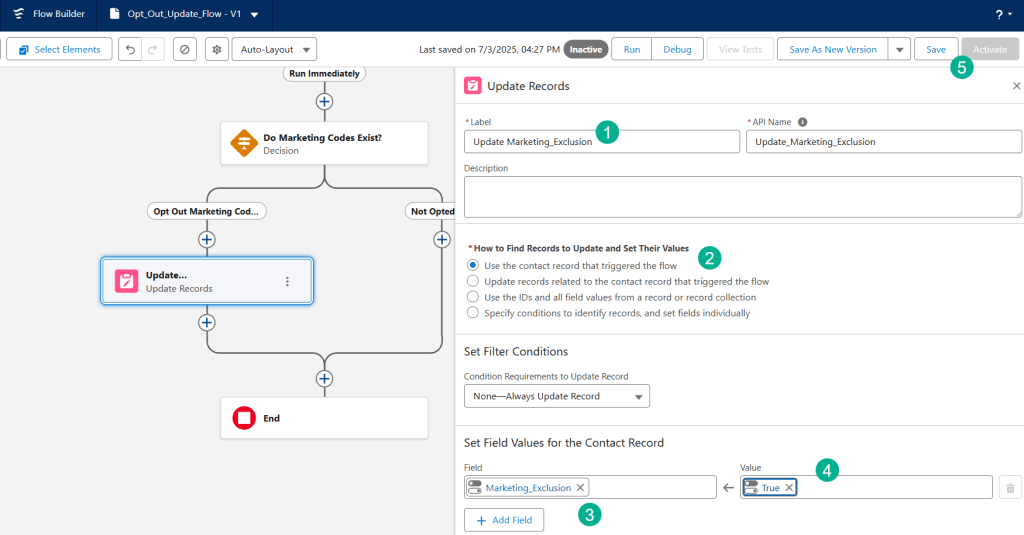
(1) Label your activity so you can easily tell what the activity does.
(2) Select “Use the contact record that triggered the flow”.
(3) Select the new checkbox field created above.
(4) Set that checkbox to true.
(5) Save and activate the Flow.
Step VI: Test and validate the functionality.
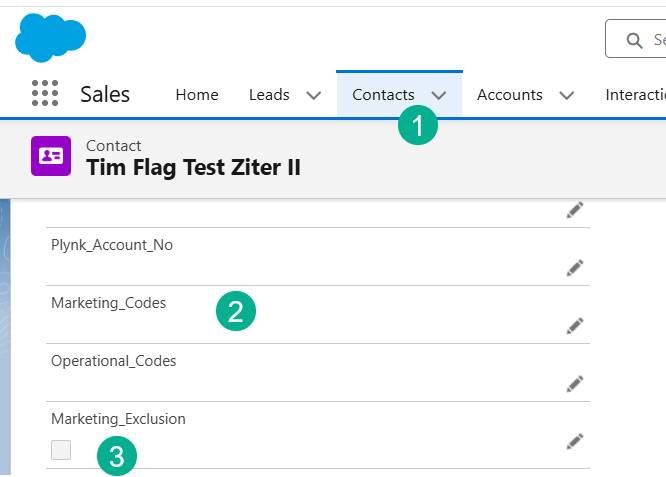
(1) In the Contacts tab, create a new contact.
(2) You can leave the Marketing Codes field blank when creating.
(3) As you can see the Marketing_Exclusion field is not flagged.

(1) Update the Marketing_Codes field to include a string of values, some of which qualify as exclusion values.
(2) Select Save.
This should activate the flow.
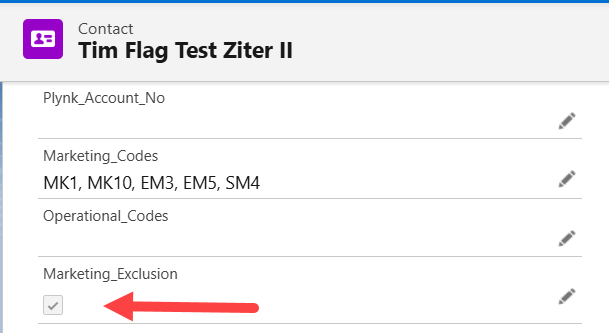
And immediately the Marketing_Exclusion box is checked!
Flows are so fast and so cool!
Step VII: Simplify your Marketing Automation
Now that you have this super cool and super simple automation solution you can now use the Salesforce Data Entry event:
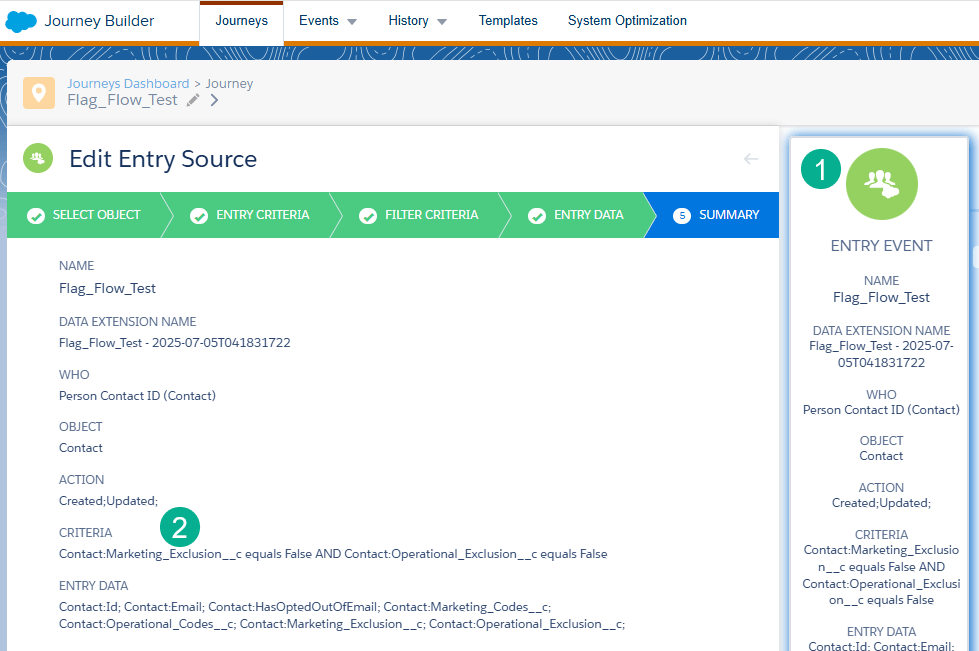
(1) You can now use the Salesforce Data Entry event.
(2) And simply use in the criteria that the Marketing_Exclusion field is “False”. NOTE: You’ll want to add in your trigger field as well here.
And Journey Decision splits become super simple as well.
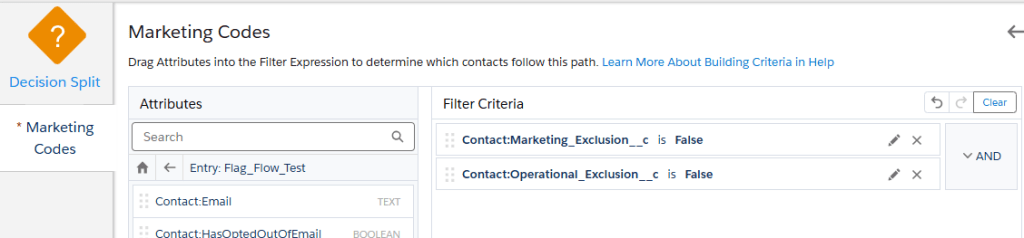
No more need to include endless lines of variable “contains” each variation. All you need is just a single line. Super simple.
Flows are amazing and should be part of your Marketing Automation builds to help simplify the functionality in Marketing Cloud.
For other ideas on amazing flows check out a recent post where we add a contact or lead into a campaign that triggers a Journey by using a flow. https://handsonsfmc.com/how-to-build-salesforce-flows-nurture-leads/
 handsonsfmc.com
Leave a comment