In this blog we’ll cover how you can use the amazing Marketing Cloud Data Views and Query Studio to solve a common problem: How to find the journey that sent a particular email.
Use Case: New to a Marketing Cloud environment
Let’s say you just joined your company where you are in charge of Marketing Cloud. You haven’t had time to dig into each and every journey as of yet and the documentation from the past owner wasn’t totally complete.
Customer service calls and they said a customer recently received an email that they weren’t supposed to receive. They need you to find the Journey and stop it until leadership aligns on messaging.
They provide you with the subscriberkey: 00QKg000001S6vsMAC and that’s it.
So where do you start? How do you identify the Journey from something as simple as the subscriberkey?
Step I: Confirm the send
Even though you only have the subscriberkey that’s a powerful piece of information. And you also know that this subscriber received an email recently. Let’s start off with confirming in Marketing Cloud that they were in fact sent the email.
We are going to open up a Query Studio query. If you don’t have Query Studio, please click on this link as it’s a free tool created by Salesforce: https://appexchange.salesforce.com/appxListingDetail?listingId=a0N3A00000FP3yFUAT
That powered with Data Views, the amazing set of virtual data extensions that capture all kinds of great information: https://mateuszdabrowski.pl/docs/config/sfmc-system-data-views/
You have have all you need to confirm the send. Here’s the query to do just that.
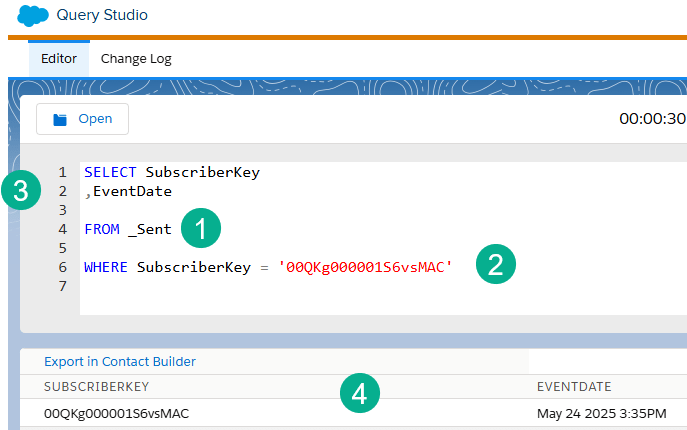
(1) We are using the _Sent data view in our FROM statement. For more on the basics of the FROM statement in SQL: https://handsonsfmc.com/how-to-sql-marketing-cloud-from/
(2) In our WHERE clause we only want to get those sends related to the subscriber we were provided. Luckily one of the fields on _Sent is the subscriber. For more on the basics of WHERE in SQL: https://handsonsfmc.com/how-to-sql-marketing-cloud-where/
(3) In our SELECT we want to output two fields, the SubscriberKey and the date of the Event. For more on the basics of SELECT in SQL:https://handsonsfmc.com/how-to-sql-marketing-cloud-select/
(4) We can see from the output that indeed this subscriber was sent an email at the time of writing this blog (3-25-25), yesterday.
SELECT SubscriberKey
,EventDate
FROM _Sent
WHERE SubscriberKey = ’00QKg000001S6vsMAC’
Ok, off to a good start. Now we have a send, we can connect that to a Journey Send.
Step II: Find the Journey Activity
To get to the actual Journey in Data Views is a two step process. First step is to connect to the _JourneyActivity data view. Mateusz provides a helpful hint on how to do that in his amazing dataview documentation: https://mateuszdabrowski.pl/docs/config/sfmc-system-data-views/#_journeyactivity
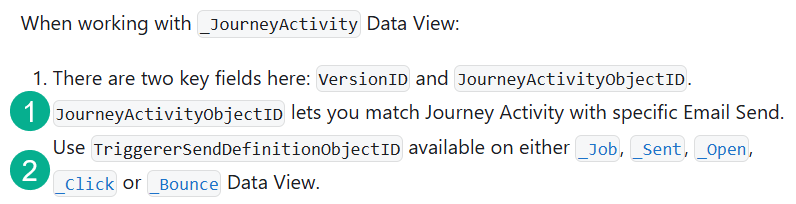
(1) When we Join the _JourneyActivity data view to Sent we can link it with the JourneyActivityObjectID to the
(2) TriggererSendDefinitionObjectID in the _sent data view.
Let’s see how this query comes together.
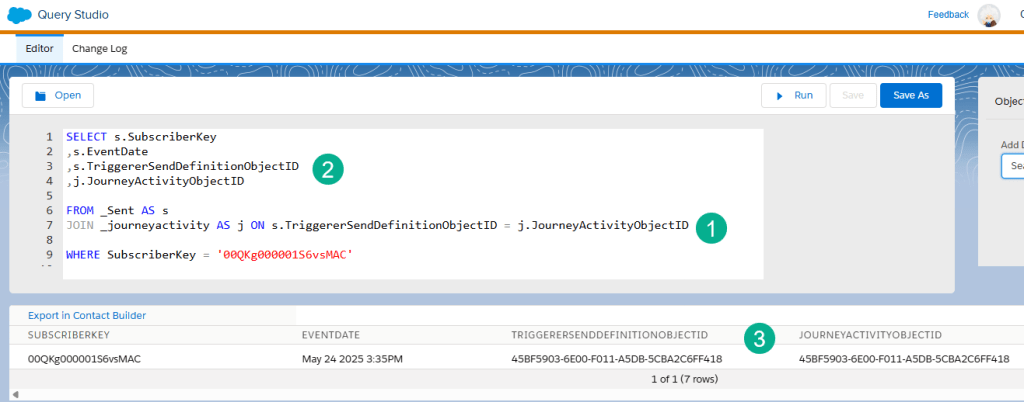
(1) First we had to label _Sent as “s” and then JOINed the _journeyactivity using the variables that Mateusz recommended. For more on on the basics of JOINs: https://handsonsfmc.com/how-to-sql-marketing-cloud-join/
(2) To validate let’s add both of these variables to our SELECT statement so they can be outputted.
(3) And once we run, yes confirmed there is a match, both variables match.
SELECT s.SubscriberKey
,s.EventDate
,s.TriggererSendDefinitionObjectID
,j.JourneyActivityObjectID
FROM _Sent AS s
JOIN _journeyactivity AS j ON s.TriggererSendDefinitionObjectID = j.JourneyActivityObjectID
WHERE SubscriberKey = ’00QKg000001S6vsMAC’
We are getting close. Now that we have the Journey Activity we can easily match it to the Journey.
Step III: Find the Journey matched to the activity
All that’s left is to match the JourneyActivity to the Journey with the VersionID field and output what you want to know about the Journey.
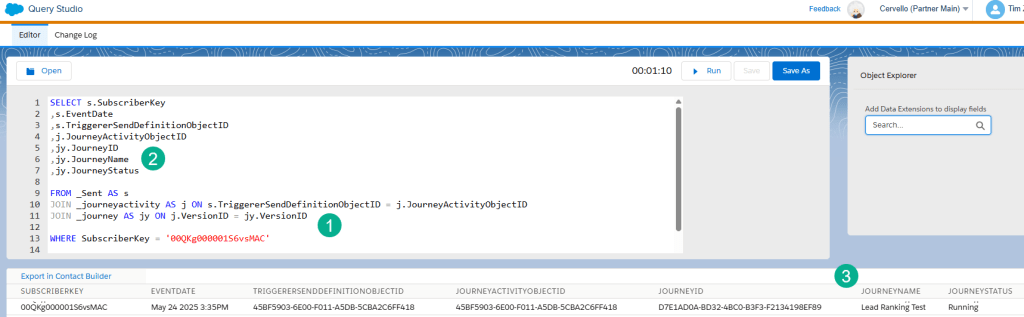
(1) Here’s the JOIN to pull in the Journey data view.
(2) We can output a variety of variables all dependent on what you need, from Journey ID to Journey Name. And it will be nice to confirm status as well.
(3) And confirmed from the output the name/id of the journey that we can now search in Journey Builder to find our Journey and stop/pause it or whatever we need.
SELECT s.SubscriberKey
,s.EventDate
,s.TriggererSendDefinitionObjectID
,j.JourneyActivityObjectID
,jy.JourneyID
,jy.JourneyName
,jy.JourneyStatus
FROM _Sent AS s
JOIN _journeyactivity AS j ON s.TriggererSendDefinitionObjectID = j.JourneyActivityObjectID
JOIN _journey AS jy ON j.VersionID = jy.VersionID
WHERE SubscriberKey = ’00QKg000001S6vsMAC’
Have fun leveraging the power of the data views to help you solve all types of problems. And check out Query Studio as it’s a fantastic tool to dig into your data and visualize the various data paths.
 handsonsfmc.com
Leave a comment