This blog is part I of a five part series on connecting Marketing Cloud with Salesforce CRM.
Here’s an overview of the four other sections you’ll need to follow after this piece to make a successful connection.
| Topic | Link |
| Install the Marketing Cloud Installed Package | https://handsonsfmc.com/how-to-install-the-marketing-cloud-connector-managed-or-installed-package/ |
| Salesforce CRM Settings | https://handsonsfmc.com/how-to-set-up-the-marketing-cloud-connector-salesforce-crm-settings/ |
| Marketing Cloud Configuration settings and Connection! | https://handsonsfmc.com/how-to-set-up-the-marketing-cloud-connector-marketing-cloud-configuration/ |
| Connection testing & Validation | https://handsonsfmc.com/how-to-set-up-the-marketing-cloud-connector-connection-testing-validation/ |
You may not need to create a business unit if you are setting up the Connector for the first time and have only one business unit. In this use case we already have a main or admin business unit and want to add an additional business unit and connect it to a different Salesforce CRM org.
Step I: Create a new Business Unit
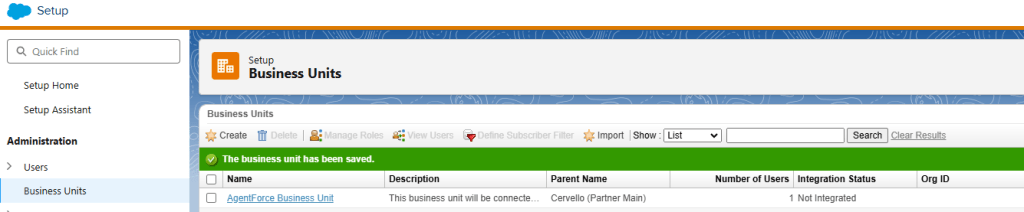
Navigate to Setup in Marketing Cloud.

(1) Under Setup in Marketing Cloud.
(2) Navigate in the left column to Business Units
(3) View all existing Business units created. You can see the (Partner Main) is the Admin or main business unit. You can also see which business units are integrated with a Salesforce CRM org.
(4) When ready to create a new business unit, click Create.
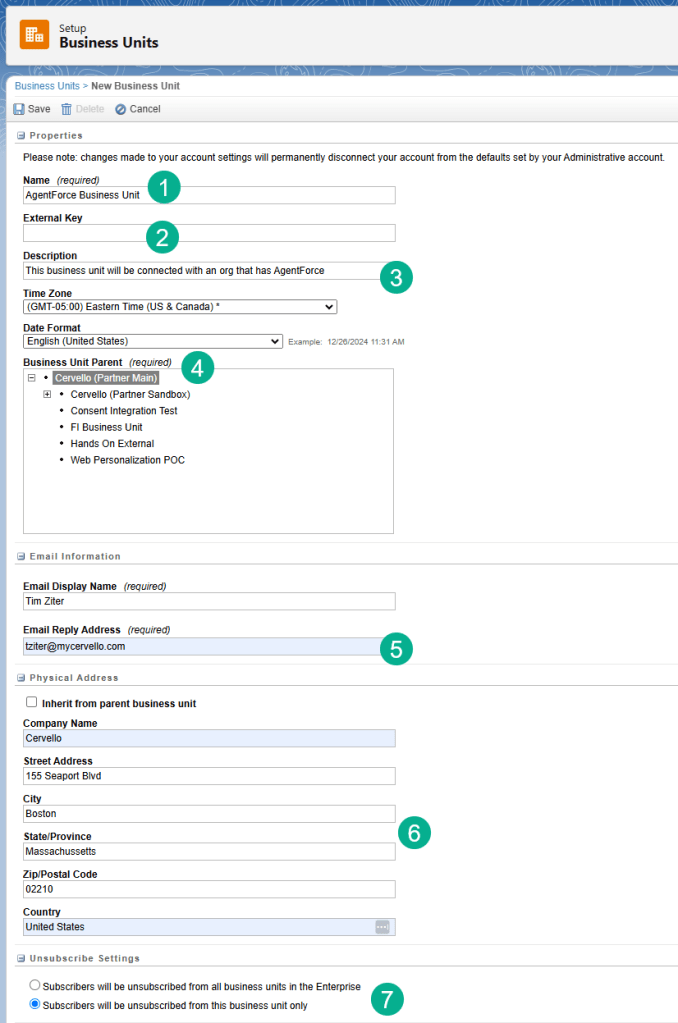
(1) Enter in the Name. This is part of a series on connecting Marketing Cloud with AgentForce and building your first Marketing Agent.
(2) You don’t need to fill in the External Key here as it will be populated for you automatically.
(3) Enter in a description.
(4) Select the Business Unit Parent, in this case the Cervello (Partner Main).
(5) Enter in the email address you want to receive notifications.
(6) Enter the address information.
(7) Most importantly indicate whether the unsubscribes will be for all business units or just the one you are creating. The typical selection is to be unsubscribed from this business unit only.
Step II: How to add the Business Unit to a user

(1) In Setup under Users.
(2) Search for the user you want to add the business unit.
(3) Click the check box for the user.
(4) Click on the Manage Business Units menu item.

(1) Under Associated Business Units.
(2) Select the checkbox for the newly created Business Unit.
(3) You can also set the default business unit if the new unit will be the one to navigate to each time you log into Marketing Cloud.
The next step in our process will be following the Marketing Cloud Connect Setup Module: https://trailhead.salesforce.com/content/learn/modules/marketing-cloud-connect
 handsonsfmc.com
Leave a comment