The capabilities to personalize in Marketing Cloud are endless. The drag and drop Content Builder interface and the powerful, but easy to use proprietary Marketing Cloud language of Ampscript are the big reasons why there are so many personalization options.
Today we are covering our essential 10 personalization tips to deliver the highest level of personalization in your communication content:
1.) Start with simple personalization then add complexity over time
2.) Learn and leverage ampscript
3.) Learn and leverage HTML
4.) Keep your ampscript in one centralized place
5.) Variable-ize your personalization data
6.) Have back-up values for your data points
7.) Use IF/THEN and INDEXOF to customize content
8.) Remember order of operations
9.) Don’t forget to format your personalization
10) Templatize your personalization
Let’s get started!
1.) Start with simple personalization then add complexity over time
If you and the team are new to personalization don’t go crazy and add a ton of personalization on day one. Start with something small like adding a personalized greeting to a message and then build from there. If you are new to Ampscript don’t add complex LookupRow logic with For Loops, but rather start with the simple “v” function.
If you’ve worked in digital marketing for a while you’ll have plenty of horror stories of content that features incredibly complex personalization logic that no one really understands and can’t trouble shoot when it’s broken. Start simple and clearly and efficiently add your personalization logic so that it is easy to support and customize.
Here’s more on the v function: https://handsonsfmc.com/part-i-attribute-value-v-and-empty-functions/
And if you want to take a peek at the very cool LookupRows function: https://handsonsfmc.com/part-3-lookuprows-function/
2.) Learn and leverage ampscript
As most of you may know Ampscript is the proprietary coding language of Marketing Cloud. For all of you non-coder marketers out there don’t be afraid of Ampscript or that you HAVE to be a coder in order to make Marketing Cloud work. It’s visiting a country where you don’t speak their native tongue. Yes it would be ideal to be fluent in their language, but can you create a cheat sheet of commonly used phrases to get by 50% of the time? Think the same with Ampscript, as you build your personalization over time make a cheat sheet of those commonly used functions and code snippets to start. You won’t need to use the entire library of functions or need to know the language inside and out.
Use Ampscript to be the brains of your communications. For every communication you should be able to find your Ampscript section to understand the back-end functionality that drives the personalization.
Become a member of the Ampscript Guide: https://ampscript.guide/. This resource our #1 resource in Marketing Cloud. You will be here not only to learn and add new functions but also to help you validate and enhance functionality. What we love about the Ampscript guide is they provide a detailed overview of the function like here overviewing the Lookup function:
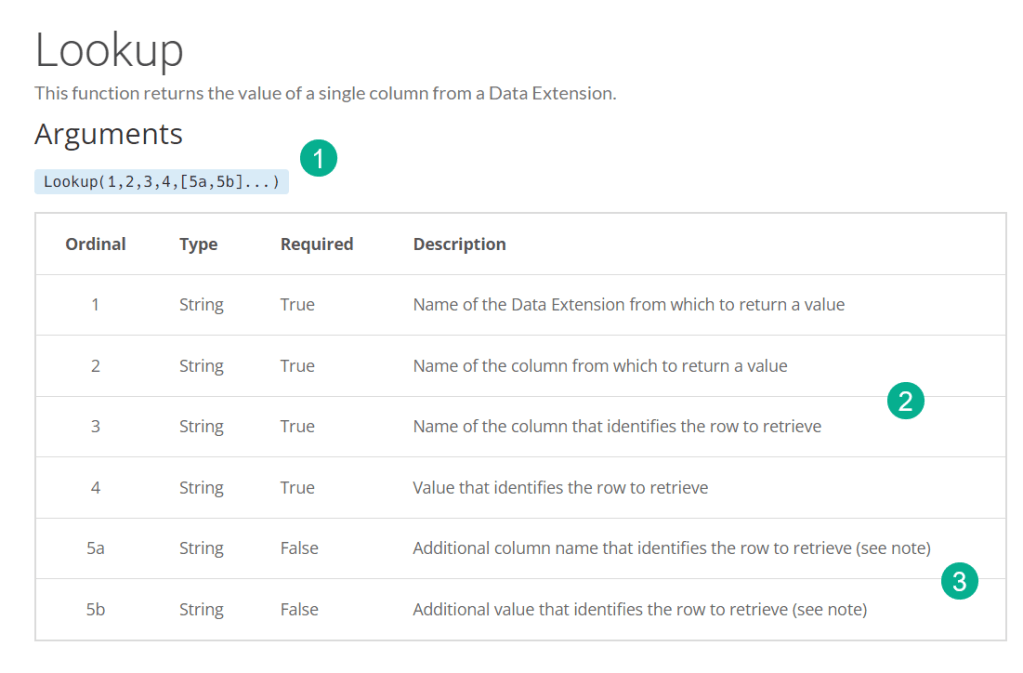
(1) Ampscript Guide provides an example of the code
(2) and breaks down each section of the code in details
(3) and will also include ways to customize the function to add more capability to your solution.
And The Ampscript Guide doesn’t stop there as they provide actual coding examples with real use cases:
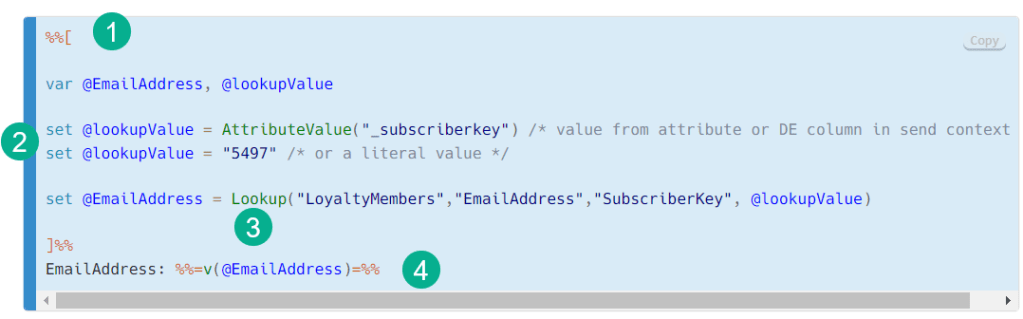
(1) Ampscript Guide provides not just the function but an entire code block that you can copy and drop into your solution.
(2) They build out examples with real use cases and include best practices like variables for values.
(3) Here’s the actual function fully filled out to use as a reference.
(4) They finish it off with not only setting the value in the function but how to display that value as well.
Salesforce offers fantastic resources as well to learn and maximize ampscript: https://developer.salesforce.com/docs/marketing/marketing-cloud-ampscript/guide/mc-ampscript-get-started-learning-lesson-1.html
3.) Learn and leverage HTML
For all of you Marketers out there who haven’t dipped your toes into HTML coding don’t be afraid! HTML is a super fun language and Marketing Cloud gives you a great opportunity to learn in Content Builder.
Here’s an example of why learning a little HTML can be helpful: The Wiziwig is a little less reliable in Content Builder
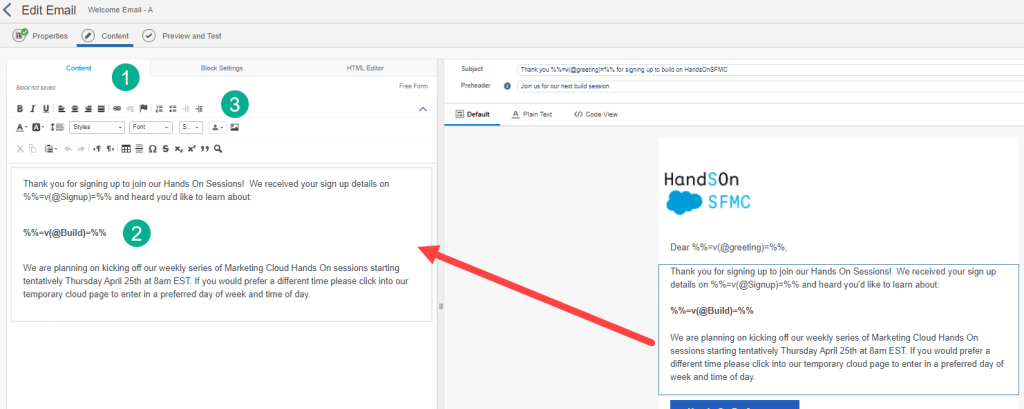
Above is an example of a content block in an email. When you click on a block the editor appears giving you several tab options to customize the content.
(1) Under the Content tab.
(2) You have the ability to write and edit your copy.
(3) Marketing Cloud offers a lot of functionality to customize your text.
This Wiziwig can be enticing, but we’ve found that it can be inconsistent and the best way to consistently create and manage your content is utilizing the HTML Editor tab:
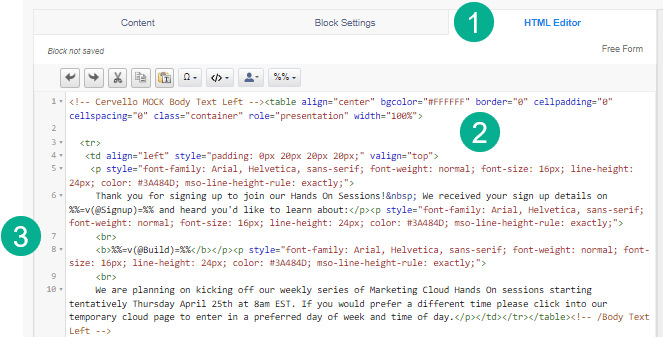
(1) Click on the HTML Editor tab.
(2) You can play and learn all the fun and cool aspects of HTML right here in Marketing Cloud and see how it impacts your content. For example in this Table tag that begins on line 1 “<table” You can change the bgcolor to a different hex number which will change the background of the block simply by pasting in a different hex number.
(3) Examples of basic HTML functions are like the <br> function which simply adds another line to your content.
Spend a little time with HTML and you’ll quickly become an expert and find it very reliable reducing the amount of support time needed for your emails and make your personalization very powerful.
4.) Keep your ampscript in one centralized place
Like a code snippet block at the top of your email kind of centralized place. You will use Amscript inline for sure, but if you can centralize all of your core ampscript coding it will help in two ways:
(1) Simplify supporting problems down the road as you’ll know where to look to correct issues.
(2) Code Snippets don’t mess with your code like free form blocks can.
(3) If your code is stored at the top all variables will be set and work throughout. No need to troubleshoot a variable being set below where it needs to actually render in the email.
Let’s take a look at how to set up a centralized block for the ampscript.
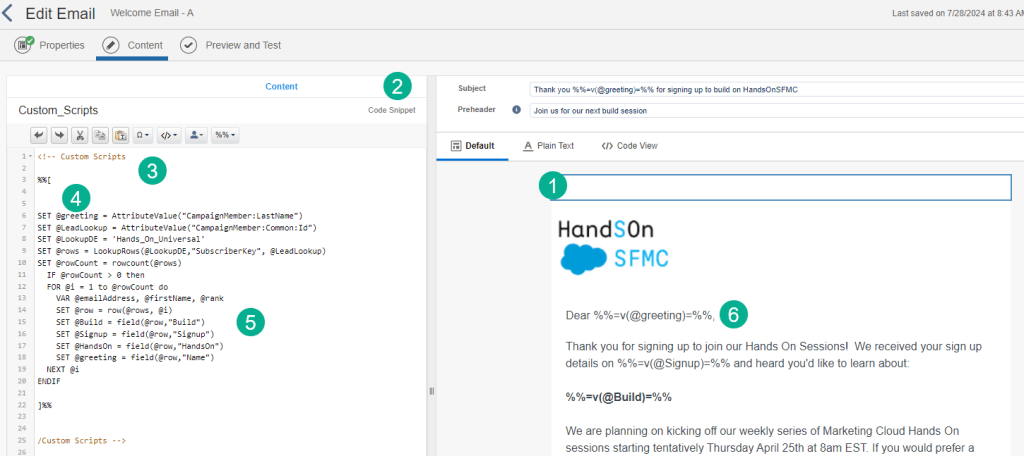
(1) In our example we have an Email Design System where we’ve added a code snippet block at the top of our email.
(2) Make sure to use the Code Snippet block when creating a place to store your code.
(3) We simply open up our ampscript block with %%[ and close it later with ]%%.
(4) We set variables like in this case a greeting or name.
(5) We set other variables like this one which is part of a for loop.
(6) We will use ampscript inline in our content, but save the coding for the code script at the top of the email.
5.) Variable-ize your personalization data
Variable-izing your data gives you the ability to use those variables for more complex coding and personalization in your communications.
In our example below we create a variable for our greeting. Now we could simply output inline that variable like Dear %%CampaignMember:Common:LastName%% and not have to add any more coding. This is totally fine if your personalization is basic. Use variables to add another level of functionality to your personalization.
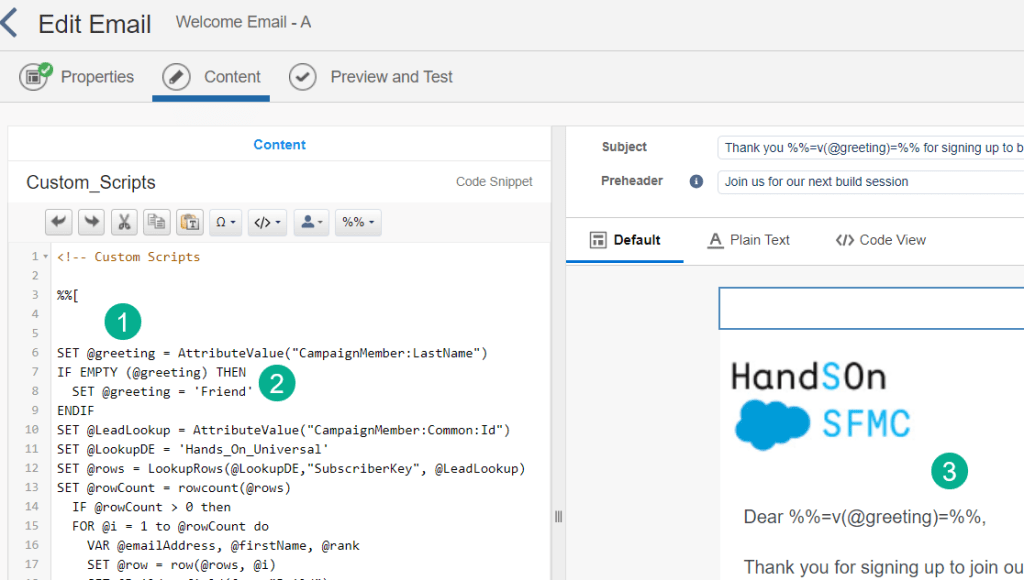
(1) Instead set a variable for the name called @greeting. And using the AttributeValue ampscript function is always best practice as it normalizes your data values in the data extension. For more on Attribute Value check out The Ampscript Guide here: https://ampscript.guide/attributevalue/
(2) Now that we have a variable we can use the EMPTY function to see if the variable is null or empty. For more on the EMPTY function click here: https://ampscript.guide/empty/
This way if for some reason there isn’t a value provided this IF and EMPTY function will set a default value of ‘Friend’.
(3) And then simply inline display the variable using the “V” function.
6.) Have back-up values for your data points
Can we always rely on our data 100%, unfortunately no. Sometimes that data isn’t what we expected or not there at all. So always have back up values for your key data points. Like mentioned above setting a variable to a value of ‘Friend’ if the FirstName variable isn’t present will prevent emails being sent with a greeting like” Dear…”.
Use this same logic to remove sections of your personalization if the variables to display aren’t available. Say your are displaying a list of features like:
Size: Large
Model: Alpha
Color: Orange
Your could set your variables to display like the following:
Size: %%=v(@size)=%%
Model: %%=v(@model)=%%
Color: %%=v(@color)=%%
But what if the Model isn’t always present in your data set, you could wrap the entire output line in an IF/THEN so it only renders when the value is not null. For example:
%%[IF NOT EMPTY(@model) THEN]%%
Model: %%=v(@model)=%%
%%[ENDIF]%%
Or you could use the CONCAT function: https://ampscript.guide/concat/ and set the variable to include the “Model:” text in the variable itself. For example in your code script at the top:
SET @model = CONCAT(‘Model: ‘, @model)
There are lots of different ways to add back up values to your data points in your personalization.
7.) Use IF/THEN and INDEXOF to customize content
IF/THEN statements as you can see above can be extremely powerful. We’ve given you an example of using one in your code script to set a back up value for a variable. We’ve also given you an example of how to use IF/THENs to customize content inline as well.
Let’s talk about how you can use INDEXOF with your IF THEN statements to add another level of functionality to your personalization. For more on INDEXOF check out The Ampscript Guide here: https://ampscript.guide/indexof/
EMPTY is helpful when checking to see if a value is null. But what if you need to customize your content depending on the value of the data? Let’s use the email we use to welcome new signups to our hands on session. On our signup form we ask what you would be interested in building.
Let’s say we wanted to include a special message to all of those who entered Journey Builder into the form as we’ve just started a Journey Builder Bootcamp.
We could use an IF statement to ask if the build variable is equal to “Journey Builder”
IF @Build == “Journey Builder” THEN…
But that would be very narrow in scope only handling those cases where a sign up only entered in Journey Builder exactly. What if the signee entered “Automation Studio, how to send emails and create Journeys.” That’s where INDEXOF can come in handy. For Example:
%%[IF INDEXOF(@Build, “Journey”) > 0 THEN]%% Don’t miss out on our Journey Builder Hands On Sessions starting this coming Wednesday at 8-9am EST.
%%[ENDIF]%%
Here’s the code inline:

And here’s how it displays in the email:
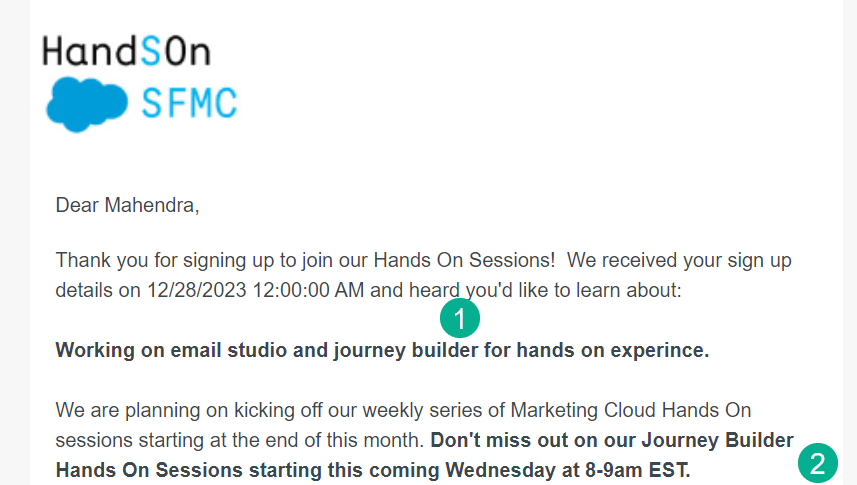
(1) The build variable which is outputted in the email contains the word “journey”.
(2) So the personalized text appears in the email content.
According to The Ampscript Guide the INDEXOF function “returns the position of the first occurrence of a specified value in a string. The index numbering starts at 1”.
That’s why above we need to do a comparison in the Ampscript that the value returned is greater than zero. We don’t actually need to know the position of where the variable or word exists. All we want to know is that it does exist and if it does then we know to display the text.
Explore using INDEXOF and EMPTY in different ways to add an extra layer of personalization functionality to your content.
8.) Remember order of operations
This comes straight from The Ampscript Guide and is so helpful: https://ampscript.guide/order-of-operations/
This is the order of operations for personalization in an email in Marketing Cloud.
1.) Pre-Header
2.) HTML Body
3.) Text Body
4.) Subject LIne
Why does this matter? Let’s say you are setting a custom variable that you want to feature in the pre-header. You set the variable at the top of your email in your code script as detailed above and in the preheader you simply output the variable like:
And don’t forget if you are interested in %%=v(@personalizevariable)=%% don’t miss out on the deals today.
But when you proof the email against the data values in the data extension the variable doesn’t display. That’s because the Pre-Header is set before the first line of the email body. You can’t leverage any variables from the body in the pre-header.
To solve this you can use the contentblockbykey and point it to a separate content block that is setting that variable. For more on contentblockbykey click here: https://ampscript.guide/contentblockbykey/
So always remember order of operations. Like we mentioned above set all of your ampscript variables at the top of the email because like the order of operations you can use or display a variable at the top of the
9.) Don’t forget to format your personalization
Congratulations you’ve figured out how to bring in complex data points and achieve a high level of personalization. But wait when we output the data and personalize our emails it can sometimes look messy. Names might not be capitalized correctly or the data field includes formatting that a consumer wouldn’t understand. How do we clean that up.
Here’s an example of an email displaying those challenges:
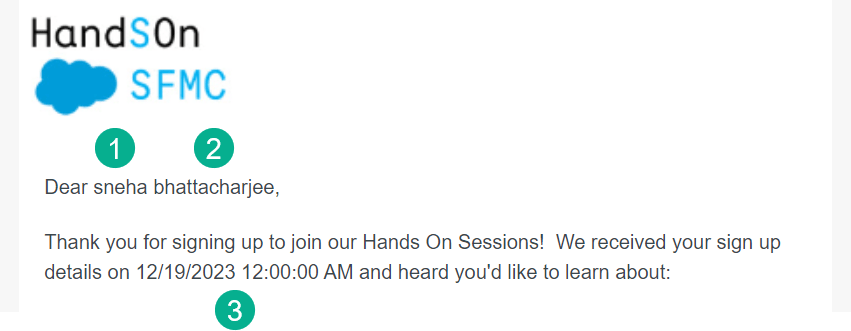
(1) The first name isn’t initial capped.
(2) Same for the last name and maybe we only want to display the first name?
(3) And this date looks really odd listing 12:00:00 AM.
Let’s fix these one at a time.
(1) How to initial capitalize a greeting variable
Ampscript has a helpful function ProperCase: https://ampscript.guide/propercase/ which is super simple, just wrap the variable around that function.
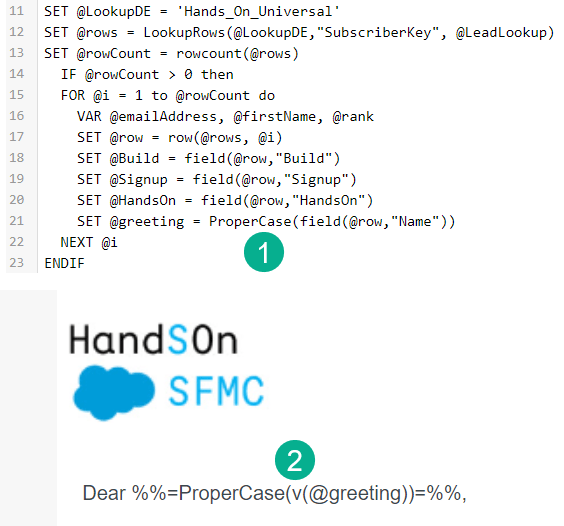
(1) You can wrap the ProperCase function when your variable is being set in the code snippet code script block. In this use case the variable is being set as part of a LookupRows to another data extension.
(2) Or you can wrap it inline when you are outputting the variable.
We’d recommend option #1 vs inline as you might need to output the variable in multiple places in your content so best to handle it when the variable is being set.
Let’s take a look at the result:

The good news is that not only the first name, but the last name is initial capped.
2.) How to remove the last name if one appears
Back to the Ampscript Guide for the Substring function to trim our string and remove the last name if it appears. https://ampscript.guide/substring/
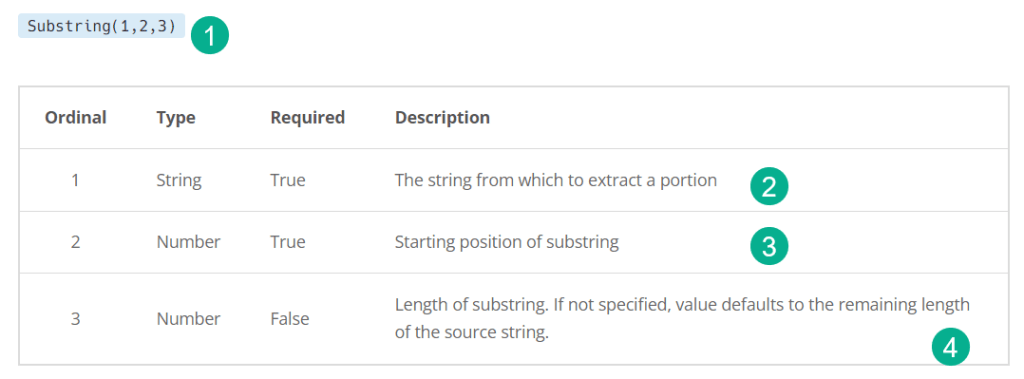
(1) Substring requires three variables.
(2) The string as the first variable, that’s easy for our use case.
(3) The starting position of what you’d like to keep. That’s easy in our use case since we want first name we’ll go with the position of “1”.
(4) The length of the string. That’s the tricky part. We want the string to be as long as the first name and that’s it. But how do we know the length?
Enter our friend the IndexOf function which can tell us where in the string a blank space will occur which will indicate the end of the first name.
IndexOf(@String, ” “). So in our example above the ” ” appears in position 6 in the string.
The last step is that we want to subtract one character to move the number to 5 which is the last letter of the first name. Let’s use the Subtract ampscript function: https://ampscript.guide/subtract/ which is super simple. Two variables are required:

The second value is subtracted from the first value. So in our case we want 6 – 1. or in code:

(1) First we are setting the greeting value.
(2) Next we are setting the very same value but with the Substring function.
(3) The Substring function needs three variables.
(4) First variable is the greeting variable, very easy.
(5) Second is the starting point, 1 character.
(6) Third is the length of the first name which we are subtracting.
(7) The position of the greeting where the blank space exists.
(8) Minus one position.
And the result:

3.) How to format a date variable
You guessed it, Ampscript has a function that will help you format date variables to output any number of formats to fit your use case. There’s Format but we like using FormatDate:https://ampscript.guide/formatdate/
Here’s our current example that we want to format:
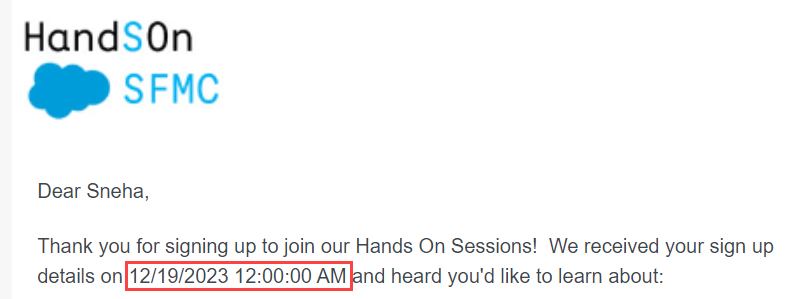
And here’s our step by step approach to utilize the FormatDate function:
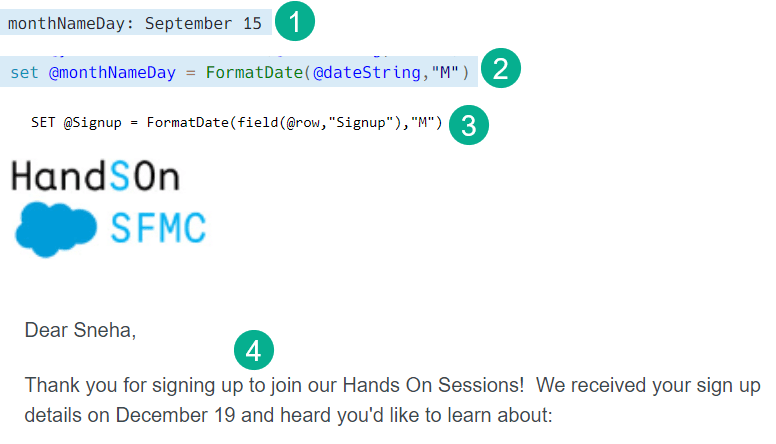
(1) In the Ampscript Guide find the format that you prefer.
(2) Find the code example that outputs that format, in our case “M”.
(3) Apply the function to the variable. Our variable is being set as part of a for loop.
(4) And the end result.
10) Templatize your personalization
To help save steps in the future templatize your most common personalization in content blocks and your code script. Hopefully you have a Email Design System in Marketing Cloud which will allow you to have drag and drop content block emails vs full HTML emails.
For standard personalization like a greeting you could create a content block like this:
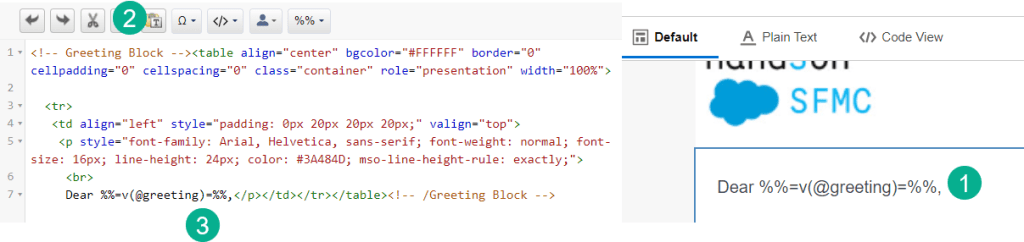
(1) Here’s the content block which you can drop into a template.
(2) Name the block when creating the html code.
(3) Leverage the same variable for greeting that you will use across all emails.
And in your code script block always set the same @greeting variable:
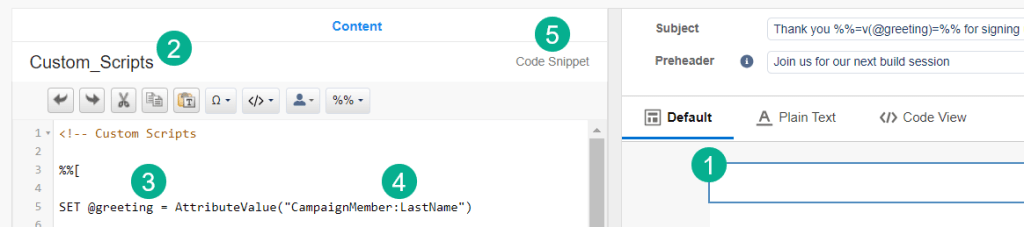
(1) In your code script block at the top of your email.
(2) Our block is named Custom_Scripts
(3) Always have the @greeting variable in the script set with the Attributevalue function.
(4) That way for each email all you need to replace is the value in quotes which typically will be the data extension field that has the greeting name.
(5) Don’t forget when creating a code script block use a Code Snippet content block.
This is an easy way to templatize personalization. So instead of writing custom code for each email. Simply:
(1) Drop in your code script block (this will already be there so not really a step).
(2) Drop in the greeting block.
(3) Change the value in the SET @greeting variable to the value in the data extension for your email and you are done.
Personalization in Marketing Cloud can be a blast. Start off slow and add complexity bit by bit using the variable-izing and templatizing of your personalization to make it easier execution wise.
We’ll post more tips in the future. For a bunch of general Marketing Cloud tips check out our tips post:
Top 25 Tips: https://handsonsfmc.com/50-favorite-marketing-cloud-tips/
25 more tips: https://handsonsfmc.com/50-favorite-marketing-cloud-tips-part-ii/
Please share your tips as well!
 handsonsfmc.com
Leave a comment