
Email click bots are automated programs that click on every link in an email to determine if they are reliable preventing email recipients from receiving spam emails. They can be troublesome to marketers as it can inflate engagement and analytics indicating that a subscriber is interested when they really are not.
There are ways to detect these bots simply by querying the subscriber list and the click data view in Marketing Cloud. If you find a subscriber that has multiple clicks that could be an indicator of a bot, but it’s not 100% fool proof.
We recommend adding a hidden link in your emails that only the bots will click. In this blog article we’ll show you how to add a hidden link and run a query in Marketing Cloud to identify email engagement by a click bot and suppress them from follow communication.
Step 1: Create a hidden link
Pick a spot in your email to place the hidden link. If you have an email design system chose a block that can be saved an used whenever you need to add the functionality like “Header with bot click”.
Then add a DIV tag with the following syntax and a typical A tag as well.

(1) Create a HTML DIV tag.
(2) Use the following style to make the link hidden.
(3) Create a standard a tag, include an alias for tracking.
(4) Send the click to a unique link.
Here is the code for the DIV:
<div name=”divHrefB” style=”display:none!important; height:0px;width:0px;overflow:hidden;visibility:hidden;mso-hide:all”>
In our case we added the hidden link to the signature block as our header and footer are already code rich. When the email is sent the hidden link will not appear in the email:

Step II: Detect the bot click with a query
After you’ve sent your email use the _Click data view to identify the subscribers who’s bots have clicked on the hidden link.
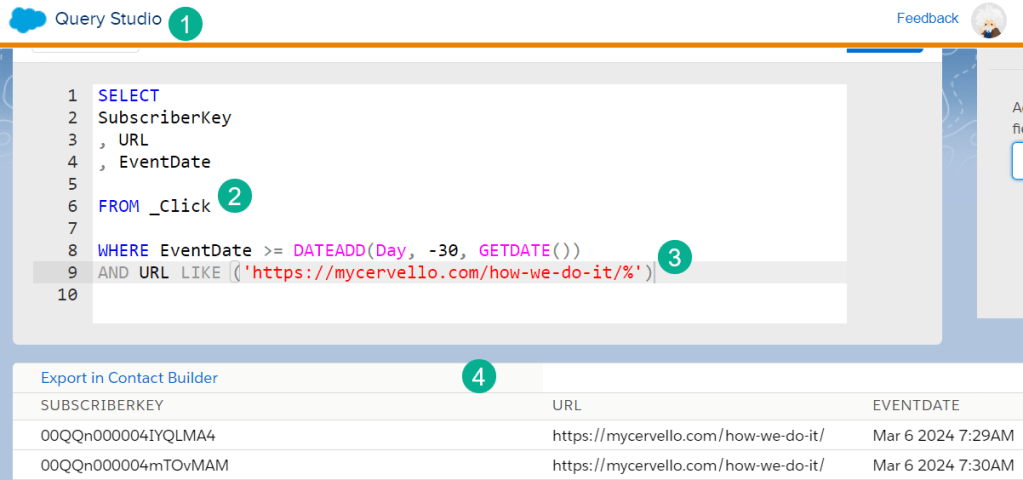
(1) Utilize Query Studio to visualize the data before creating an actual automation: https://appexchange.salesforce.com/appxListingDetail?listingId=a0N3A00000FP3yFUAT
(2) Pull the data from the _Click data view. For more on the amazing Marketing Cloud data views: https://help.salesforce.com/s/articleView?id=sf.mc_as_data_views.htm&type=5
(3) You can use the alias or the url to find the bot click. For the Alias use the LinkName variable in the _Click data view.

(4) Set up your select to output the subscriber and add in the URL or Alias to validate the data.
Now that you’ve created a query to identify the bot clickers, use the query to suppress them from a future send or reporting. For our use case we want to follow up with those leads who’ve clicked into our website. We will use our bot clickers query to suppress them from the send list.

(1) We are JOINing the nested query created above linking the query to our outside query on the subscriberkey.
(2) Using the logic from our query cheat sheet: https://handsonsfmc.com/query-cheat-sheet/
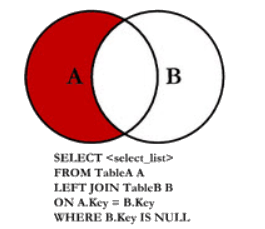
To suppress another set of data (b) from the main data set (a) we need to LEFT join a to b and in the WHERE clause add a filter where the B.Key is NULL.
(3) Our outer query is pulling a list of engagers from a specific marketing campaign.
(4) With a specific campaign id from Salesforce Sales cloud.
(5) Where we are outputting values to be used in the next follow-up send.
You can also use a similar query to suppress the bot clicks from reporting as well.
Don’t let those bot clickers mess up your segmentation and reporting. Use the simple hidden click solution to detect those bots so you can quickly and easily remove them from your data.
 handsonsfmc.com
Leave a comment