
This post is the first part of a three part series covering the Building AI Driven Journeys in Marketing Cloud presented in March, 2024 at Trailblazer DX.

Our Salesforce Lead Architect colleague Hunter built a fantastic AI engine in Sales Cloud that takes conversational/unstructured data and transforms it into a treasure trove of data points to be leveraged in Marketing cloud.
To breakdown this data and make it actionable in Marketing Cloud we’ll be covering the following areas:
1.) Review of custom AI records in Salesforce
2.) Review of data pulled into Marketing Cloud via the synchronized data extensions
3.) Build a query to assign a ranking to the Interaction Summary records
4.) Build a query that enhances our standard ranking with the new unstructured data
5.) Visualize how this updated ranking can drive custom journey paths in Marketing Cloud
Here is a video walkthrough demo that walks through the following in detail:
1.) Review of custom AI records in Salesforce
Hunter created two objects to pull in this unstructured transcription data: Interaction Summaries and Entities.
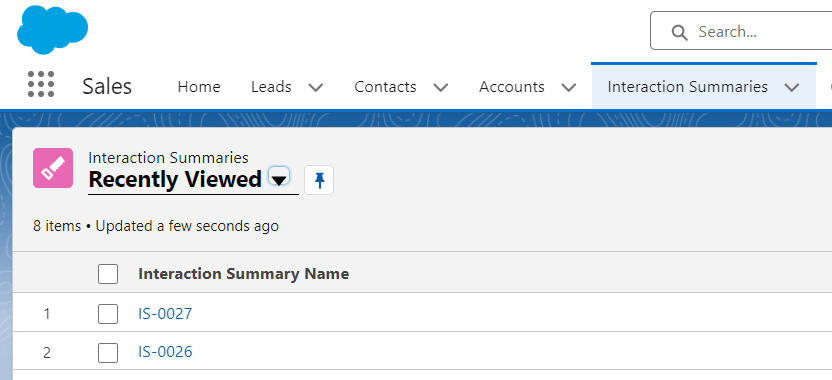
Adding the Interaction Summary object to our navigation tab we can quickly and easily click into these records to view the data:
Clicking further into the record in the related tab we can explore the key areas of each record that will help align it to the standard objects typically used in Marketing Cloud.
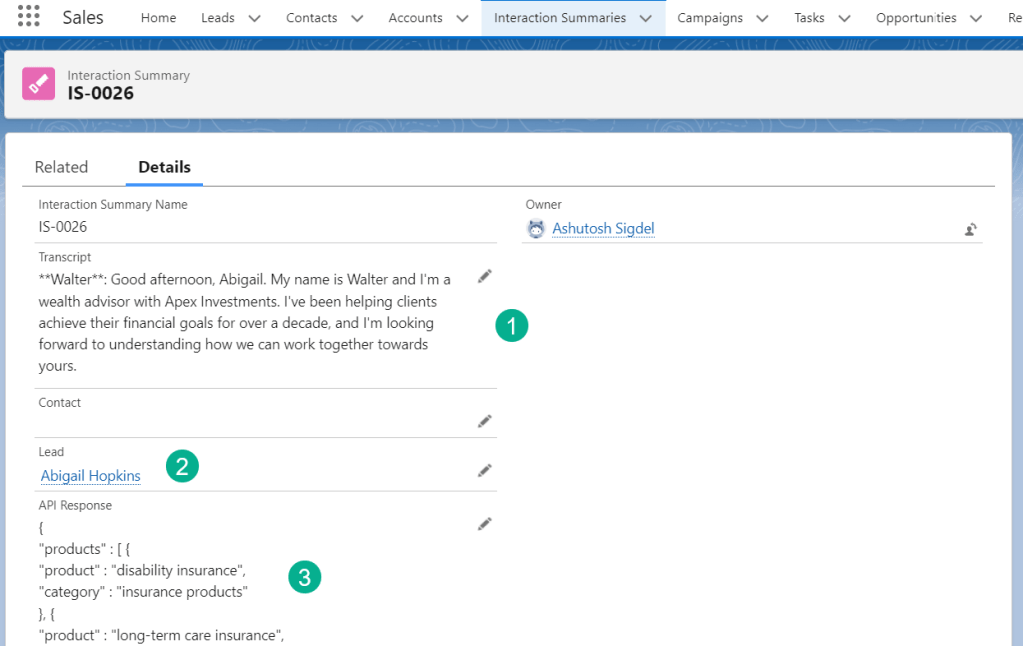
(1) The full transcript data is stored in the Transcript field
(2) A key field either Lead or Contact are identified which ties the Interaction Summary and more importantly the Entity data to the subscriber whether it’s a lead or contact.
(3) The API response captured from the LLM is stored in a field as well. This feeds the Entity but also could be synched to Marketing Cloud to leverage the unstructured data if needed.
Under the Related tab you’ll find all of the entities:
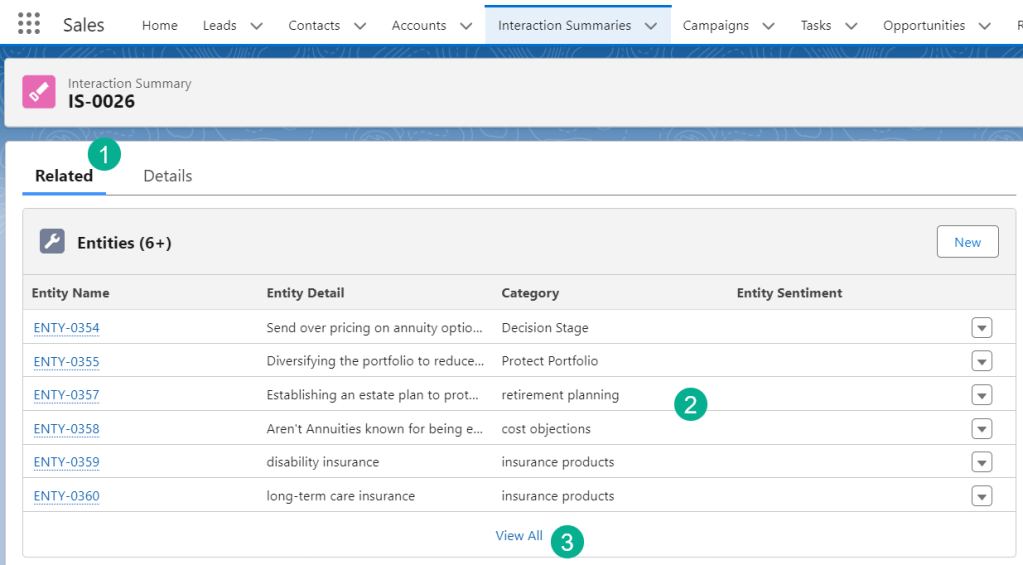
(1) Under the related tab,
(2) All of the entities are listed and
(3) You can expand to see the full list of all the entities
Clicking into any one of these Entity records there’s a variety of fields designed to add flexibility when leveraging the data in Marketing Cloud:
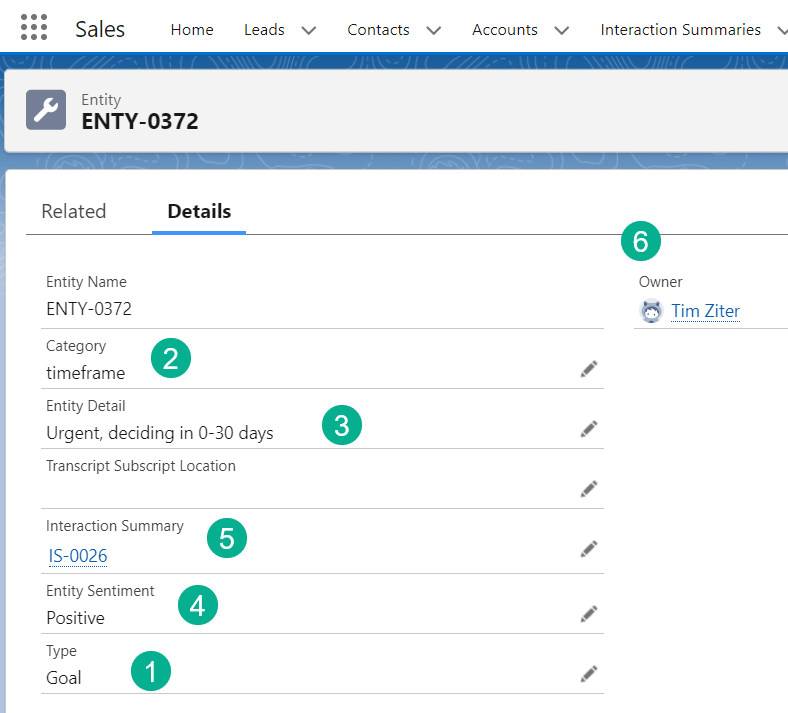
(1) The type field provides a top level organization for each entity. Each Entity is assigned to a type like Goal, Product, Objection, etc.
(2) The next level down of organization/categorization is the Category.
(3) The Entity Detail is the actual data coming back from the LLM to listen for keywords which will influence action points in Marketing Cloud.
(4) Entity Sentiment is another level of organization/categorization.
(5) A key field is the Interaction Summary field which indicates which Interaction Summary record (and lead/contact) that’s associated with the Entity.
(6) Even the owner of the Entity can allow flexibility when segmenting the data. You can set priority of owner/processors that create these objects.
2.) Review of data pulled into Marketing Cloud via the synchronized data extension
Now let’s take a look at how these records and custom objects are synched over to Marketing Cloud to be leveraged in our marketing communications.
In Contact builder under synchronized data extensions you’ll find the Interaction Summaries and Entity data extensions if the Marketing Cloud Connector is set up and the objects are synched. To validate the data copy the id of either the Entity or the Interaction Summary in the url in Salesforce.

Then paste it into the ID section of the synchronized data extension to confirm the data is available in Marketing Cloud. If any of the fields are missing add them under data sources in Contact Builder.
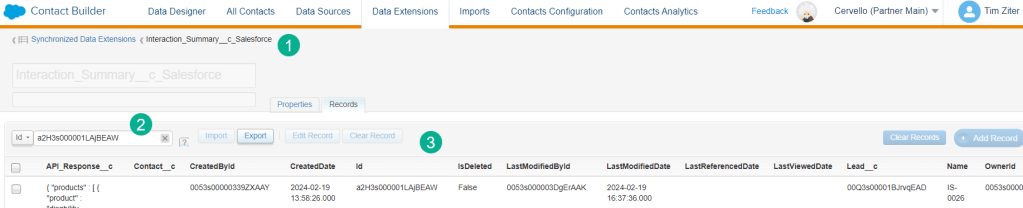
(1) The Interaction Summary synchronized data extension.
(2) Enter in the Interaction Summary ID to search for the record.
(3) Check all the fields to confirm you have the full data set in Marketing Cloud.
3.) Build a query to assign a ranking to the Interaction Summary records
Now that we have the incredible unstructured data in Marketing Cloud let’s take advantage of it and strengthen our segmentation. Our first effort will be to enhance our lead ranking solution.
Let’s say we have an existing ranking system, something like the excellent and highly recommended Saleswings lead scoring application: https://www.saleswingsapp.com/ which provides a wide variety or ranking indicators. We want to use our unstructured data to enhance this ranking by any number of indicators in the unstructured data. For our use case today we’ll use intent as an indicator from the unstructured data.
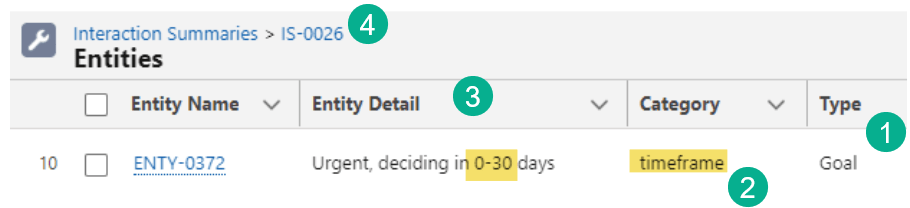
Using the fields in the interaction summary we can listen for intent via the timeframe category in the Goal type.
(1) Within the goal type,
(2) There is a timeframe category.
(3) We’ve built into our prompt engineering to ask the LLM model the level of intent for each interaction summary. If they are interested in 0-30 days, 2-6 months or 6+ months.
(4) This is actual data for Interaction Summary IS-0026.
To assign a lead ranking to each Interaction Summary we’ll need to utilize both the Entity and Interaction Summary records in a query.

(1) In our FROM statement we are starting off this query with the Entity synched DE as we’ll be looking for specific entities under the “timeframe” category. We’ll JOIN the Interaction Summary DE to bring in the Lead field so that we can JOIN the Lead synched DE to pull in all the Lead values.
(2) Using a CASE statement we’ll look for the Entity_Detail__c field and if that field contains 0-30 then the rank will be “Hot”, if the Entity Detail contains 6+ then the ranking will be “Cold”. For more details on the CASE statement Mateusz site is a fantastic resource: https://mateuszdabrowski.pl/docs/sql/sfmc-sql-case/
(3) If neither detail value is found the default will be ranking the interaction summary to “warm”.
(4) In our WHERE statement we only want to search the “timeframe” category.
Let’s review the data that get’s spit out from this query:

(1) Outputting the Entity Detail we can see that the 6+ month equates to a,
(2) Cold rank, and a 0-30 days equates to a Hot rank
(3) This can now be attributed to each Lead ID which will allow us to nest this query inside another query to combine both ranks into one uber rank.
4.) Build a query that enhances our standard ranking with the new unstructured data
Now we can drop the query above into another query to merge the two ranks together.
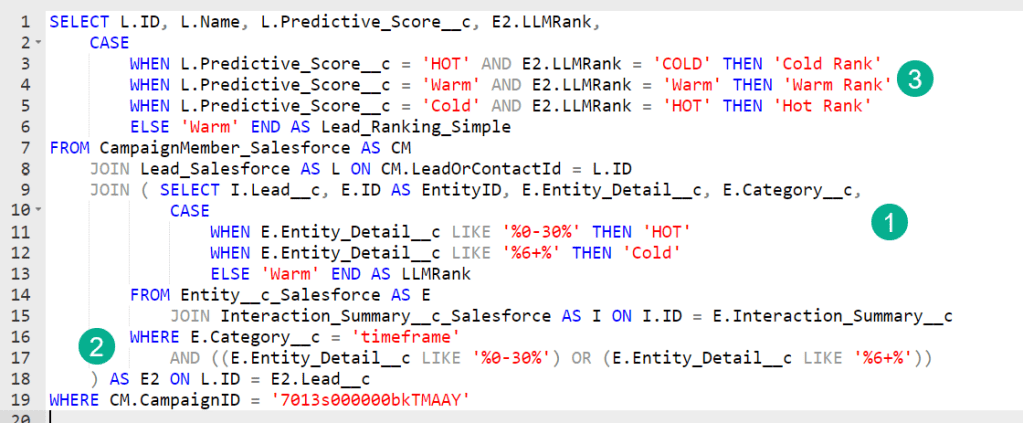
(1) Take the query from above and nest it inside a our outer query which will be pulling in our leads feeding into our lead nurture program via a campiagn.
(2) We are linking the inner query to the outer query by matching the LeadID from the Interaction Summary to the Lead ID for the lead itself.
(3) Using the CASE statement again we’ll combine both the Saleswings Predictive lead score with our unstructured ranking to create an Uber rank or Lead_Rank.
Validate the data to double check the work:

(1) The Predictive score.
(2) The LLMRank score from the unstructured data
(3) The final score. Here you can see that Victoria had a Hot predictive score, but since she’s showing a lower intent the rank get’s lowered to a “Cold” rank. Where as Abigail who was designated as a cold predictive score is now designated as Hot due to her showing intent.
5.) Visualize how this updated ranking can drive custom journey paths in Marketing Cloud
With our ranking enhanced we can create different paths based on the ranking to tailor the actions and feed leads to sales at the optimal time.
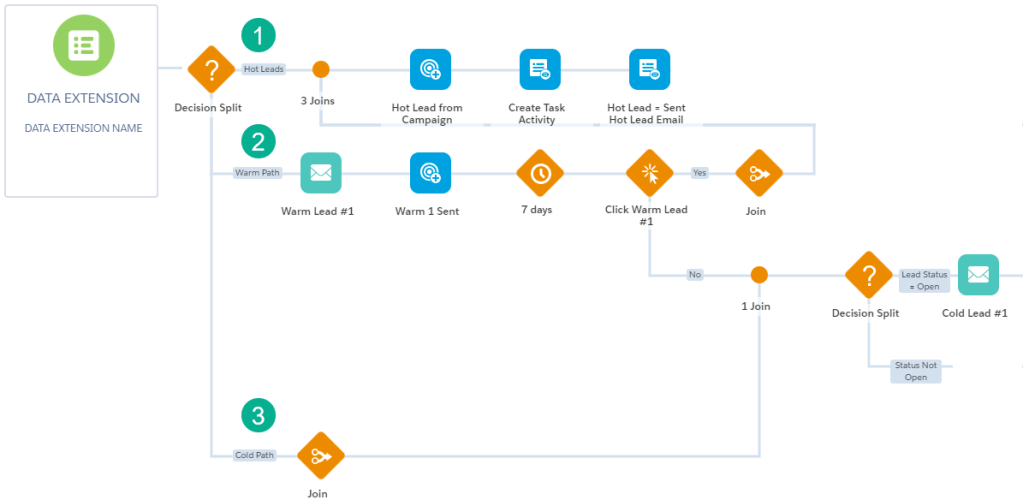
(1) We’ve got a hot path for those Hot Rank leads which could be fed directly to sales to reach out. Activities on this path could include a campaign member update activity to update the campaign status to “Hot Lead”. A custom task could be created in Sales Cloud assigned to the owner of the lead. And a Hot Lead notification email could be sent alerting sales filled out with all of the pertinent information for that lead.
(2) A warm path for all those “Warm Rank” leads could send an email to the lead to see if they are ready to engage with sales. An engagement split could be added to this path checking to see if they engaged and moving them to the Hot path if they engaged.
(3) The cold path can serve up a variety of communications to the lead keeping them warm until they are ready to engage with sales.
The decision split is used to create the multiple paths for the journey utilizing the Lead_Ranking_Simple field created in the query above.
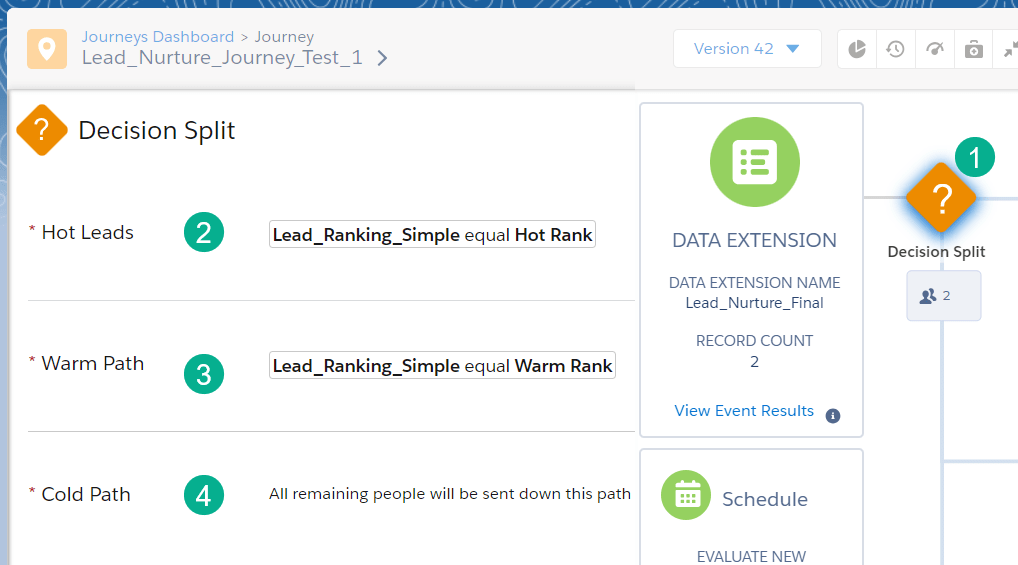
(1) Under the decision split settings,
(2) Set the Hot Leads path based on the Lead_Ranking_Simple equalling “Hot Rank”,
(3) And the same for the Warm Path,
(4) For this use case all others can feed down to the cold path.
In our next post we’ll walk through how to create email content that can be personalized on a 1-to-1 basis at scale leveraging the unstructured data and the new AI tools in Marketing Cloud.
Here is the Trailblazer DX conference presentation on how to build AI Driven Journeys in Marketing Cloud
 handsonsfmc.com
Leave a comment