You will find that certain domains always block you from sending emails to their email list. Blocked domains can be handled in your bounce management solution but ideally you’ll want to suppress the entire domain to help protect your sender reputation.
Here’s a run through of how to create a domain suppression list that can be added to automated sends in Marketing Cloud. Please view a video walkthrough on YouTube:
What is an email domain?
An email domain is the syntax after the @ symbol. So in our test case today we are looking to suppress the mycervello.com domain which would have a sample full email address of tziter@mycervello.com.
STEP I: Validate Domain in your list
In our use case for today we are pulling campaign members from Sales Cloud into a Journey in Marketing Cloud. Let’s create a simple query in Query Studio to output those records that exist in our trouble domain.
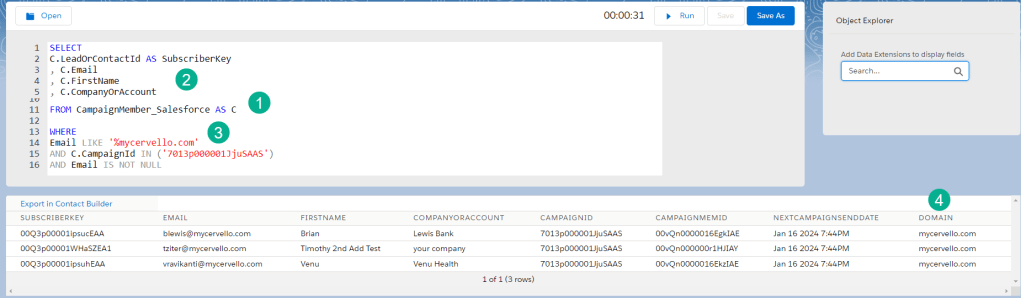
(1) We are pulling campaign members from the synchronized data extension that’s available if you have the Marketing Cloud connector.
(2) In our Select statement we include fields that are needed to send the email like subscriberkey and email address plus field needed for personalization.
(3) To output all records that contain the mycervello.com domain we are using the LIKE function. We’ve added a query cheat sheet that breaks down the variations in syntax for the LIKE function here:https://handsonsfmc.com/query-cheat-sheet/

(a1) using the syntax above ‘%mycervello.com’ will output any email address that ends with mycervello.com
(4) And when running the data extension in Query studio we can validate there are three emails with the mycervello.com email domain.
Add Query Studio to your instance as it’s free!:https://appexchange.salesforce.com/appxListingDetail?listingId=a0N3A00000FP3yFUAT
STEP II: Use Substring to pull out domain
Using the LIKE function was a great way to validate domains in your list/database, but it’s not 100% accurate. To really pinpoint the domain we’ll want to search for the text after the @ symbol. Substring is a great tool to extract a section of the string.
Substring Breakdown
W3 School link: https://www.w3schools.com/sql/func_sqlserver_substring.asp
Syntax:
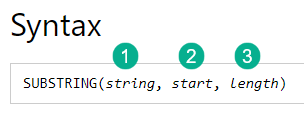
(1) The name of the string is easy, it’s the variable/string that you are looking to find the text after the @symbol. In our case it’s the Email of the campaign member.
(2) The start of where we want to capture the text, that would be right after the @ symbol which will change for each email address.
(3) The length of how many characters to capture after the @ sign will change as well.
To figure out #2 we’ll need to utilize the CHARINDEX function that will give us the position in the string where the @ symbol appears.
CharIndex Breakdown
W3 School link: https://www.w3schools.com/sql/func_sqlserver_charindex.asp
Syntax:
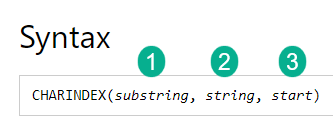
(1) Substring which is what you want to find the index in the string or in our case the @ character.
(2) The string which in our case is the email address of the campaign member.
(3) An optional field which can be used to indicate where you wanted to start, which typically is ‘1’.
Len Breakdown
W3 School link: https://www.w3schools.com/sql/func_sqlserver_len.asp
Syntax:
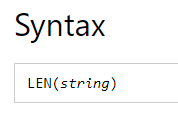
The syntax for LEN is pretty simple. In our use case it’ll be a little more complex to determine the length of the text after the @ symbol. So in our example tziter@mycervello.com. we need to determine the length of the domain after the @ symbol. Let’s verify this code:

The length of the email character wise is: 21 characters
The @ symbol is at character: 7
21 – 7 = 14 characters
The length of the domain mycervello.com: 14 characters
Let’s put together all of this code:

(A) The start of the Substring function.
(1) Data point #1 the string which is the email address of the campaign member.
(2) The starting point of the string which finds the character position of the @ and adds one character to identify the start of the string.
(3) The length of the string covered above.
STEP III: Leverage a Universal Data Extension to capture suppressed Domains
Create a simple data extension that contains the domain and the created date of when the domain is added. You can add other fields as well like a description field as well as folding this use case into a data extension that doesn’t just contain domains but other values as well.

(1) Create a universal data extension.
(2) You don’t need to add a lot of fields, just domain.
(3) And CreateDate which can be a date field with a default to current date and time.
STEP IV: Add the suppression logic to your Query
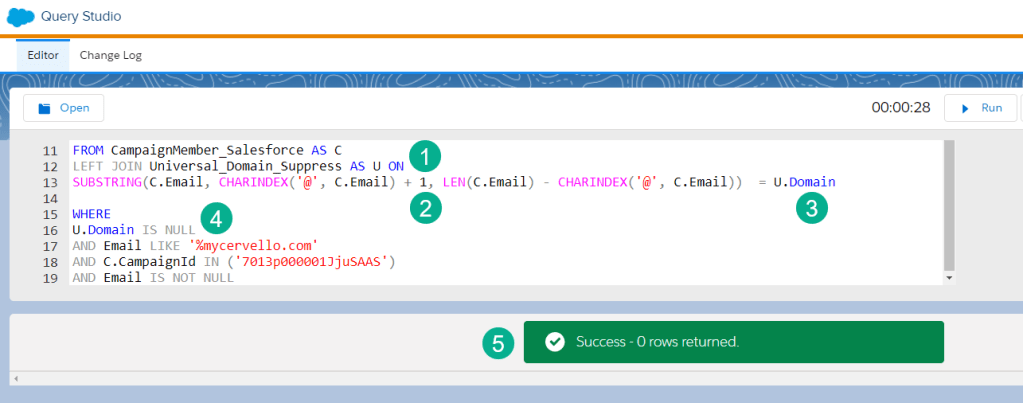
(1) JOIN the Universal suppression data extension following the Query Cheat Sheet JOIN syntax guide:

(A) Use a LEFT JOIN as you only want to pull in those records that exist only in the A database which is our campaign member list for our campaign.
(B) Plus we want to suppress any of the B database where matching records are found or the B key needs to be null, meaning there isn’t a match on the B database.
(2) We are using our Substring code created above in the ON statement to identify the domain for each campaign member email address.
(3) And matching that domain to the universal data extension.
(4) Added here is the B.Key IS NULL from the cheat sheet, in this case the U.Domain.
(5) Running the query in query studio now confirms that we won’t select any domain with the mycervello.com domain, those three records no longer appear.
Experiment with domain suppression and let us know how it goes for you. Thank you for reading this article.
 handsonsfmc.com
Leave a comment