A question came up in the Marketing community group about how to convert and display a phone data field from Sales Cloud into a typical phone format like (802) 555-1212 when the data might be 8025551212 or another variation.
Here’s the link to the support question for more context: https://trailhead.salesforce.com/trailblazer-community/feed/0D54V00007N9Q1HSAV
One more note before moving on, we highly recommend following the Marketing Cloud support channel as it’s a great resource to ask and answer questions. Please check out this amazing resource: https://trailhead.salesforce.com/trailblazer-community/groups/0F9300000001pQ5CAI?tab=discussion&sort=LAST_MODIFIED_DATE_DESC
Sales Cloud Settings
If you have availability to easily change Sales Cloud settings, have the Sales Cloud team use the Phone data type when creating phone fields.

The phone field will be a free form field allowing the user to enter all types of phone variations. For more information on the Sales Cloud phone settings and how it impacts how the number is displayed for the user in Sales Cloud: https://help.salesforce.com/s/articleView?id=000385963&type=1
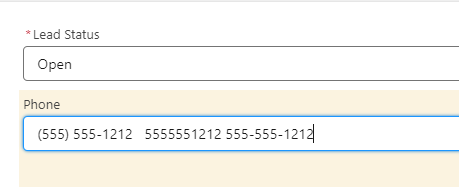
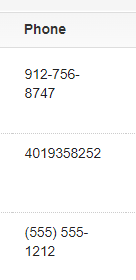
And when the data comes into the Marketing Cloud environment via the synched data extensions, the data might be inconsistent depending on how the data is entered. Here’s an example of various data comes though in the Synched DE:
Format Ampscript Function to the rescue
The Format function in the Ampscript guide: https://ampscript.guide/format/ gives you a lot of options formatting numbers but doesn’t detail how to handle phone (at least not in the free version of the platform).
This article by Jackson Chen provides syntax using the Format function: https://ampscript.com/format-function/

So maybe Format(@phone, “(###) ###-####”) is the way to go?
Testing/validating Format
To validate how the various forms of the data coming in from Sales Cloud displays in a Marketing Cloud email first we need to create a test data extension that contains the variations of the data shared above.
Step I: Explore data in Query Studio
When doing any exploring of the data in Marketing Cloud via a query, a must is downloading and installing the free Query Studio app for Marketing Cloud: https://appexchange.salesforce.com/appxListingDetail?listingId=a0N3A00000FP3yFUAT
When building a query always consider the three main areas of any query
The Select – what fields you want to output
The From – where the data is coming from
The Where – how you are filtering the data

(1) In our use case we’d like to output the Lead ID and the the associated phone number fields. These fields are being pulled from the syntax in the FROM data extension.
(2) Our data source is the Lead synchronized data extension.
(3) We identified three leads/IDs that had the three different data variations on the phone field.
(4) Running the query we see the output of the three different variations of phone.
Step II: Build a Query and Data Extension
One the data has been validated you can either use the “Save As” function in Query Studio to create the query or create one in the Automation Studio of Marketing Cloud copying over the sql code.
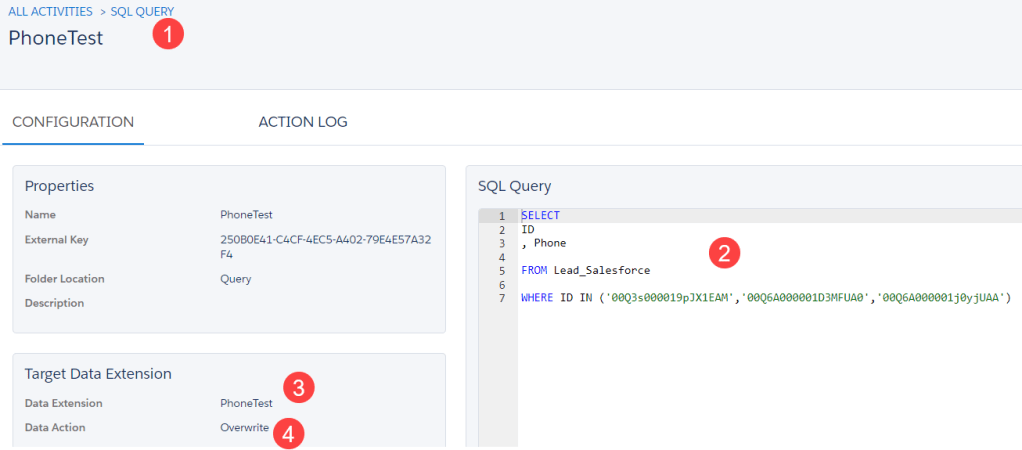
(1) Create your query
(2) Paste in the code from Query Studio
(3) Select the data extension created to output the data
(4) Data action for this use case can simply be “Overwrite” but Update and Append should be considered
Here’s the basic data extension to capture the data.

(1) The two fields as detailed in the Select statement. Make sure to select the Phone field as “Phone” data type.
(2) We’ve added a Test field setting it to default to help with doing a lookup in ampscript later to proof out the data values.
(3) Since we’ll be using this data extension in previewing the data we are selecting it to be used for sending.
Step III: Ampscript to loop through the data variations
Using the power of ampscript let’s output the data variation before and after using the Format function:

In a templated email using the Email Design System we’ll create a Code Snippet block to capture our ampscript coding.
(1) First set a variable to the value using to loop through all three data variations.
(2) Utilize the LookupRows function: https://ampscript.guide/lookuprows/ using their syntax to lookup and loop through all three phone number variation records.
(3) Format the phone number using the appropriate syntax suggested above
(4) Using the CONCAT function: https://ampscript.guide/concat/ display for each phone variation the original data and the converted formatted data.
The Result – Mixed Results!

Here’s the output:
(1) For two out of the three variations we see consistency in the FORMAT versions.
(2) But not when the data comes through with dashes…
Conclusion
The best path is to work with the Sales Cloud team to set up key data points like phone number appropriately. And if possible suggest standardized entry syntax for the data to avoid the multiple variations of the data in this use case.
If data variations are unavoidable the FORMAT syntax is pretty close but not perfect. It’s hard to imagine a use case where displaying a phone number (555) 555-1212 and 555-555-1212 as two scenarios would be a problem. But if it is one option would be to use Substring: https://ampscript.guide/substring/ to remove all dashes to keep the consistency.
 handsonsfmc.com
Leave a comment