
Welcome to the SSJS Bootcamp hosted by Jyothsna Bitra as part of the Phoenix Salesforce Marketer Group. In the overview session for this bootcamp we’ll give you a tour through the key areas of SSJS and provide exercises along the way to help learn and grow with this fascinating language.
For more information on the Phoenix Salesforce Marketer Group please follow this link to sign up: https://trailblazercommunitygroups.com/salesforce-marketer-group-marketing-cloud-phoenix-united-states/
SSJS Overview
What is Server Side Java Script? For us functional/developers is another cool coding language that you should be comfortable either coding from scratch or able to read/understand when working with a developer. Here are the highlights of SSJS:
- Based on JavaScript – this is great because like SQL there’s a large library of support documentation and problem solving on Stack Exchange and other areas. Be careful though as not all of Java Script can be used in SSJS or in Marketing Cloud.
- Easy to learn – it is easy and FUN to learn, but we’d recommend spending the time understanding the basics vs doing a lot of copy and paste. Break down the code into the basic building blocks following this overview session.
- Uses: landing pages, scripts – for those who’ve taken our Ampscript bootcamp, SSJS doesn’t really play in the email space, but is very powerful when used in cloud pages and custom scripts.
- Use cases: web development, API integration
Function Libraries – Core and Platform
Core libraries are the most widely used in SSJS. For a complete list of all core library functions please refer to the excellent syntax guide that Salesforce provides:
https://developer.salesforce.com/docs/marketing/marketing-cloud/guide/ssjs_syntaxGuide.html
To load the core library, you’ll want to (1) open your script with a <script tag and include runat=server>. Let you can use the Platform function to load the core library. Experts in SSJS recommend using the “1” library as it will include all the core functions, but you’ll see other variations of this library in your code.

Once you’ve finished coding end the script tag with a “</script>”.
Platform libraries like the one listed above to load the core library don’t require loading a core library. So you can just open the script tag and start using those platform functions. If you don’t have a lot of coding or are looking for a more performant solution, consider using only platform functions. But for the most part you’ll be wanting to use your core functions.
Syntax Basics
Before you dive right in it’s good to cover the basics regarding overall SSJS syntax.
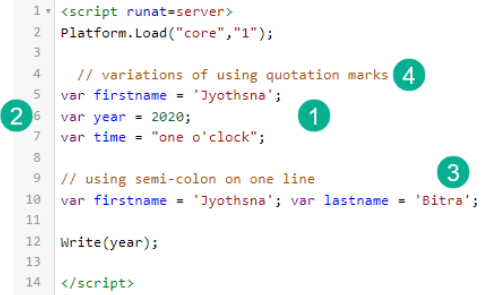
(1) Most lines of code in SSJS will end with a ;. String variables need to be surrounded in either double or single quotes. If you want to use a combination of single and double quotes (see line 7), use different quote syntax to surround the string.
(2) var or variables are containers to capture values to be used in your solution.
(3) You can declare multiple variables on a single line, just make sure to separate them by ;.
(4) Don’t forget to comment out your code to leave clear instructions for future builders.
Objects in SSJS
Now we start getting to the cool stuff and there’s nothing cooler than an object in SSJS. An object is a collection of properties or variables. They are comprised of properties or variables and methods or functions. For example:
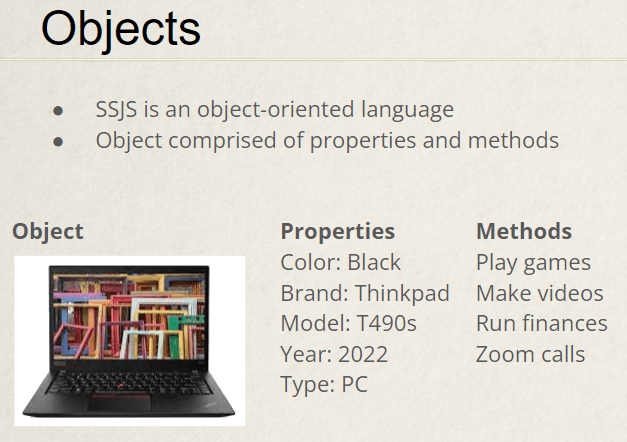
The object here is a laptop. The key area we’ll cover today is how one object can be comprised of multiple variables. In this case a laptop has a color, brand, model, etc.
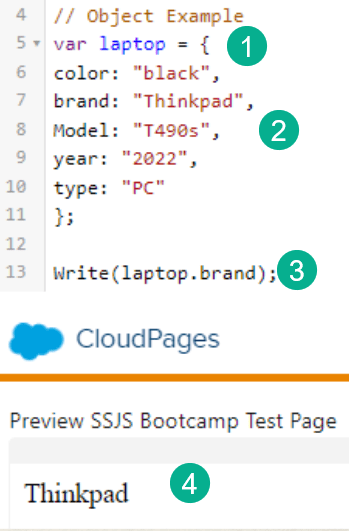
(1) An object starts out like any variable, but the { signifies the beginning of where multiple properties or sub variables will be declared.
(2) Properties are identified by : and their values surrounded in quotes.
(3) Core function Write used here to output a variable. To output a property in an object designate the property item preceded by a period.
(4) The output based on the brand property in the laptop object.
Arrays
Similar to Objects, arrays are strings that contain multiple variations of a single variable. Their syntax is specific in the creation of the array and for use in functions as well.

(1) Notice the syntax here, a variable is created but an array is identified by square brackets instead of squiggly brackets. Each value is wrapped in quotes and separated by a comma.
(2) The syntax when using in a function is specific as well. And good to remember that [0] is the first value in the string not [1].
(3) The result of laptop[0] is the first value in the array.
Practice the code above!
To advance your skills in SSJS and gain comfortability coding please follow the coding examples above right in the platform. Here’s a quick walkthrough of how to set up a basic testing environment in Marketing Cloud.

(1) In the Marketing Cloud main menu navigate to the Web Studio icon
(2) Select CloudPages
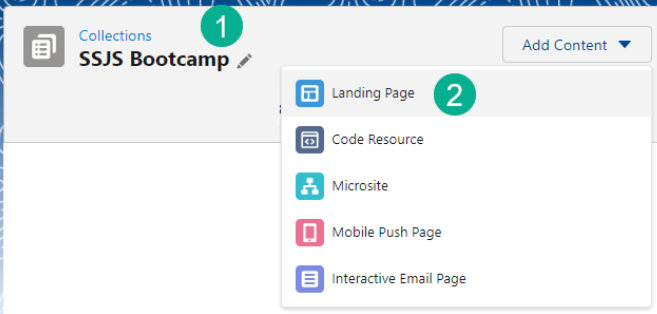
(1) Create a collection – in our example we created “SSJS Bootcamp”
(2) Click the Add Content button in the upper right and create a new Landing Page
Add the script tag and create your core library

Create a bunch of spaces after the loading of your library and test out the code above, writing multiple properties and array values.
If you want an additional challenge check out Ivan Razine’s article on how to use shared drives as a shortcut to populate changes in Cloud pages. This will save you time avoiding the steps to Save and Publish after each change. Ivan will be a featured speaker in coming weeks on the SSJS Bootcamp: https://ampscript.xyz/tips-and-tricks/develop-faster-for-marketing-cloud/
If you don’t have access to Marketing Cloud you can also use 3rd party tools like MC Snippets: https://mcsnippets.herokuapp.com/s/SxxjGFIu or JS Fiddle: https://jsfiddle.net/ but especially with JS Fiddle or other general Java Script tools the code might not work like it does in Marketing Cloud.
We’ll be back in a few days with additional functions like Operators, Loops and more. Have fun with SSJS!
 handsonsfmc.com
Leave a comment