
We will be covering the useful Math functions featured in the week 6 Ampscript Bootcamp that is hosted and created by Jyothsna Bitra as part of the Phoenix Salesforce Marketer Group. The team covers Utility functions including: Add, Subtract as well as the core functions involved in standard ampscript functionality.
For more information on the Phoenix Salesforce Marketer Group please follow this link to sign up: https://trailblazercommunitygroups.com/salesforce-marketer-group-marketing-cloud-phoenix-united-states/
The video below begins covering the Lookup function around the 10 minute mark if you want to fast forward. It might be helpful to start from the beginning to understand the context of the use case.
Setup
To provide context for the Math functions, Michelle takes us through how she is setting key variables surrounding loyalty points. The use case involves the need for marketing to output in the email the number of loyalty points earned , used, the balance left and their dollar amount.
Here’s an overview of the Ampscript used to set the variables:

(1) First the subscriber variable @Contact is set based on a field in the data extension that contains the subscriber/contact ID.
(2) The Lookuprows function is used to look up in the database of loyalty points captured in the data extension named “Loyalty Points – Email Send”. Using the Subscriberkey or @Contact variable to look up the appropriate record.
(3) The standard For Loop inside the LookupRows will search all records that contain the subscriberkey.
(4) And then set the three loyalty point variables needed to output and personalize the email.
Add Function
Let’s take a look at the documentation that Salesforce provides on the Add function: https://developer.salesforce.com/docs/marketing/marketing-cloud/guide/Add.html

It is pretty self explanatory in that there are to fields, the first value and the second value to add. What is worth pointing out is (1) the Type is numeric so it has to be a number and (2) the maximum number of variables to add together is two.
Let’s take a look at how Michelle sets her TotalMonthPoints value in her Ampscript code:

(1) Variable #1
(2) Variable #2
Subtract Function
Let’s take a look at the documentation that Salesforce provides on the Subtract function:
https://developer.salesforce.com/docs/marketing/marketing-cloud/guide/Subtract.html

Again two numeric values only available in the syntax. The second value to be subtracted from the first.
Let’s take a look at how Michelle sets her RolloverPoints and TotalPoints values in her Ampscript code:
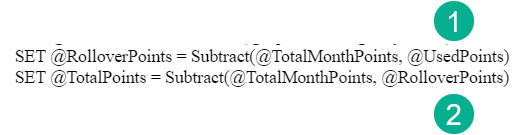
(1) Subtracting the Used points from the Total points will give her the Roll Over points
(2) Subtracting the Roll Over points from the Total Month points will give her the Total Points or points left to use.
Divide and Format Currency Function
Let’s take a look at the documentation that Salesforce provides on the Divide and FormatCurrency function.
Divide: https://developer.salesforce.com/docs/marketing/marketing-cloud/guide/Divide.html
FormatCurrency: https://developer.salesforce.com/docs/marketing/marketing-cloud/guide/FormatCurrency.html
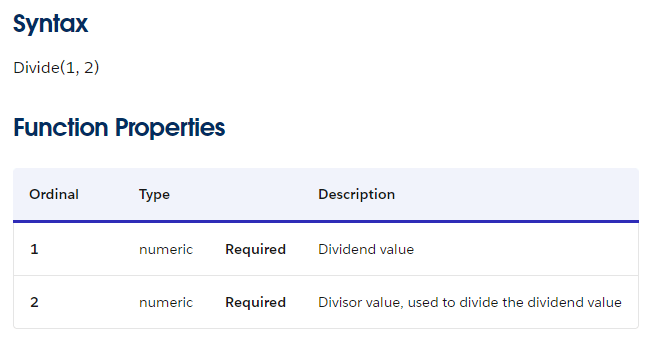
Divide acts just like Subtract except the 2nd variable is being used to divide the first.

(1) The divide function is nested in the FormatCurrency function covered below.
(2) Loyalty points are worth 50 cents so here Michelle is dividing the Total Points variable by 2.

The FormatCurrency basic function is straightforward if you reference the ISO culture codes: https://en.wikipedia.org/wiki/List_of_ISO_639-1_codes
Note: If you want to add additional decimal places use the third field. If not selected it will default to the culture code. If you want a different currency symbol as well add field four otherwise the default will render. For example in english 2.1345 would return as $2.13

(1) Field one contains a nested function of Divide which will ultimately return the value to be formatted. In this example it will be a whole number like 15.
(2) The culture code
The Reveal
Outputting those variables in the content we see the following:

(1) The Total Math points based on adding the points from the two months
(2) The Rollover points found by subtracting used from Total Month
(3) The Remaining points found by subtracting the Rollover points from the total Points
(4) The Total points available in dollar amounts.
Ampscript Tip #1: Saved Snippets
As Michelle pointed out save a few steps by using the Saved Snippets icon in your content block to insert code from an existing snippet:

(1) In your content block select the Saved Snippets icon
(2) And select the saved code snippet and the snippet will be inserted right into the block.
Ampscript Tip #2: Hide That Ampscript
As Michelle pointed out adding “<!–” before the ampscript code and end with “–>” will hide the ampscript code in the content of the email. This will help prevent confusion with end users seeing all the ampscript code.
Here’s an example of an ampscript block without the formatting:

(1) Formatting not present
(2) Results in the ampscript code appearing in the content preview. It won’t look that way in the actual send of course but it looks a little messy to those not familiar with Ampscript.
Adding in the formatting syntax hides the ampscript:

(1) <!– here
(2) End with –>
(3) And the ampscript is hidden
Thank you for reading this section on the ampscript Math functions. Please check out the other great ampscript videos and guides: https://handsonsfmc.com/ampscript-bootcamp/
 handsonsfmc.com
Leave a comment