
We will be covering the LookupRows function featured in the week 2 Ampscript Bootcamp that is hosted and created by Jyothsna Bitra as part of the Phoenix Salesforce Marketer Group. The team covers Utility functions including: Lookup, LookupRows, LookupOrderedRows as well as the core functions involved in a For Loop.
For more information on the Phoenix Salesforce Marketer Group please follow this link to sign up: https://trailblazercommunitygroups.com/salesforce-marketer-group-marketing-cloud-phoenix-united-states/
The video below begins covering the Lookup function around the 25 minute mark if you want to fast forward. It might be helpful to start from the beginning to understand the context of the use case. For more documentation on the lookup function please click here: https://handsonsfmc.com/2023/06/04/ampscript-bootcamp-week-3-lookup-variations/
LookupRows Function
As outlined in the video above we have our welcome email an want to list out all of the steps associated with the subscriber and list them in a list form in the email content itself. There is a separate data extension that contains a table of these steps identified by the subscriber key .
Let’s take a quick look at the makeup of the LookupRows function by viewing the code structure and example at the Ampscript Guide: https://ampscript.guide/lookuprows/

Code structure:
The code contains three key values:
(1) The name of the data extension that your are doing the lookup
(2) The name of the column in the data extension that you will be using to match the record
(3) The value that you will be using to make the match to the data extension row
The code example above illustrates the fields needed.
Let’s take a look at the data extension that we are looking up the steps.

(1) Here’s the name of the Data Extension we’ll be using for field #1 or “WelcomeSteps”
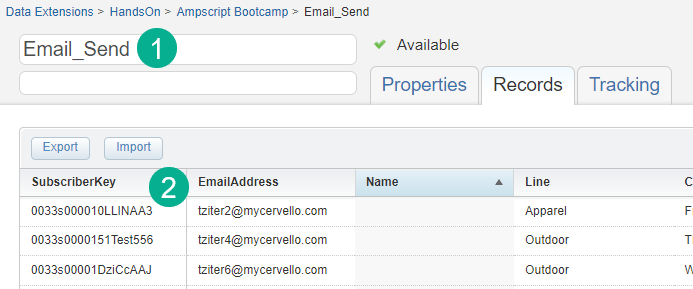
(2) The column of the data extension that has the field that will match in order to find the row or “SubscriberKey”. How did we know that SubscriberKey was the field that would determine the match? We looked at our email send data extension (1) and found the field that was consistent between both data extensions (2).
(3) & (4) These are the two fields we want to output in our email if a match is found.
(5) Here’s an example of a subscriber key that we can visually see has a match, so at the very least for this subscriber it should rendre “Add Warranty coverage” as well as “Refer a friend”.
Now let’s write the code in our code snippet header code using this information.
Step I: The Three LookupRows Variables
Simply copy the code from the Ampscript guide (thank you Ampscript Guide!) and drop it right into your code snippet block.
Lookup Tip #1: Copying Code
Copying code from other experts can save you time, but we’d recommend not copying large sections of code as you might inherit code that’s not necessary. Copy only when it will save you time setting up the correct structure and typing out basic syntax.

Next up let’s add in those three variables that we determined above, the DE name and the Subscriberkey we’re using to find the appropriate row.
Lookup Tip #2: Copy right from the data extension
Highlight the actual fields directly from the data extension vs typing in the values. This will prevent any errors if you accidentally type in a wrong character.

Excellent with the two values copied over your code should look like this:
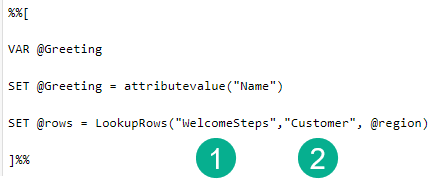
Now we need to determine the fourth value, we need to create a variable that is set to the Subscriberkey from the email send data extension.

(1) Using the same syntax that we covered in our attribute value session we set the SubID variable to the field in the data extension that contains the SubscriberKey.
(2) And drop that variable into the third space finishing up our code.
That completes the modification of the LookupRows function, now we need to fill in the rest of the code including a For Loop.
Step II: For Loop Functionality
Here’s a breakdown of the code copied from the Ampscipt Guide for LookupRows as mentioned above:

(1) The rowcount function here converts the value created in @rows to a number that the For Loop can count.
(2) An IF statement to only proceed if the rowcount variable has a value or is greater than zero.
(3) The beginning of the For Loop. The @i variable will be used step through the rowcount starting from the number “1”. All code between the FOR and the NEXT @i will be repeated in each loop.
(4) This VAR statement can be used to declare variables that need to be reset as the For Loop cycles through each version.
(5) Row determines which row to find the data in the data extension.
(6) Here’s where all the variables are set based on the names of the columns or fields
(7) Next @i is the end of the For Loop and will cycle back through the loop until it’s on the final count.
(8) The ENDIF ends the statement that was started on step #2
Step III: Customizing the For Loop
To customize the For Loop you’ll need to add those variables you are looking to set for each loop.

(1) Declare your variables in the VAR statement
(2) Set each variable by copying the exact syntax from the data extension and dropping it in quotes in the field function.
One last step you’ll need to set a variable that gets added with the Step and BonusMonth variables each loop. To do that we’ll use the CONCAT function.

(1) The first variable will be the @StepOutput variable itself as the will allow the variable to add a new row each loop.
(2) We wanted to bold the Step so we’re adding a little HTML here.
(3) Adding the Step variable.
(4) Adding more HTML to help make the formatting look good.
(5) Adding the Bonus Month variable.
(6) Ending the line with a return in HTML so it is formatted correctly.
Step IV: The Reveal
Now that we have our variable we simply need to output it in a content block in our email:

And when we preview we see the steps being populated:

In a future post we’ll be covering LookupOrderedRows.
Have fun with Lookup a very handy and useful Ampscript Function.
 handsonsfmc.com
Leave a comment