
We will be covering the Lookup function featured in the week 2 Ampscript Bootcamp that is hosted and created by Jyothsna Bitra as part of the Phoenix Salesforce Marketer Group. The team covers Utility functions including: Lookup, LookupRows, LookupOrderedRows as well as the core functions involved in a For Loop.
For more information on the Phoenix Salesforce Marketer Group please follow this link to sign up: https://trailblazercommunitygroups.com/salesforce-marketer-group-marketing-cloud-phoenix-united-states/
The video below begins covering the Lookup function around the 9 minute mark if you want to fast forward. It might be helpful to start from the beginning to understand the context of the use case. For more documentation on attribute value, v and Empty function documentation please refer to this post: https://handsonsfmc.com/2023/05/17/ampscript-bootcamp-week-2/
LOOKUP Function
As outlined in the video above we have our welcome email that we’ve set to personalize the first name but the email send data extension name field isn’t always populated. So we want to lookup a separate data extension to use an alternative name field when the email send data extension name is populated.
Let’s take a quick look at the makeup of the Lookup function by viewing the code structure and example at the Ampscript Guide: https://ampscript.guide/lookup/

Code structure:
The code contains four values:
(1) The name of the data extension that your are doing the lookup
(2) The name of the column in that data extension that has the value you want returned and set to the variable.
(3) The name of the column in the data extension that you will be using to match the record
(4) The value that you will be using to make the match to the data extension row
The code example above illustrates the fields needed.
Let’s take a look at the data extension that has that alternate name field.
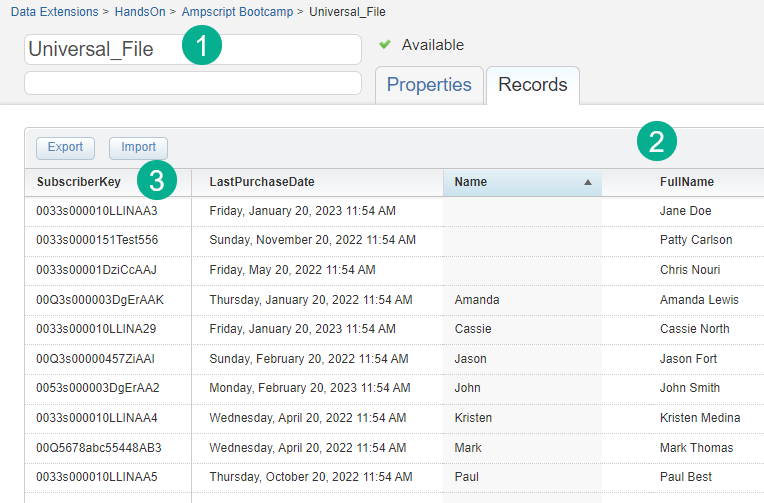
(1) Here’s the name of the Data Extension we’ll be using for field #1 or “Universal_File”
(2) The column name that will return the value we’re looking for is “FullName”
(3) The column of the data extension that has the field that will match in order to find the row or “SubscriberKey”. How did we know that SubscriberKey was the field that would determine the match? We looked at our email send data extension (1) and found the field that was consistent between both data extensions (2).
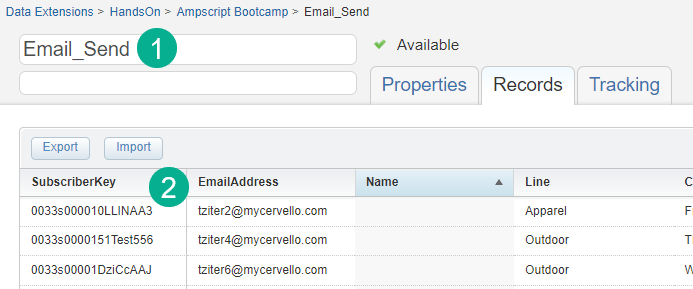
Now let’s write the code in our code snippet header code using this information.
Step I: The Four Lookup Variables
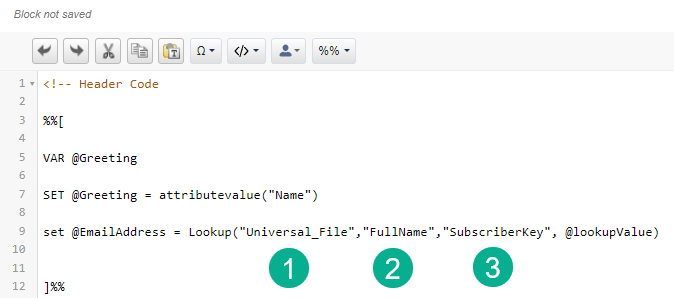
(1) Here’s the name of the Data Extension we’ll be using for field #1 or “Universal_File”
(2) The column name that will return the value we’re looking for is “FullName”
(3) The column of the data extension that has the field that will match in order to find the row or “SubscriberKey”
Now let’s write the code in our code snippet header code using this information.
Step I: The Four Lookup Variables
Simply copy the code from the Ampscript guide (thank you Ampscript Guide!) and drop it right into your code snippet block.
Lookup Tip #1: Copying Code
Copying code from other experts can save you time, but we’d recommend not copying large sections of code as you might inherit code that’s not necessary. Copy only when it will save you time setting up the correct structure and typing out basic syntax.

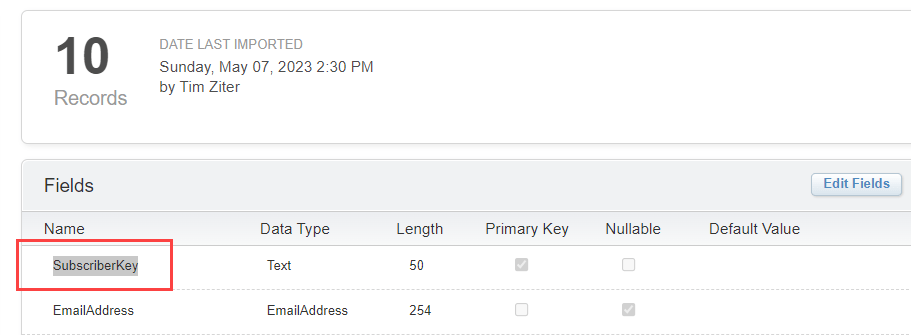
Next up let’s add in those three variables that we determined above, the DE name, the FullName value and the Subscriberkey we’re using to find the appropriate row.
Lookup Tip #2: Copy right from the data extension
Highlight the actual fields directly from the data extension vs typing in the values. This will prevent any errors if you accidentally type in a wrong character.
Excellent with the three values copied over your code should look like this:
Now we need to determine the fourth value, we need to create a variable that is set to the Subscriberkey from the email send data extension.
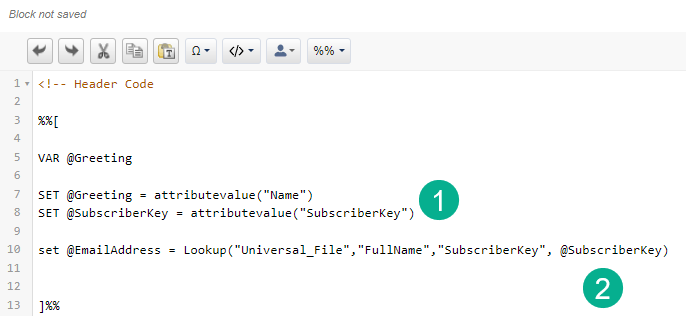
(1) Using the same syntax that we covered in our attribute value session we set the SubscriberKey variable to the field in the data extension that contains the SubscriberKey.
(2) And drop that variable into the fourth space finishing up our code.
That completes the modification of the Lookup function. Now we need to change the @emailaddress variable and fold this Lookup into the logic of the use case.
Step II: IF THEN and EMPTY
To fold in our cool new Lookup function we need to add logic that will do the lookup if the “Name” field is empty or if the @Greeting variable is empty.

Taking a look at our email send data extension. We want to use the “Name” field when it is not empty, i.e. use “Amanda” in (1). But if the “Name” field is empty (2) we want to lookup via the SubscriberKey to our Universal data extension and use the “FullName” value associated with that SubscriberKey.
Let’s take a look at our final code:
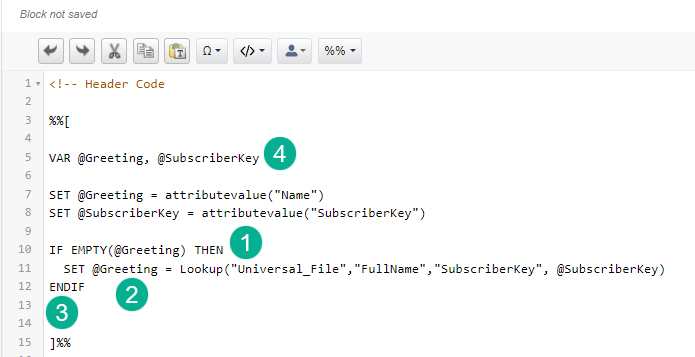
(1) Adding an IF and an EMPTY we are checking to see if that @Greeting value is empty and only proceeding “THEN” if it is empty. This will work effectively if you use the Attributevalue function when setting variables.
(2) @Greeting will be the variable set in the Lookup function. This will replace the empty value set to @Greeting on line 7. This is the most efficient way vs setting a completely new variable and allows you to output only one variable.
(3) Don’t forget the ENDIF whenever you are creating an IF statement
(4) And to follow best practices declare your @SubscriberKey variable.
For more information on IF statements check out the Ampscript Guide: https://ampscript.guide/statements/
Step III: Validate the code
Now it’s time to preview the code to see if everything is working as expected.

Success, when that “Name” field is empty (1) we don’t see an empty value populated in the greeting (2) but the “fullname” field that is found using (3) the Subscriberkey and looking up into the Universal data extension to pull in “Jane Doe”.
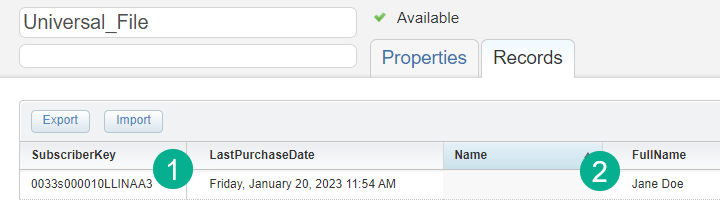
(1) SubscriberKey match both ending in NAA3
(2) “Jane Doe” pulled from the “FullName” variable.
In a future post we’ll be covering LookupRows and LookupOrderedRows.
Have fun with Lookup a very handy and useful Ampscript Function.
 handsonsfmc.com
Leave a comment