
In this session the team wraps up implementing the Marketing Cloud connector between the new Marketing Cloud sandbox business unit and the new Salesforce Core/CRM org. The team will be following the Connector documentation located here:
https://trailhead.salesforce.com/content/learn/modules/marketing-cloud-connect
PART I: Set up SFMC API User
You’ll want to set up a unique user in both the SF CRM and SFMC environment. In Session I we set up the SF CRM API user, to view that session click here: https://handsonsfmc.com/2023/05/14/implementation-series-marketing-cloud-connect-part-i/ Now we want to create an API user in the SFMC platform.
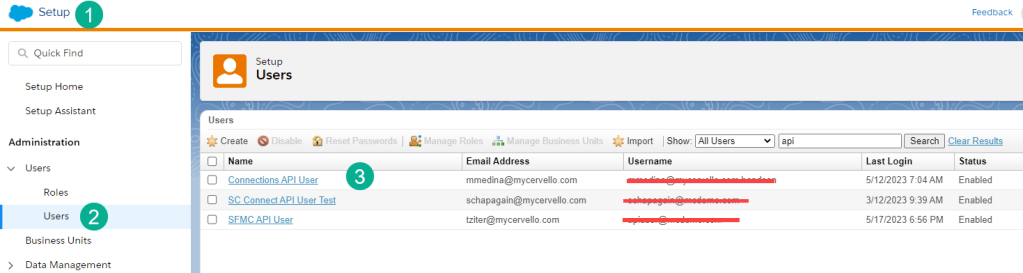
(1) Go to Setup
(2) Under Users
(3) Set up a dedicated API user. Notice here we have three separate API users as in our demo org we have three different business units connected to three different SF CRM environments.
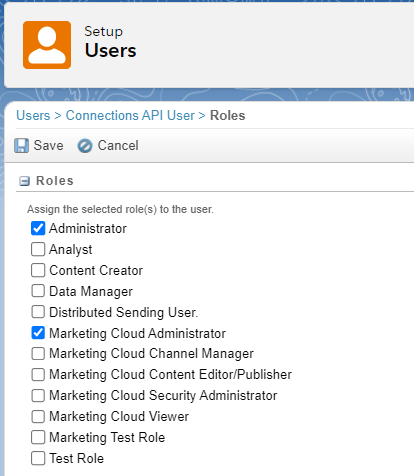
You’ll want to assign the user Admin rights:
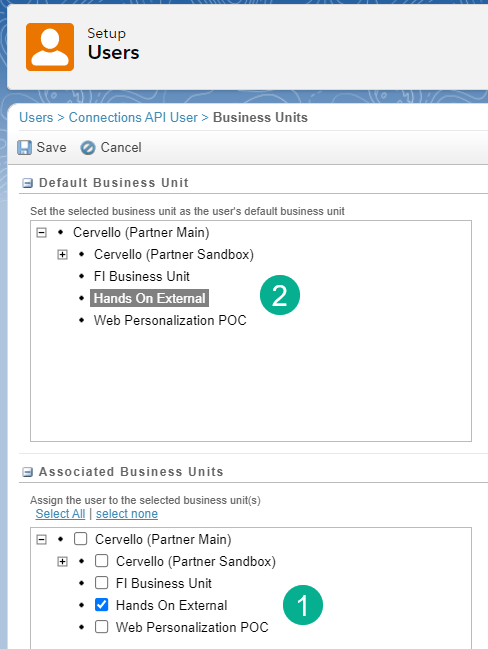
and assign them to the specific business unit that they’ll be connecting.
PART II: Connect
In setup under Apps > Salesforce Integration logged in as (1) the API user you will connect via clicking on the Blue button and selecting the appropriate Scope By User (2) depending on your access needs. A window will pop up asking the user to log into the Salesforce CRM environment as the API user. Once connected please verify that the Marketing Cloud instance is connected to the correct Salesforce org (3).

PART III: Finish Configuration in Salesforce CRM
In CRM Classic, under “Setup” search for Connected Apps in the search bar (1) and follow the documentation to fill in the appropriate settings.
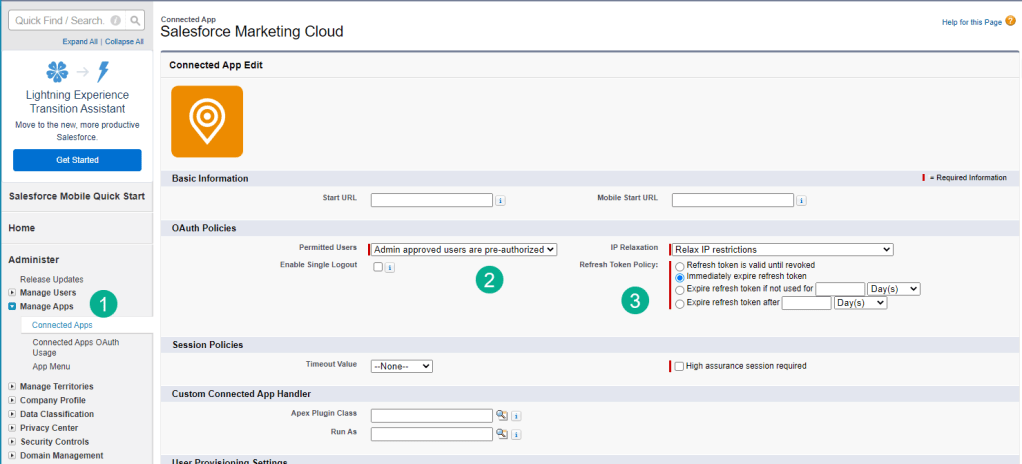
You’ll need to add permissions and save a page on Process Automation Settings. Once complete log into the Marketing Cloud application to follow the connection wizard.
 handsonsfmc.com
Leave a comment