In this session the team creates a new business unit in our Marketing Cloud instance to be used to invite users to experiment and gain experience in one of our build sessions in the future.
How to create a new business unit in Marketing Cloud
PART I: Create a new business unit
You’ll need admin rights so first check with your Marketing Cloud admin to validate your rights or have them perform these steps.
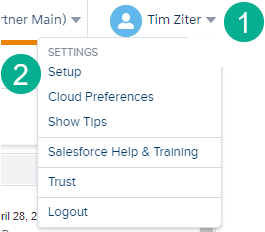
(1) In the upper right hand corner of your Marketing Cloud instance click on where your name appears.
(2) and select Setup.
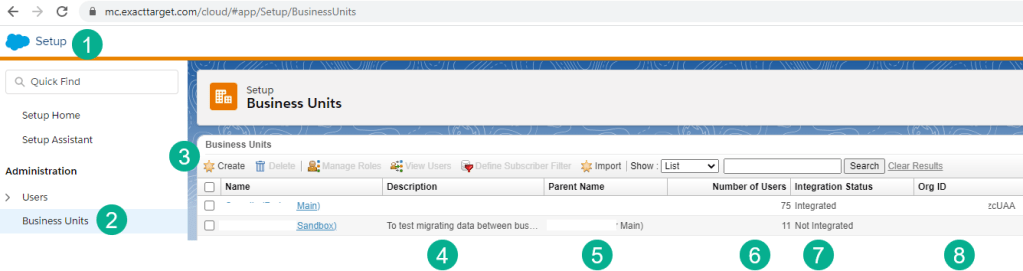
(1) In the Setup Menu
(2) Select Business Units under Administration
(3) Select “Create” to create a new business unit
Notice information displayed for business units
(4) A description which can be helpful and is worth adding
(5) The parent business unit which will impact data sharing
(6) Number of users assigned can be helpful at a glance
(7) Integrated/Not Integrated which indicates connection to the Connector between Marketing Cloud and typically Sales Cloud
(8) Org ID – if integrated Saleforce core org id.
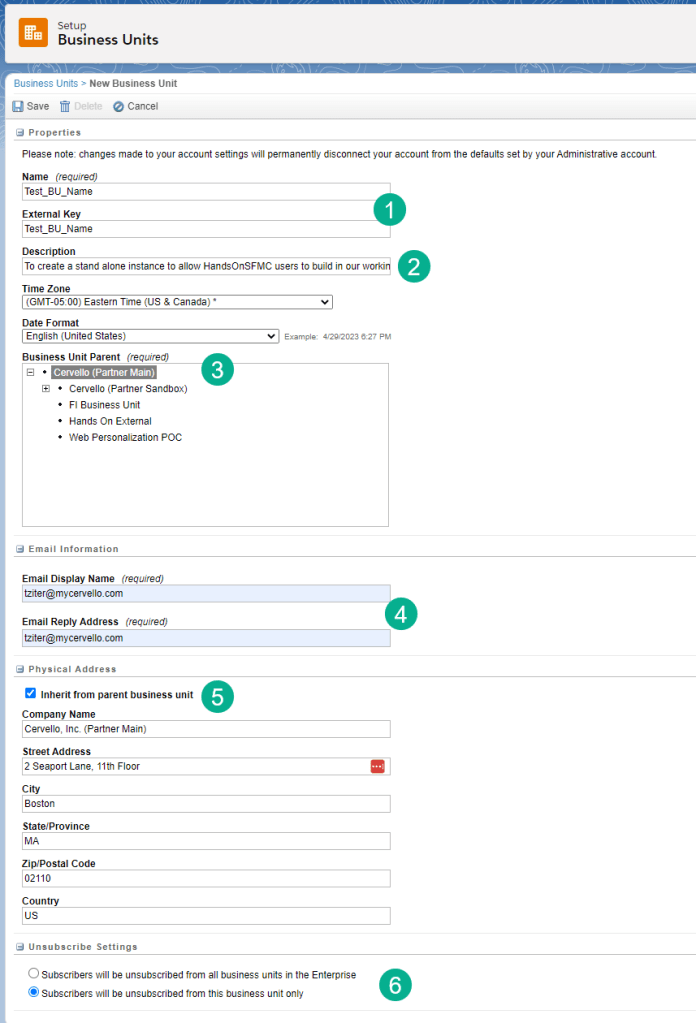
(1) Create a name and you can use it as the External Key or Marketing Cloud will assign one for you.
(2) Don’t forget that description as it will be helpful at a glance to understand what it is being used for.
(3) Business Unit Parent – pay special attention to which business unit selected as the parent as it can impact sharing rights/access.
(4) Assign a user, typically the admin or API user
(5) Update the address if a different address is needed other wise select the parent address
(6) Be mindful of this radio button as it will impact how subscriber status is maintained across the org.
 handsonsfmc.com
Leave a comment